grandMA3
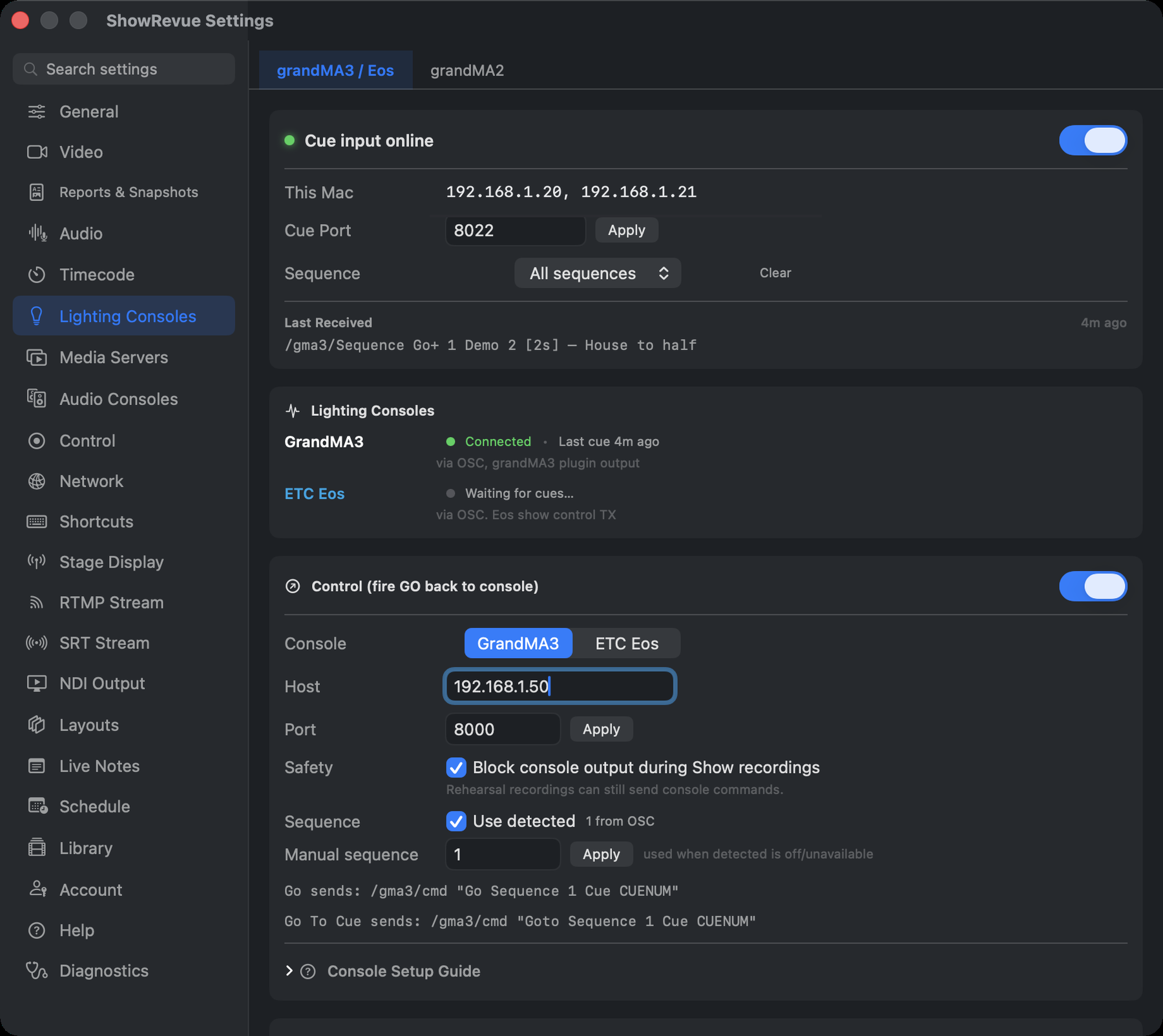
Preferences → Lighting Consoles → grandMA3 / Eos: cue input (top) and fire-back control (bottom).
Launch New Show has a grandMA3 setup page: pick the console, enter the IP and ports, then test both directions on the same page. Fire a cue on the desk and Cue received from the desk ticks with the cue it got. Type a cue number, click Send GO, and click Confirm if the desk took it. Fire-back targets the sequence the show was captured on. The steps below are the same settings by hand, and are worth reading to see what the wizard wrote.
What you need
- a Mac running ShowRevue on the same network as the MA3 console or MA3onPC,
- the IP address of the Mac from Preferences → Lighting Consoles,
- the IP address of the MA3 console from the MA3 network view.
Set up two OSC lines on the desk
grandMA3 keeps one Port, one Prefix and one Destination IP per OSC line, and that one port is used for both sending and receiving. ShowRevue needs a different Prefix on each direction (none on the way in), so use two lines, one for each way:
| Line 1: To ShowRevue | Line 2: From ShowRevue | |
|---|---|---|
| What it does | MA3 sends cues, and desk macros, to ShowRevue | ShowRevue fires cues on MA3 |
| Name | To ShowRevue | From ShowRevue |
| Destination IP | the Mac running ShowRevue | the Mac running ShowRevue (not used for receiving) |
| Mode | UDP | UDP |
| Port | ShowRevue's Cue Port (8000 out of the box) | the Port under Preferences → Lighting Consoles → Control (8000 out of the box) |
| Prefix | empty | empty (gma3 also works) |
| Send | Yes | No |
| Send Command | Yes | No |
| Receive | No | No |
| Receive Command | No | Yes |
Then turn on the two switches at the top of Menu → In & Out → OSC:
- Enable Output on, so line 1 can send.
- Enable Input on, so line 2 can receive.
That is all the console needs. The names are yours to change. The macros and plugins on this page send on line 1, so keep To ShowRevue as line 1.
MA3onPC on the same Mac as ShowRevue. Two programs can't listen on one port. Give line 2 a different port, such as
8010, and set the Port under Control in ShowRevue to the same number.
Written against grandMA3 2.5. Menu names and the fields above match the 2.5 manual's OSC page.
MA3 sends cues to ShowRevue
This is line 1, To ShowRevue, from the table above.
Test it:
- Fire a cue on MA3.
- Confirm the OSC IN chip in ShowRevue flashes.
- Confirm the cue appears in the Cues panel.
If nothing appears, check subnet matching, that Enable Output is on, and that Send is Yes on line 1. Confirm macOS allows incoming UDP traffic on the cue input port.
The cue input port is 8000 out of the box, but ShowRevue remembers whatever was last saved, so
always go with the number on the Cue Port row. Cue input needs Base or above.
Keep the Prefix empty on line 1. MA3 puts a line's Prefix in front of everything it sends, so
/showrevue/recordwould arrive as/gma3/showrevue/recordand do nothing.
Which sequences get recorded
ShowRevue records cues from every sequence the desk sends. Three settings filter or rank sequences:
- Project Settings → Consoles. The receiving list shows every sequence that has sent a cue. Tick the one that runs the show. It drives act timing, the Director view and stepping through cues in playback. The others are still recorded and show as extra lanes in playback.
- Preferences → Lighting Consoles → Sequence. This one is a real input filter. It's set to All sequences by default; pick a single sequence and cues from any other sequence are dropped before they're recorded. Leave it on All sequences unless you mean it.
- Project Settings → Consoles → Ignore these sequences / cue lists. Type sequence numbers and
ranges, like
1, 5-61, 7, 8, to leave those sequences out of the recording while the rest are recorded as normal. It's saved in the show file. See Project Settings.
ShowRevue sends cues back to MA3
Cue fire-back needs Professional or above.
This is line 2, From ShowRevue, from the table above.
In ShowRevue:
- Open Preferences → Lighting Consoles.
- Turn on Control (fire GO back to console).
- Set Console to grandMA3.
- Set Host to the MA3 console IP.
- Set Port to the port on line 2 of the desk. ShowRevue's default is
8000; it just has to match. - Leave Sequence → Use detected on unless you need to name a sequence number by hand.
Nothing is sent until you arm the outputs in playback (the OUTPUTS OFF badge becomes ARMED). During a Show recording, Block console output during Show recordings (on by default) stops every cue command reaching the desk. See Show Safety.
Test it:
- In ShowRevue playback, click a cue row’s Go button.
- Confirm the cue fires on the console.
ShowRevue sends the command to the desk twice, once at /cmd and once at /gma3/cmd:
/cmd,s,Go Sequence N Cue M.MM
/gma3/cmd,s,Go Sequence N Cue M.MM
A line only acts on the address that matches its Prefix, so the desk runs it once. With the Prefix
empty, as in the table above, it is the first one. If you give line 2 the Prefix gma3, it is the second.
If the cue doesn't fire, check that Receive Command is Yes on line 2, that Enable Input is on, and that the Port matches ShowRevue's. Setting Echo Input to Yes on the line shows what arrives in Add Window → More → System Monitor.
ArtNet Timecode (MA3 v2.4+)
grandMA3 version 2.4 and later can broadcast timecode over the Art-Net protocol. This is the easiest way to get timecode into ShowRevue without an audio connection.
On the MA3 console:
- Go to Setup → Network → Timecode.
- Set Output Protocol to Art-Net Timecode.
- Confirm the console and Mac are on the same subnet.
In ShowRevue:
- Open Preferences → Timecode.
- Enable ArtNet Timecode.
- The status changes to Receiving and shows the MA3's IP.
ArtNet uses UDP broadcast (port 6454). No port forwarding or multicast join is required. Just subnet reachability.
Notes from a desk button (plugin)
Drop a note straight into the recording from a grandMA3 button. It pops a text box and sends your note to ShowRevue over OSC, dropped into the take at that moment (no timecode required), tagged to the Lighting department for the whole team to see live.
Download: ShowRevue Note plugin (.xml)
Setup:
- First make sure line 1, To ShowRevue, is set up (see Set up two OSC lines on the desk above). The plugin uses OSC output config
1by default. - In MA3, go to Setup → Plugins, choose Import, and select the downloaded
ShowRevue-Note.xml. - (Optional) Edit the plugin's
OSC_CONFIG(default1) orDEPARTMENT(defaultlighting) to match your setup. - Assign the plugin to a macro or an executor button so you can fire it during the show.
Use it:
- Hit the button → type your note → it drops into the recording at that moment, tagged Lighting, and shared with the whole team instantly. No reaching for the iPad.
Record, stop and notes from desk buttons (macro pack)
Desk buttons use OSC remote control, which needs Professional or above.
The macro pack gives the LX op four buttons, each with a ShowRevue appearance:
| Macro | Sends | Does |
|---|---|---|
| SR Record | /showrevue/record | Starts recording |
| SR Stop | /showrevue/stop | Stops recording |
| SR Note | runs the ShowRevue Note plugin above | Types a note into the take, tagged Lighting |
| SR Flag | /showrevue/flag | Drops a "look here later" flag |
Download: ShowRevue grandMA3 macro pack (.zip)
Setup:
- Unzip it and copy the
gma3_libraryfolder to the root of a USB stick. - Use line 1, To ShowRevue (see Set up two OSC lines on the desk above). The macros send on
line
1; edit them if yours is another line. - Import the four symbols (Images pool, Symbols tab), the ShowRevue Note plugin, the four SR appearances and the four SR macros from the stick.
- Assign each appearance to its macro, for example
Assign Appearance "SR Record" At Macro "SR Record". - Press SR Record on a throwaway project and check REC comes up. If nothing happens, look
at Preferences → Lighting Consoles → Last Received. An address starting with a prefix such as
/gma3/means that OSC line has a Prefix set; clear it, or use a line without one.
Good to know:
- During a Show recording, ShowRevue still accepts a stop from the desk. Stops from the Live Notes page and the companion app are refused. See Show Safety.
- SR Stop with nothing recording also stops playback, and switches ShowRevue to playback mode.
- Notes and flags only land while a recording is running.
The pack's README lists every step, and what hasn't been tested on every software version yet.
Optional current-cue sync plugin
Standard MA3 OSC output only reports some cue changes. If operators use Goto, macros, or executors, state changes may not always appear in the normal output stream.
The optional plugin polls the selected sequence every 0.25 seconds and sends ShowRevue the current cue even when the cue change did not come from a normal go action.
Setup:
- Download the current-cue plugin (.lua).
- In MA3, open Setup → Plugins or the Lua console, and import it.
- Check
local OSC_LINE = 1in the script and match it to your configured OSC output line. - Run the plugin once to start it.
- Run it again to stop it.
Test
GetCurrentCue():Dump()on your target MA3 software build before depending on this during show conditions.
Known issue: cues faded with the X-fader
ShowRevue records a cue when MA3 sends a Go+ or Go- message for it. When an operator moves a sequence's X-fader by hand, MA3 sends the fader position but no cue-change message, so ShowRevue has nothing to record. The cues before and after the fade are logged only if something else fires them, such as a cue button.
This comes from the desk's output, not from ShowRevue. If you fade cues by hand, have MA3 send a cue change when the fade completes. The current-cue plugin above reports the current cue whatever caused the change, so try it on your software build first.