Director View
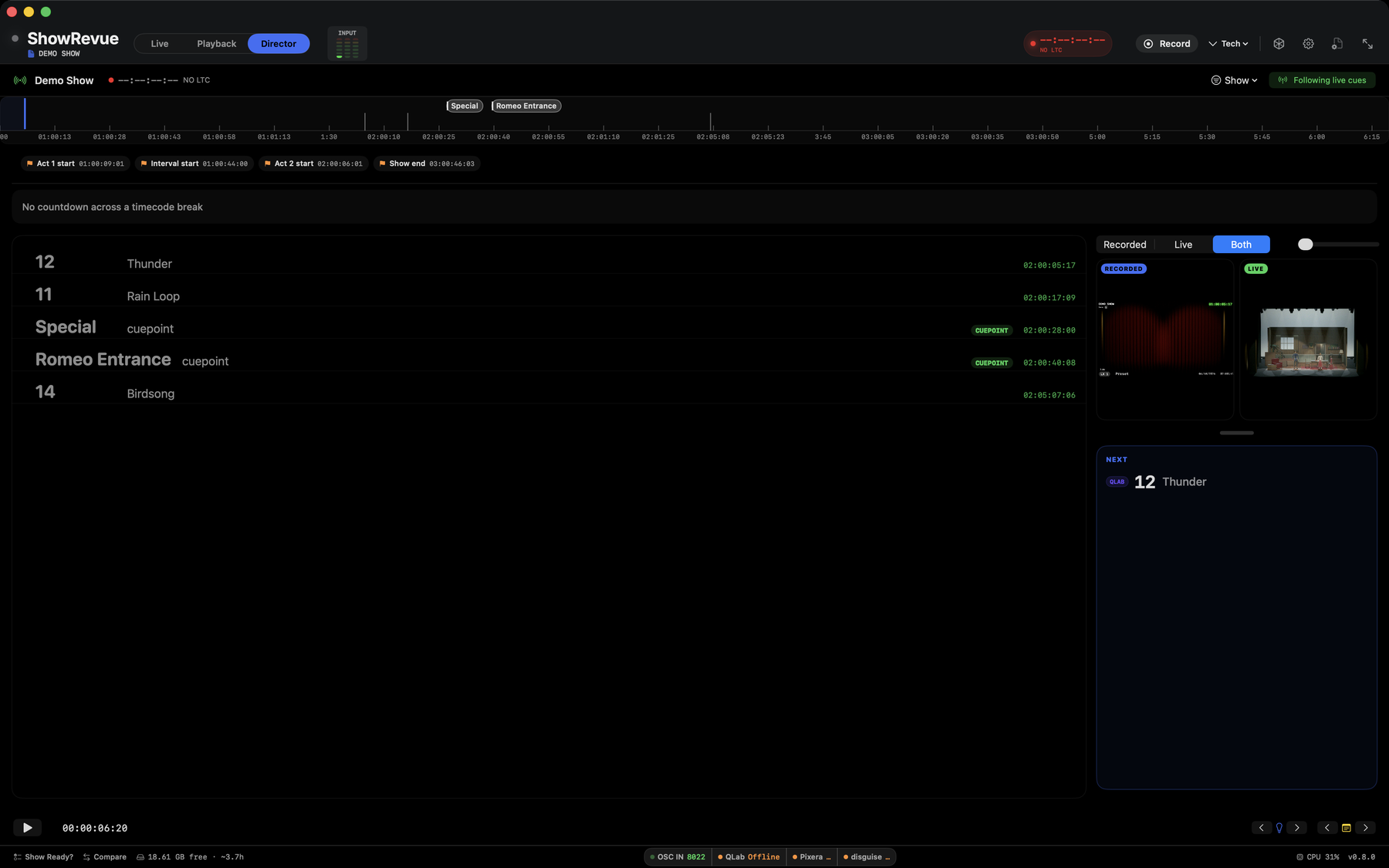
Director in Both mode: recorded playback beside the live camera, the scrubbable timeline, and the NOW / NEXT panel with a standby → GO countdown to the next cue.
Director is the third tab in the mode switch, after Live and Playback. It's a calling desk, for anyone who needs to know what's coming before it comes: a TV director cutting cameras on a live relay, or a DSM learning the show from a recording. The cue list runs full height as the main surface. The live beat highlighted and kept in view as the show moves, everything coming up directly beneath it, with the feed and the NEXT card in a side column at the size they're actually useful. Rows seek on tap, cuepoints are badged, and the timecode on every row is legible from across the room. Point it at last night's recording during today's run and it stays aligned to the real show as live cues and timecode arrive.
Open a recording in Playback first, then switch to Director. With no recording loaded, Director becomes a full-page stage-manager calling display that can run a show straight off its cloud data. See Cloud Director below.
The cue list and NEXT
The list is the desk: the current beat carries a solid tint bar and follows the show, and the NEXT card in the side column shows what's coming with a countdown to it.
Cuepoints, the callable show beats you place from the Cuepoints lane on the player's Cues tab (see Cuepoints), appear in NOW / NEXT alongside LX cues and drive the standby → GO countdown just like a console cue.
Notes show their department chip, using the recording's own department names and colours. The palette is frozen into the recording when it's made, so an old take keeps the departments it was shot with even if the project's palette has changed since.
Use the A … A slider in the header to scale the list's text for across-the-room legibility, and drag the splitter handle under the feed to trade feed height against the side column.
Standby → GO countdown
A prominent countdown band sits above the cue list. As the next cue approaches it reads STANDBY and ramps green → amber → red, then flashes green GO as the cue lands. The countdown glides off the live player clock, so it stays smooth frame to frame.
Cuepoints drive the countdown alongside LX cues, so a manually called beat (a fly cue, a "cast GO", a standby) counts down the same way a console cue does.
The "Show" filter menu
A Show menu in the Director header toggles what the panel, timeline and countdown surface:
- LX cues
- Notes
- Media cues
- Cuepoints
Turn off what this desk doesn't need. An associate following only lighting can hide notes and media and watch LX cues and cuepoints alone.
Cuepoints
Cuepoints are the show beats the caller runs off the app when there's no console data for them. They appear in NOW / NEXT, get their own green CUES layer on the playback timeline, and behave like cues in Director, feeding NOW / NEXT and the standby → GO countdown. Timecoded cuepoints are show-level: one set carried across every recording of the show, keyed to timecode. See Timecode → Named timecode sections for how they anchor to the LTC.
Feed: Recorded, Live, or Both
The header picker switches what the big feed shows:
- Recorded. The playback video.
- Live. The live camera, full frame.
- Both. The recording with the live camera as picture-in-picture, for comparing tonight's stage against the recorded run.
If the live camera isn't running, Director offers a Start live camera button.
Timeline
A scrubbable timeline runs under the feed: cue ticks and department-coloured note dots along a track, with a smooth playhead. Click or drag anywhere to seek. The NOW / NEXT cards follow.
Under the timeline an events strip marks the act tops, interval in and out, and show end. Click one to jump there.
Cues that sit inside a recorded timecode section show their show timecode in green in the calling list, matching the ruler. Cues outside one show their position in the file instead.
Spoken caller
The spoken caller needs a Max licence.
Director can read the cuepoints out loud: "Standby for name" a few seconds before (ten by default, or per cuepoint), then "name, go" on the point. Turn it on per show in Project Settings under Cuepoint Caller (Speak cuepoints as they approach, with the Standby lead and an optional Also call at 30). Each cuepoint can carry its own lead time and a Say as spelling for names the voice gets wrong.
The header has Call now, which speaks the next cuepoint's go straight away, and a mute for the caller (Call now still speaks while muted). The caller is its own source in the audio Output mixer, so send it to a comms or in-ear output, not the house feed. It works in Live (timecoded cuepoints, LTC locked) and in Playback (file position).
Following the live show
The Following live cues toggle keeps the recording aligned to the real show:
- An incoming LX cue from the console jumps the playhead to that cue's moment in the recording.
- Incoming live timecode drift-corrects the playhead to the matching moment.
Turn it off for plain, hands-on playback.
Cloud Director
Director can run a show with no file and no video, straight off the show's online data. Open Director with nothing loaded and it offers Run a show from the cloud. You need to be signed in (Preferences → Account). Pick one of your cloud shows, then choose either:
- a recording, which defaults to the owner-nominated Prompt Copy for that show, or
- Timecode only (no recording).
The live LTC then maps onto the show's cue sheet and its timecoded cuepoints, driving NOW / NEXT and the standby → GO countdown with no video at all.
On the Mac, the empty Director is a full-page stage-manager calling display:
- a big cue number + name and a smooth timecode read-out;
- an autocue timeline ribbon. A fixed NOW cursor with named cuepoint pills scrolling past a time-scale ruler (tick marks + timecode labels);
- the standby → GO countdown; and
- NOW / NEXT.
If timecode drops for more than 5 seconds the display greys out and previews the next cuepoint until timecode returns.
The app-wide next-cue bar
While a show is running, a slim bar sits at the top of the Mac app showing the next timecoded cuepoint and its countdown, on whichever tab you're on, so you can leave Director and still see what's coming.
Companion
On the iOS companion app, Director is iPad-only. It has been removed from iPhone.
Keyboard shortcuts
| Key | Action |
|---|---|
| Space | Play or pause |
| ⇧Space | Play from where you last pressed play |
| ← / → | Previous / next LX cue |
| ↑ / ↓ | Previous / next note |
The header also shows the show name, the timecode readout with its frame rate, and which timecode source is driving it.