Playback and Cues
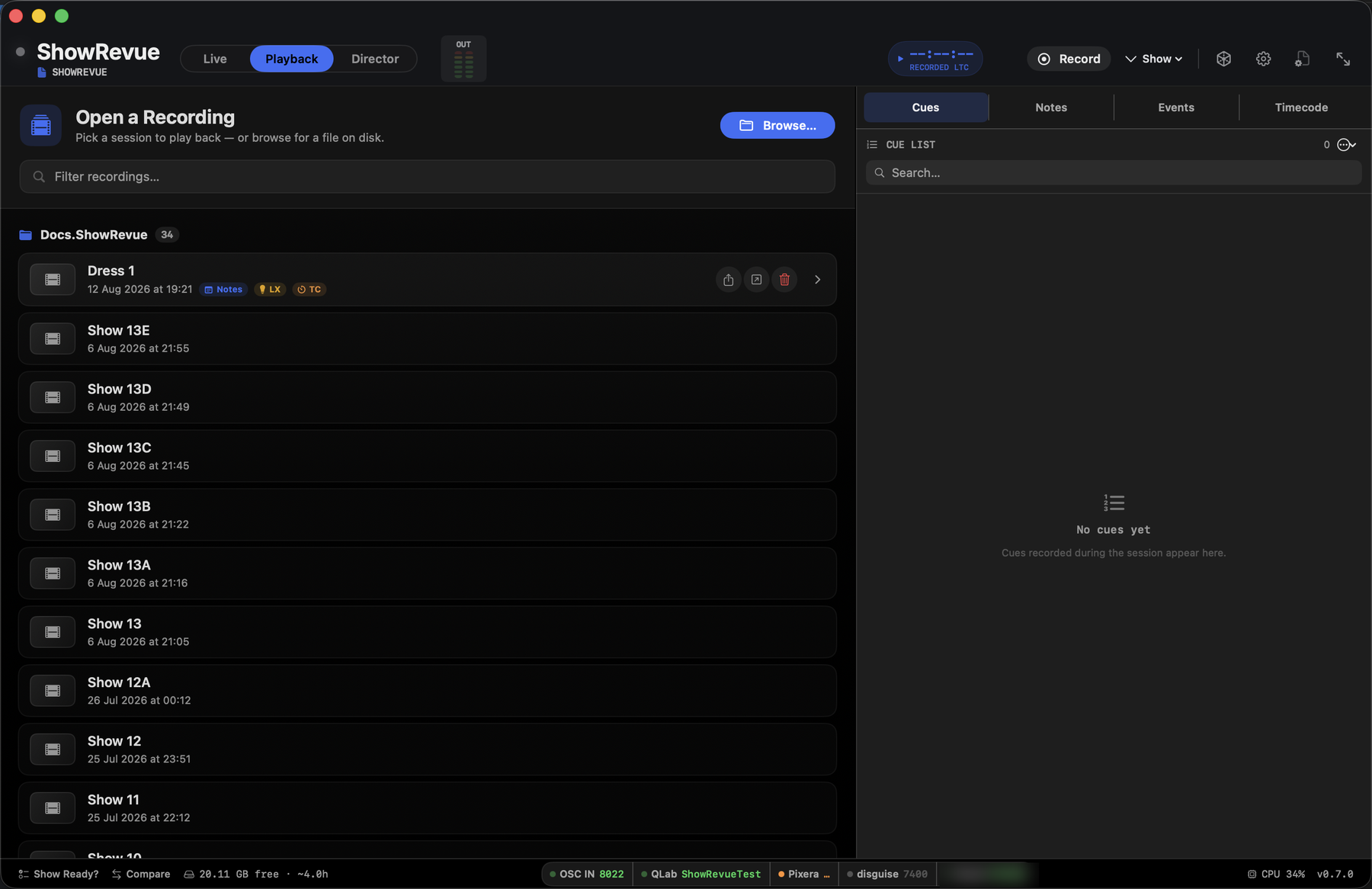
The Playback tab: pick a recorded session, then scrub the timeline and jump between cues.
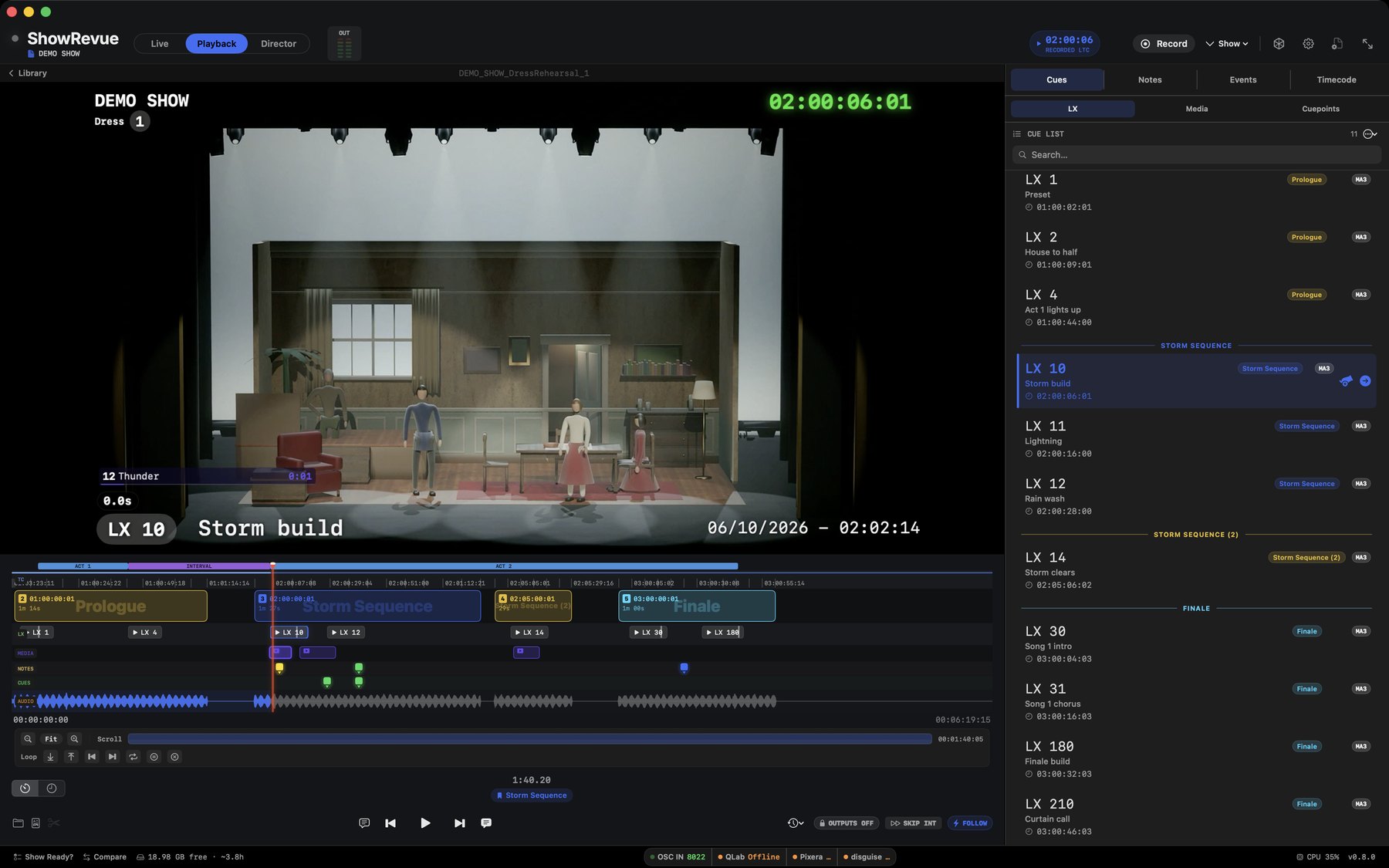
Playback: cue flags on the timeline and the cue list (LX 2 → LX 5), each tagged with its source console.
Scrubbing the timeline: the playhead moves through the recording past each cue marker.
Playback
- Click Playback in the mode switch at the top of the window (Live | Playback | Director), or choose File → Open Recording… (⇧⌘O).
- Pick a take from the Open a Recording picker. It loads with everything that happened during it: picture, timecode, cues and notes.
- To load a file from elsewhere, drag it onto the player or use Browse.
Scrub the timeline and everything moves together. Hover over the timeline for a still of the stage with the cue that fired there.
There is no field for typing a cue number. To get to a cue, click it in the cue list and the playhead lands on the frame it went, or step through cues from the keyboard (below).
The library's Timecode tab
Under the search field the picker has two modes. Recordings lists every take, newest first. Timecode turns the library inside out: sections first, and under each one every take that carries timecode inside it.
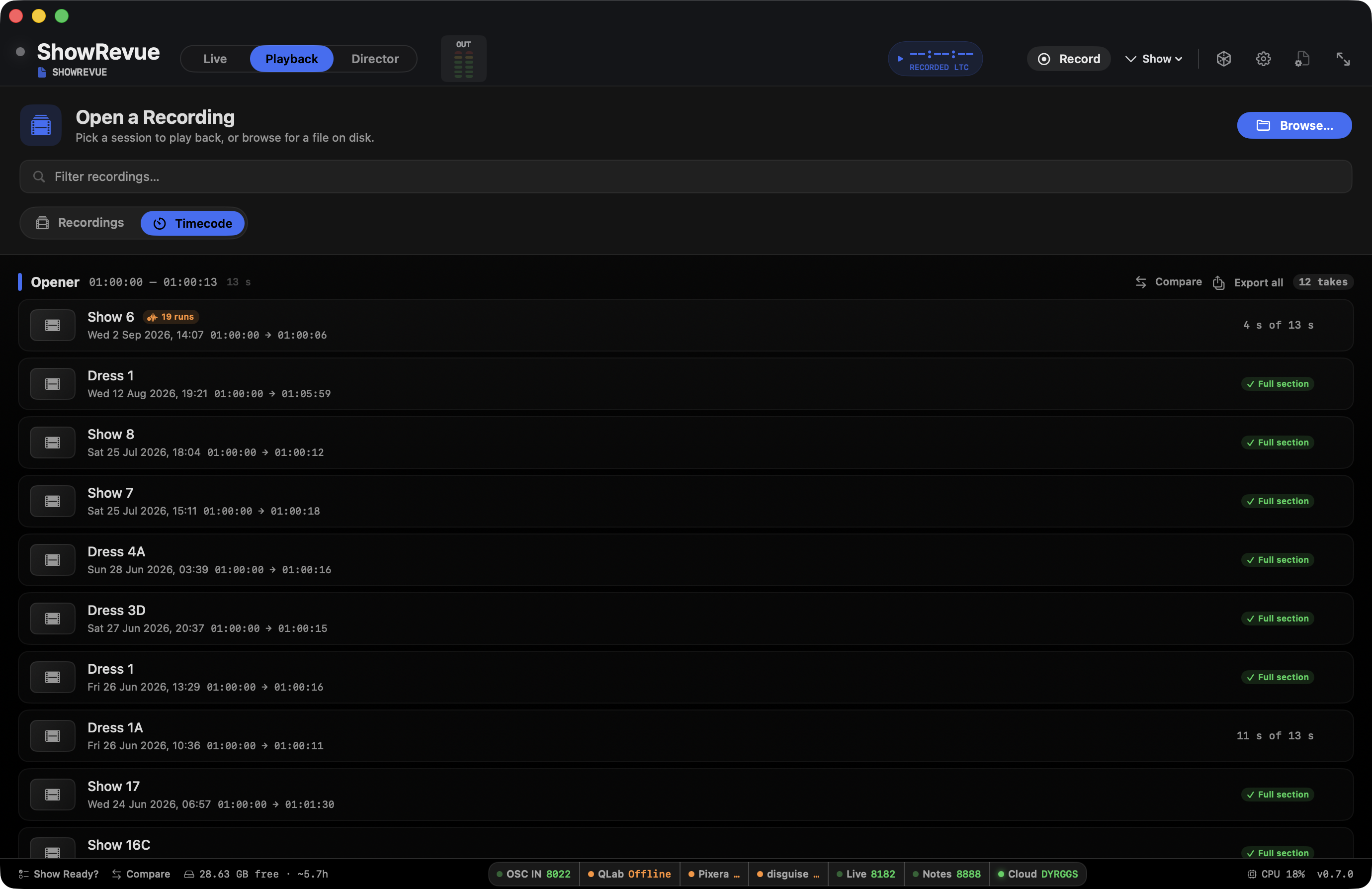
- Named sections come from the Timecode panel and show their LTC range. Runs of timecode with no name group by start timecode, within a minute of each other; double-click the header (or press Name…) to name one.
- Each take row shows the session, date, timecode in and out, and how much of the section it holds: Full section, or "4 s of 13 s". An orange N runs pill means the timecode dropped out and came back inside the section, so it arrived in N separate pieces.
- Click a take to open it at the section's start. The arrow on the row exports that take's section as a clip, programme left and LTC right, with five seconds either side.
- Export all on the header writes one clip per take into a folder you pick. Compare opens the Compare sheet on the two newest takes.
- The search field filters this view too, by section name, take label or show name. A footer counts recordings with no timecode so they are not mistaken for missing.
Pre-roll
Pre-roll gives you the run-up to a cue instead of dropping you on top of it. Set it in Preferences → General → Playback to Off, 2, 5 or 10 seconds.
- Jumping to a cue or a note while playing starts that many seconds before it.
- ⇧Space starts that many seconds before the point you last pressed play from. The timeline marker stays where it was, so it doesn't creep back on each press.
- Jumping while paused lands on the cue itself.
- During the pre-roll, previous and next cue measure from the cue you jumped to, so they step on to the following one.
Keyboard shortcuts
| Key | Action |
|---|---|
| Space | Play or pause |
| ⇧Space | Play from where you last pressed play (the marker on the timeline), less any pre-roll |
| ← / → | Jump back or forward 5 seconds |
| J / K / L | Shuttle back, stop, shuttle forward. Press J or L again for 2×, 4×, 8× |
| < / > (⇧, / ⇧.) | Previous or next cue (also Playback → Previous Cue / Next Cue) |
| , / . | Step back or forward one frame |
| ; / ' | Previous or next media cue |
| [ / ] | Previous or next note |
| ⌥[ / ⌥] | Previous or next cuepoint |
| I / O | Set loop in or out point |
| X | Stop looping |
| M | Drop a named marker at the current position |
| 1–0 | Drop a marker already tagged with that department |
| C | Drop a cuepoint at the current position |
Transport keys are focus-scoped: they drive playback only while the video surface has focus. Click into a note or any text field and those keys go back to typing. A space is a space, and the arrows move the caret, not the playhead.
⇧Space is the exception: it works from anywhere on the Playback screen, so you can click into the cue list or the timeline and still jump back to where you pressed play. It only gives way while you're typing in a text field. If you haven't pressed play since opening the recording there's no start point yet, so it does nothing.
Markers
Press M during playback to drop a marker at the current position. You're prompted for a name (leave it blank for an auto "Marker 1", "Marker 2", …). Markers appear in the Events tab. Cuepoints do not; they are cues, and they live on the Cues tab. Tap one to jump to it, or right-click to rename or delete. Markers are saved with the recording, so they're there next time you open it.
Cuepoints
A cuepoint is your own callable show beat. A moment the show-caller runs off the app when there's no console data for it: a manual fly cue, a "cast GO", a standby. Cuepoints are separate from the recorded LX and OSC cues in the Cue list. Those come from the console; cuepoints are ones you place yourself.
They sit in their own Cuepoints lane on the Cues tab, beside LX, Audio, Media and Fly. The lane only appears once the show has at least one cuepoint.
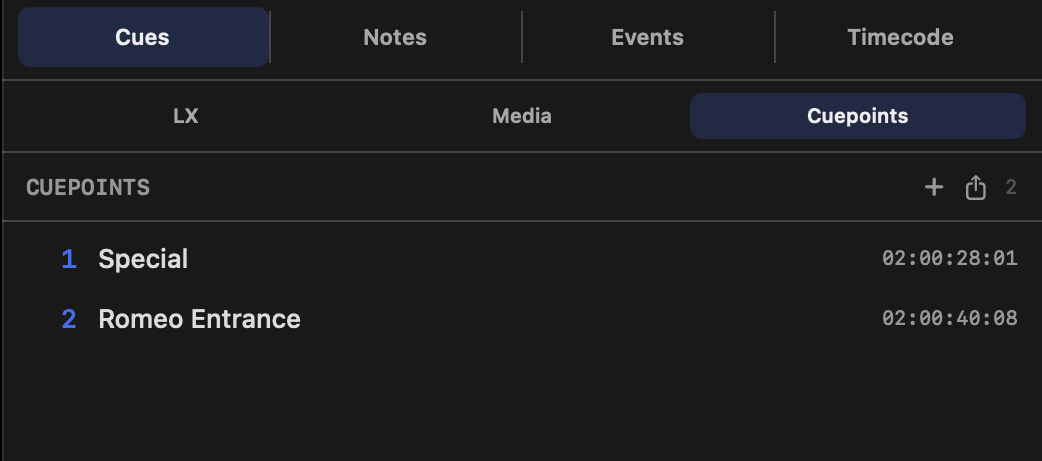
- Add one with the + button at the top of the Cuepoints lane, or press C. In playback you're prompted for a name and an optional fade; leave the name blank and it takes an auto "Cuepoint 1", "Cuepoint 2", …
- C works while recording too. In Live it drops the cuepoint straight away with no dialog, because stopping to type during a run is the one thing you cannot do. Name it later in playback.
- Cuepoints are numbered in the lane, in time order, and that is the order they export in.
- ⌥[ and ⌥] step to the previous and next cuepoint. Plain [ and ] walk every note, which is slow going on a rehearsal with fifty of them.
- Double-click a row to rename it in place, or right-click for Edit… and Delete.
- Cuepoints carry no department. A note is addressed to someone; a cuepoint is a position in the show where a cue should go, so there is nobody to address it to.
- Cuepoints auto-save to the recording's sidecar.
Fade
A cuepoint can carry a fade time in seconds, set when you add or edit it. It is the one field the recording cannot supply for you: a fade exists once the cue is programmed, and a cuepoint is dropped before that. Left blank, it exports as whatever default you choose at export time, so you can still drop marks fast and decide the fades later.
Anchor modes
A cuepoint anchors in one of two ways, depending on where it sits:
- Plain cuepoint. Placed outside any named timecode section, it pins to the recording's
run-time. It lives with that one recording.
Its timecode column reads
--:--:--:--, because it hasn't got one: it is a position in this file, not a position in the show. - Timecoded cuepoint. Placed inside a named timecode section, it chases the live LTC and becomes show-level: one set of beats across every recording of that show. Timecoded cuepoints also drive Director. They behave like cues there, feeding NOW / NEXT and the standby → GO countdown.
Creating a cuepoint in the player publishes it to the cloud straight away, no recording needs to be selected, because show-level cuepoints belong to the show, not to any single file.
Not in this recording
Because show-level cuepoints belong to the show rather than to one file, a take that only covers part of the show will not have a position for all of them. Those are listed separately under NOT IN THIS RECORDING, dimmed, and they don't seek. They are not lost; open a take that does cover that timecode and they sit in the list normally.
Export a cue list for the desk
The export button at the top of the Cuepoints lane opens a sheet. Pick a format, set the numbering, press Export… and choose where the file goes.
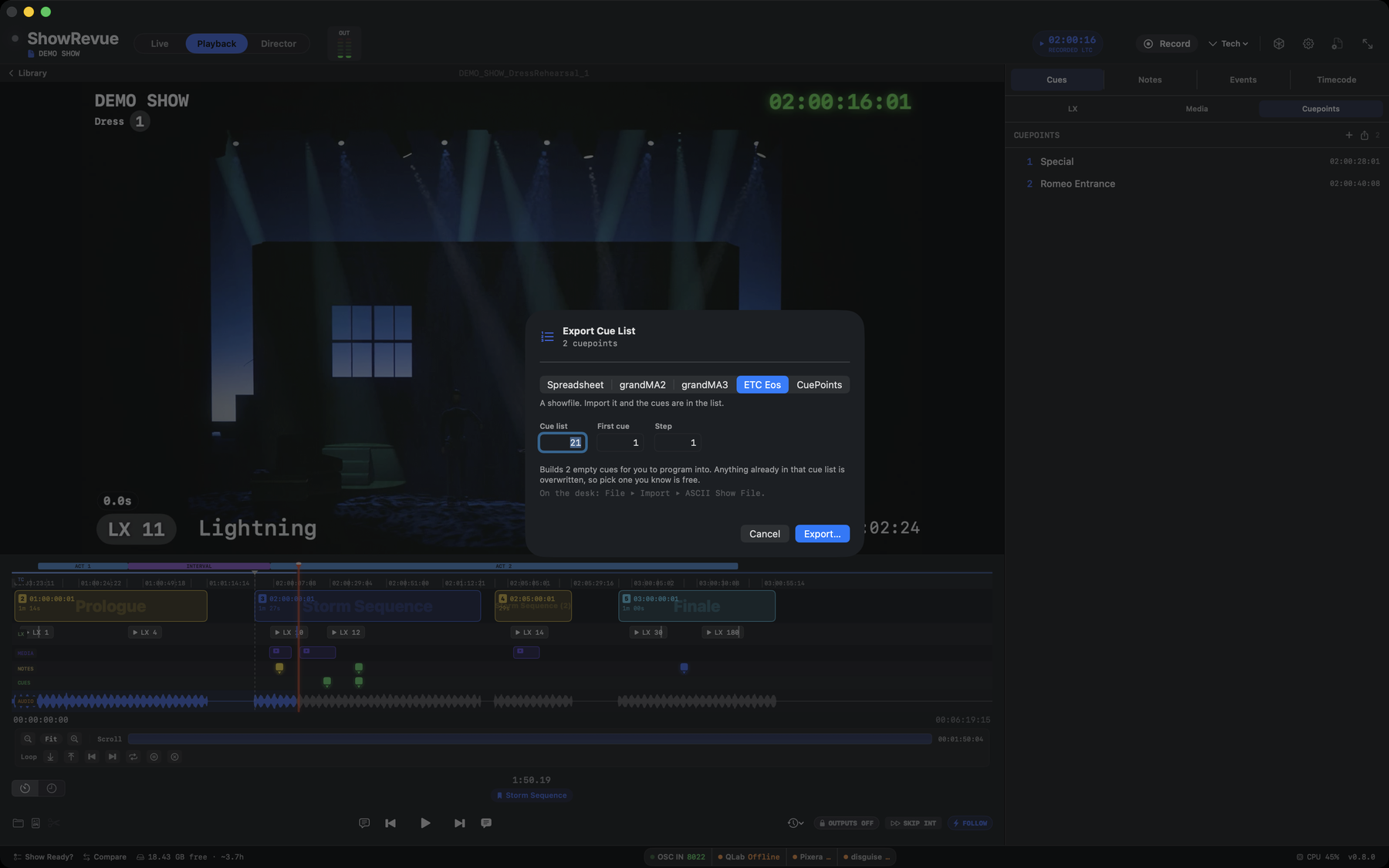
The Export Cue List sheet: format tabs across the top, then the cue list, first cue and step for the ETC Eos showfile.
| Format | What it writes |
|---|---|
| Spreadsheet | One CSV to read and mark up: cue, label, fade, timecode. Nothing goes to a desk. |
| grandMA2 | A macro XML. Import it on the desk and run it; it stores one empty, labelled cue per cuepoint into the sequence you name. |
| grandMA3 | The same, as an MA3 macro. |
| ETC Eos | An ASCII showfile. File ▸ Import ▸ ASCII Show File on the desk puts the cues in the list you name. |
| CuePoints | One timecoded CSV per recorded timecode section, for the CuePoints app. |
The fields change with the format:
| Field | Shown for | What it does |
|---|---|---|
| Sequence / Cue list | grandMA, Eos | Where the cues go on the desk. Anything already in it is overwritten, so pick one you know is free. |
| First cue | all | The number given to the earliest cuepoint |
| Step | all | How much each following cue number increases by |
| Fade | Spreadsheet, CuePoints | Used for any cuepoint that has no fade of its own |
The desk exports carry no timecode, on purpose. They put a numbered, named, empty cue list on the desk for the programmer to record into; timing it is a separate job. The recorded cues match up by cue number afterwards as they always did.
The spreadsheet's Timecode column is the real LTC timecode, so the cue lands where the show is, not where the video file happens to start. A cuepoint whose timecode was not recorded in this take exports with that column blank.
CuePoints imports a spreadsheet onto one track, and a track runs one stretch of timecode, so a show recorded as three timecode runs gets three files. The name you choose is the stem; each file adds its section's start timecode. Columns are Timecode, Cue Name, Cue ID and Fade, which is what CuePoints asks you to match under File ▸ Import CuePoints From File ▸ To Current Track Comma Separated…. Set the track's timecode offset to the section's start first. Cue IDs are numbered across the whole show, so no two tracks share a number, and a cuepoint whose timecode was not recorded in the take is left out.
Cue list
The right-hand panel has four tabs: Cues, Notes, Events and Timecode. Cues lists every cue recorded. Click a row to jump frame-accurately to that moment.
- The Cues tab splits into lanes, LX, Audio, Media, Fly and Cuepoints. A lane only shows when the take has that kind of cue.
- Notes has every note with who wrote it, and its still if snapshots are on. Events shows act tops, the interval, show end and any markers.
- Each row has a fire button (the cannon) that sends that cue back to the desk or media server. Nothing goes out until you arm the outputs: the badge at the top reads OUTPUTS OFF by default, and you click it to make it read ARMED. It goes back to off every time ShowRevue opens. Firing to a lighting console needs a Professional licence.
- Export CSV from the export icon at the top of the panel.
Media cue export
The Media lane exports a cue list with the file behind each cue, not just its number:
Cue,Label,Source,Timecode,Start,Duration,End
12,Act 1 playoff,playoff_v3.wav,01:12:04:08,0:00:00.0,0:01:34.2,0:01:34.2
Start, Duration and End are positions within the media file; Timecode is where the cue fired in the show. That's the difference between "this file is 94 seconds long" and "this 94 seconds happens here", and a cue sheet needs both.
If your desk runs parallel sequences (followspots, house lights, effects), the highlight and auto-scroll follow your main sequence rather than whichever list fired last. ShowRevue records every list the desk sends and treats the busiest one as main, or you can tick one in Project Settings → Consoles. Choosing one doesn't filter what's recorded; the others still show as extra lanes. "LX cue went backwards" warnings also compare within a single sequence, so a followspot list restarting at cue 1 no longer raises them.
Cue tracking
ShowRevue listens for OSC messages from your console on the OSC In port, which defaults to 8000.
When a cue fires on the console, ShowRevue:
- records the cue number and any label supplied by the source system alongside the video frame,
- logs the cue in the Cues panel with a timestamp,
- updates the live overlay.
The OSC In chip in the toolbar shows a green dot when the listener is active. If it is red, check Preferences → Lighting Consoles and confirm the port is not blocked by the macOS firewall.
Loop mode
Loop mode is useful for rehearsing a repeated section of video.
- During playback, navigate to your start point.
- Press I or click Set In Point.
- Navigate to your end point.
- Press O or click Set Out Point.
- Click the Loop button under the timeline to turn looping on.
ShowRevue plays between the in and out points until you turn looping off or press X.
Follow mode
Follow mode sends recorded cues back to connected lighting and media systems during playback.
- Load the recording you want to rehearse from.
- Confirm your console and media server connections are live.
- Click OUTPUTS OFF so it reads ARMED.
- Click FOLLOW in playback and confirm the Follow Show Mode alert.
- Start playback.
Follow needs a Professional licence, as does firing cues to a lighting console, QLab or a media server.
With Follow mode enabled, ShowRevue fires cues back to supported devices as the recording reaches each cue point. Treat it as a live show-control output and only enable it when the stage systems are ready.
It matches the show's state when you enable it
Turning Follow mode on sends immediately. It does not wait for playback to reach the next cue. Otherwise the rig would sit wherever it happened to be while the recording played something else entirely, which could last minutes.
The same happens after you seek. Jump to another point in the recording and the rig follows you there.
What it sends is the most recent cue at or before the playhead, once per lane: one per Eos cue list or MA sequence, and one per media source. It never replays the cues in between, so starting an hour into a show sends a handful of commands rather than hundreds. Lighting fireback is a GOTO, so the console jumps straight to that cue.
A followspot list is restored alongside the main list rather than being shadowed by it, and QLab and Millumin don't displace each other.
Because enabling Follow mode fires straight away, press it only when the stage is ready, not while parking the playhead to set up. Outputs still have to be armed first, and every safety gate applies. If something blocks the send, ShowRevue says which gate stopped it rather than reporting success.
disguise is the exception. Its sections are named rather than addressable over OSC, so there is no way to jump to one. ShowRevue says so instead of sending a transport command that would start from the wrong place.
The live cue list (Live mode)
You don't have to be in playback to see the cue list. While recording, a cue list slides in from the right of the Live view. Tap the CUES tab on the right edge to open it.
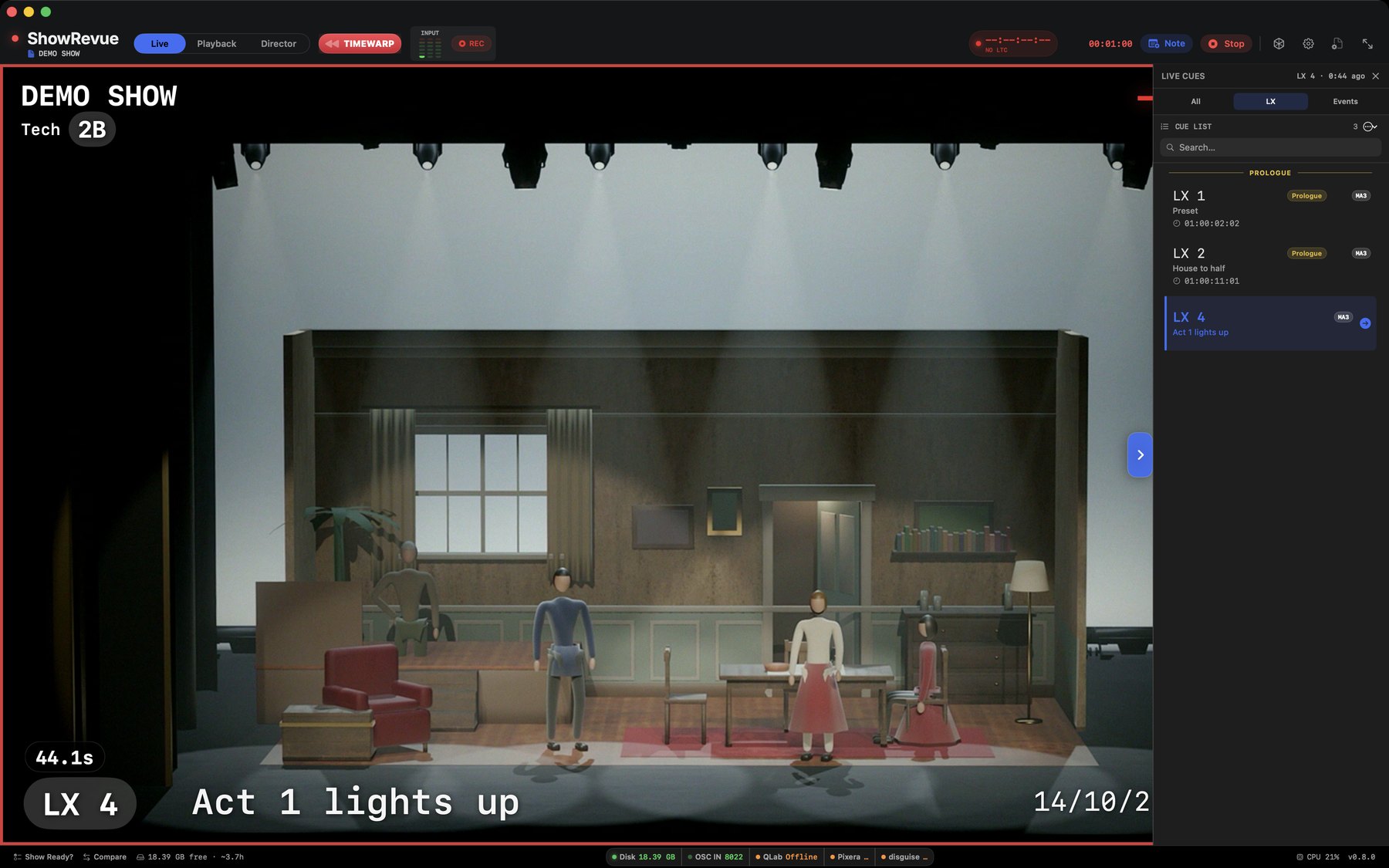
The Live view while recording: the live cue list on the right, on its LX lane, with the latest cue highlighted.
- It splits into the same lanes as playback, LX / Audio / Media / Fly, plus a Notes tab, and follows cues and notes as they land.
- It only ever shows the current live session's cues, never a loaded recording's.
- Tap a cue or note and ShowRevue launches Time Warp, its live DVR scrub, and jumps to that moment in the take, so you can check what just happened without stopping the recording.
Time Warp arms about 15 seconds into a take and needs the Professional tier. Tap the TIMEWARP button in the toolbar again to return to live.
Enable online training
Playback → Enable Online Training… prepares a recording for the online show-calling trainer at
showrevue.com/trainer. It needs a signed-in Professional (or higher) account. ShowRevue mints a
signed entitlement token, embeds it in the recording, and writes the show's acts so the trainer can
offer act picks. It works on old recordings too. A recording without the token is blocked at the
trainer. See Show-Calling Trainer.
Recover timecode from audio
Playback → Recover Timecode from Audio… is for takes where LTC was recorded on an audio track but never decoded live. ShowRevue decodes the LTC track offline and writes timecode blocks and per-cue LTC back into the recording, so the take gains the timecode it should have had.