NDI Output
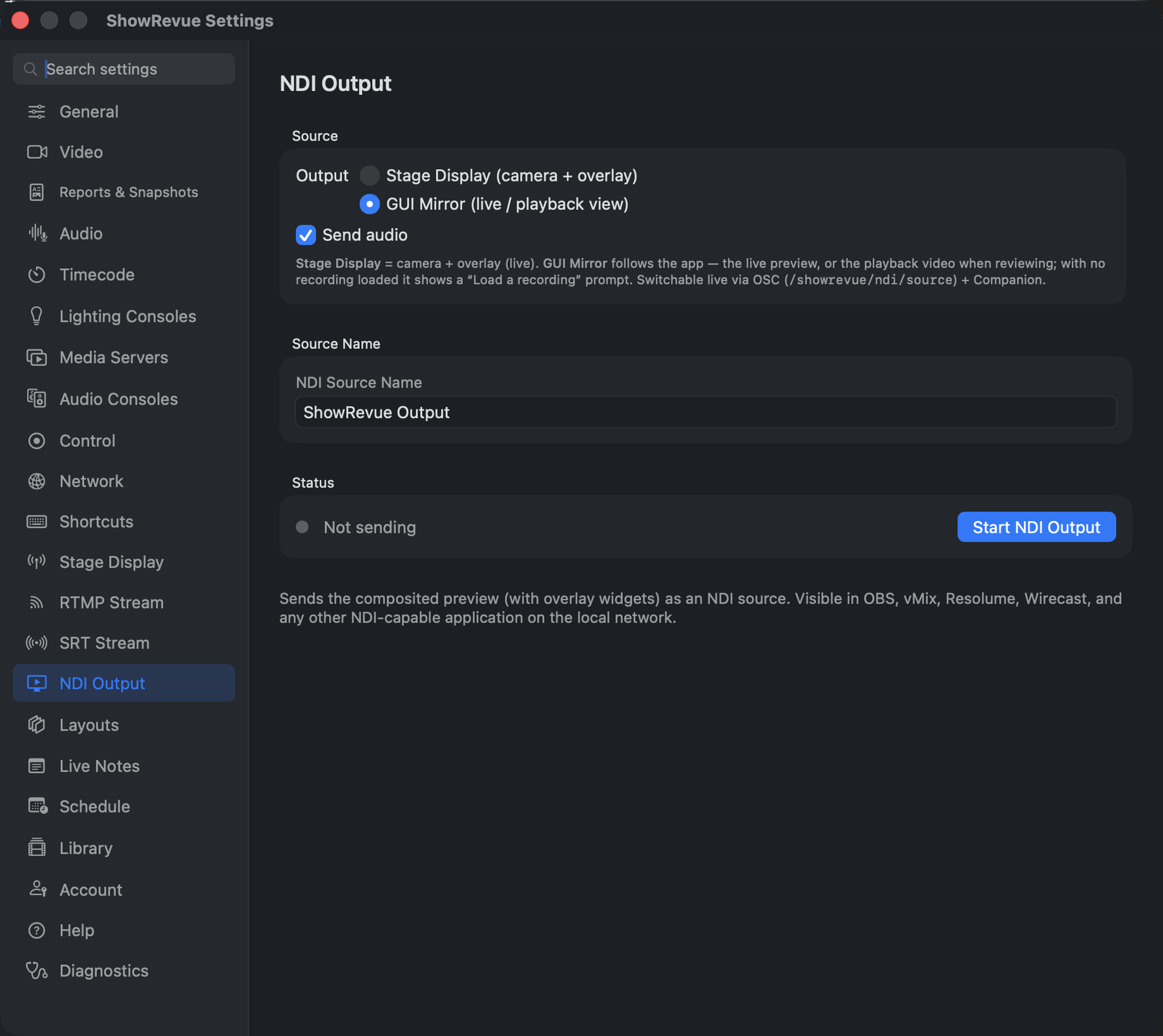
Preferences → NDI Output: source picker (program vs GUI mirror), send-audio, and source name.
ShowRevue can publish an NDI source on the local network so OBS, vMix, Resolume, Wirecast, and any other NDI-capable application can pick up the feed, with embedded audio.
NDI Output requires the Professional licence tier or above, and the NDI SDK for Apple installed on the Mac (available free from ndi.video). If the SDK is missing, the NDI Output preferences show a notice.
Setup
- Open Preferences → NDI Output.
- Set the NDI Source Name other apps will see (default
ShowRevue Output). - Choose a Source (see below).
- Leave Send audio on unless you want video only.
- Click Start NDI Output.
- In your NDI receiver (e.g, nDI Studio Monitor or OBS), select the ShowRevue source.
Source options
Stage Display. The composited program feed: the camera with the overlay (cue, timecode, show name) burned in. This is the "show output" and runs in live mode.
GUI Mirror. Mirrors what the app's video area is showing, following its mode:
- in live mode, the live preview;
- in playback, the recording you're reviewing.
If GUI Mirror is selected in playback with no recording loaded, ShowRevue sends a "Load a recording" placeholder frame instead of black, so the NDI receiver always has a signal.
GUI Mirror taps the player's video frames directly, so no Screen Recording permission is needed.
Audio
With Send audio on, the NDI stream carries the program audio (PGM) in live, or the recording's audio in playback. Turn it off for a video-only NDI source.
Switch the source live (OSC / Companion)
You can flip the NDI source during a show over OSC:
/showrevue/ndi/source "showrevuelive"
/showrevue/ndi/source "gui"
The same action is available in the Companion module, so you can put "Send Show Output" and "Mirror Playback" on Stream Deck buttons.
Bandwidth
Two NDI|HX 4K cameras and one NDI output fit comfortably on gigabit, no 10G is required for a typical recording rig.