Live Notes
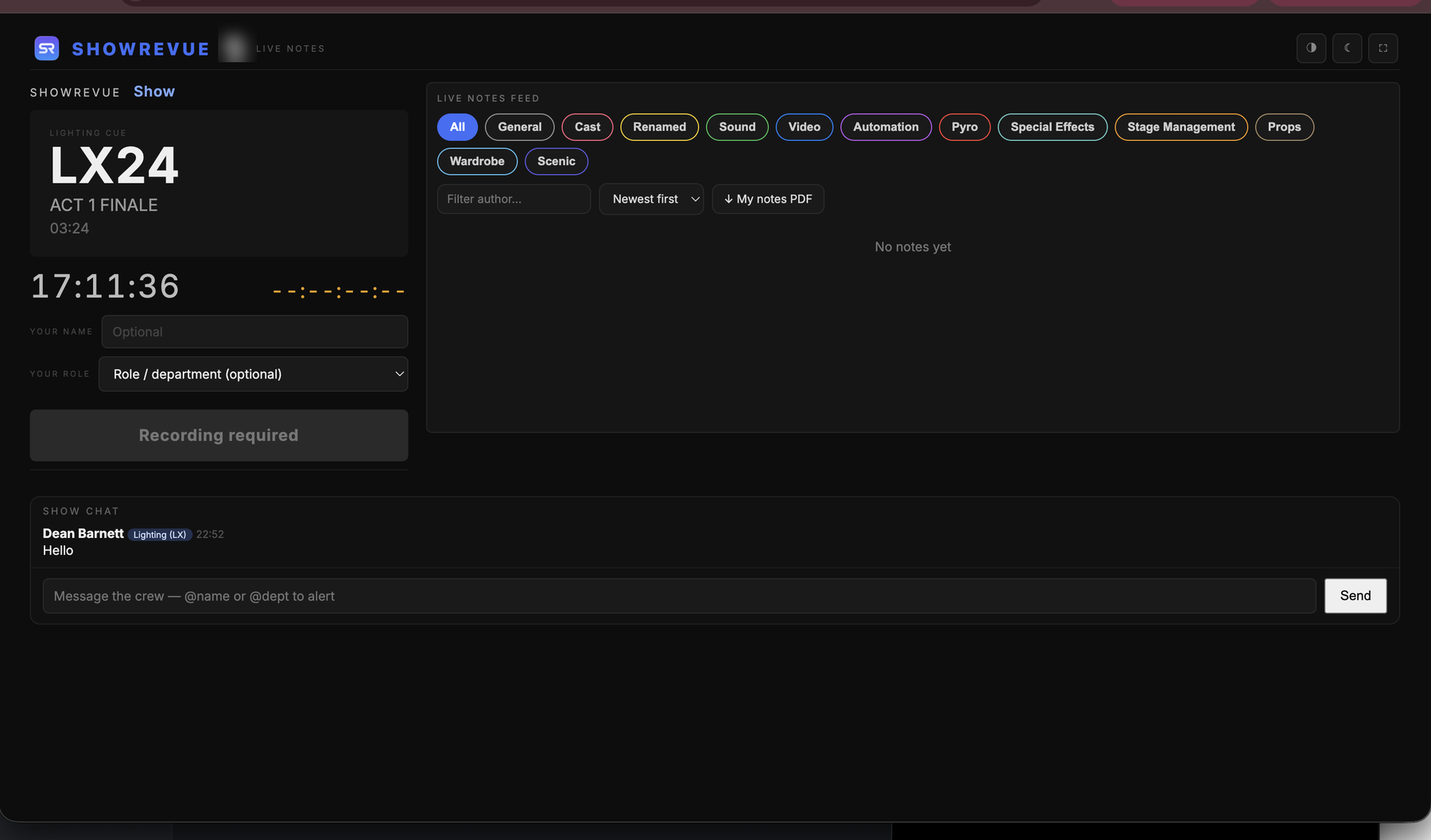
The Live Notes web page: current cue card, note composer, and the live notes feed.
Live Notes lets crew take timestamped notes from phones, tablets or laptops during a session. There's no app to install, just a web page. Notes are tagged by department, show up in the Notes panel as they arrive, and are saved with the recording.
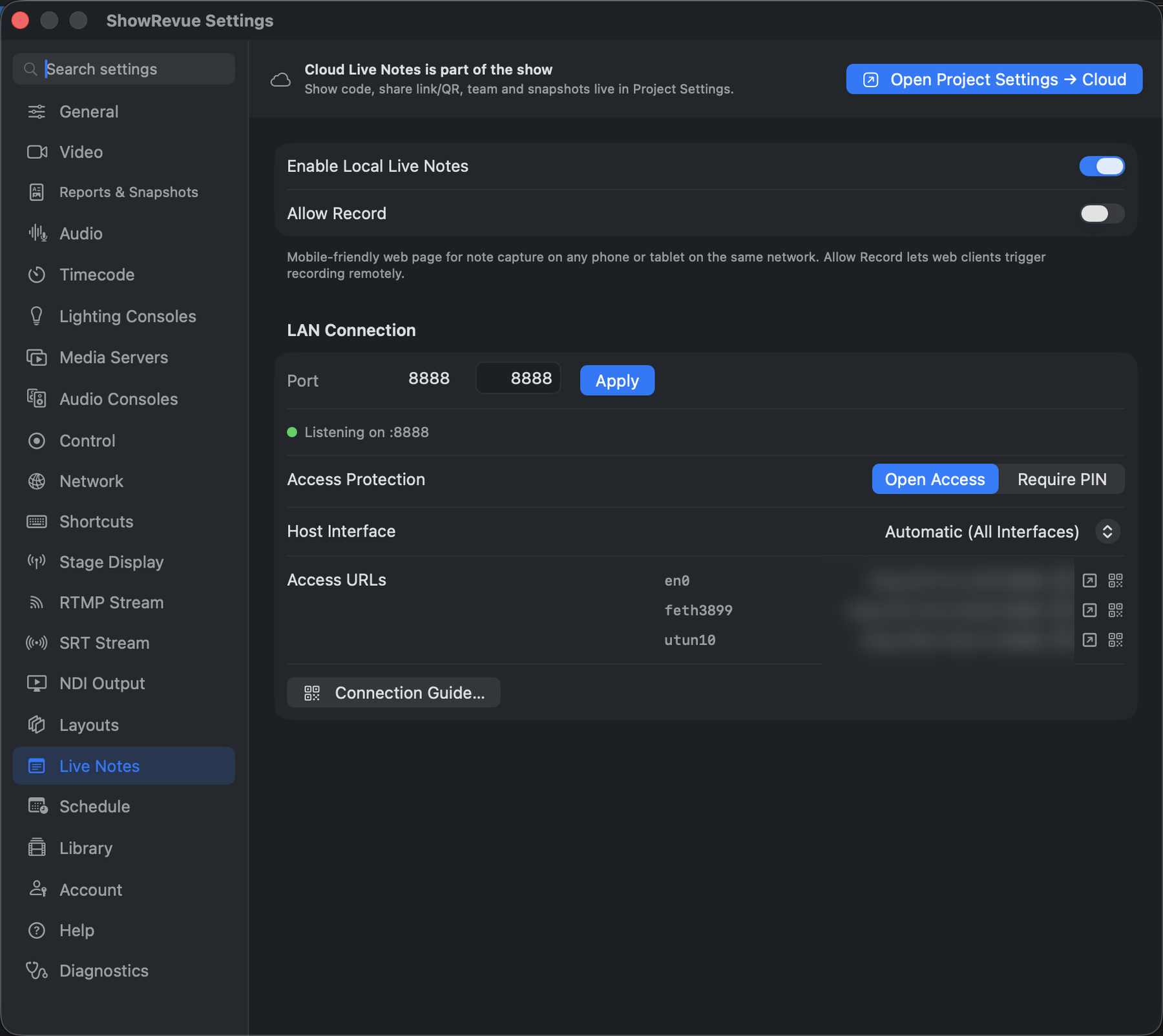
Preferences → Live Notes: enable the local server, port, and access protection.
There are two ways to run it:
- Local Live Notes. A web page served straight off the Mac, for devices on the same network. No account and no internet needed.
- Cloud Live Notes. A hosted page at
showrevue.com/livenotes/<code>your team can reach from anywhere, with accounts and approval. See Cloud shows and the team.
Local Live Notes needs the Professional licence tier or above. Cloud shows need Max.
Local Live Notes
- Open Preferences → Live Notes.
- Turn on Enable Local Live Notes.
- Under LAN Connection, check the Port (default
8888; change it and click Apply) and pick the Host Interface if the Mac is on more than one network. - ShowRevue lists the web addresses for the notes page, for example
http://192.168.1.10:8888. Give one to the crew. - Click Connection Guide… for a one-page crew PDF with a QR code for the Wi-Fi and one for the notes page. Print it and leave it on the production desk.
Local Live Notes has no show code. The show code belongs to a cloud show.
Taking a note
On the phone, put in Your Name, tap Add Note, choose a department and type, then Save Note. The note is stamped with the moment Add Note was tapped, not the moment it was saved, so it lands on the bit of the show it's about. On the Mac, notes arrive live with who wrote them and which department they're for. In playback they sit on the timeline and in the Notes tab, and [ and ] step through them.
Access Protection
Access Protection is Open Access by default: anyone on the network who has the address can add notes. Set it to Require PIN and enter a 4-digit PIN to keep other devices out. The Connection Guide's notes link carries the PIN, so crew who scan its QR code go straight in. Keep the printout off public noticeboards.
Allow Record
Allow Record lets someone on the notes page start and stop the recording. It's off by default. Leave it off unless you mean it.
Cloud Live Notes
Cloud Live Notes shares a show's notes with people who aren't on the venue network, and keeps a running record across sessions. Setting it up, approving people and their rights are covered in Cloud shows and the team. For a step-by-step order, use the cloud notes setup checklist.
On the cloud page:
- Notes, camera snapshots and annotations go both ways between the Mac and the cloud, so a note drawn on a phone shows on the Mac and the other way round.
- Tapping Add Note on the web asks the Mac to grab the current camera frame so you can draw on it straight away.
- When the Mac stops recording, the page switches to a read-only view of that session's notes. Nothing blanks out.
- Theatre Mode is a pure-black, red-readout view that protects night vision in a dark house.
Privacy: cloud read access is gated by login and show membership. Snapshots are served through an auth-checked route, not a public URL.
Best use
Live Notes is most useful when:
- stage management needs several departments feeding notes into one session,
- creative teams want to give notes live without crowding the operator's desk,
- the notes need to stay tied to the recording rather than living in a separate document.