Stage Display
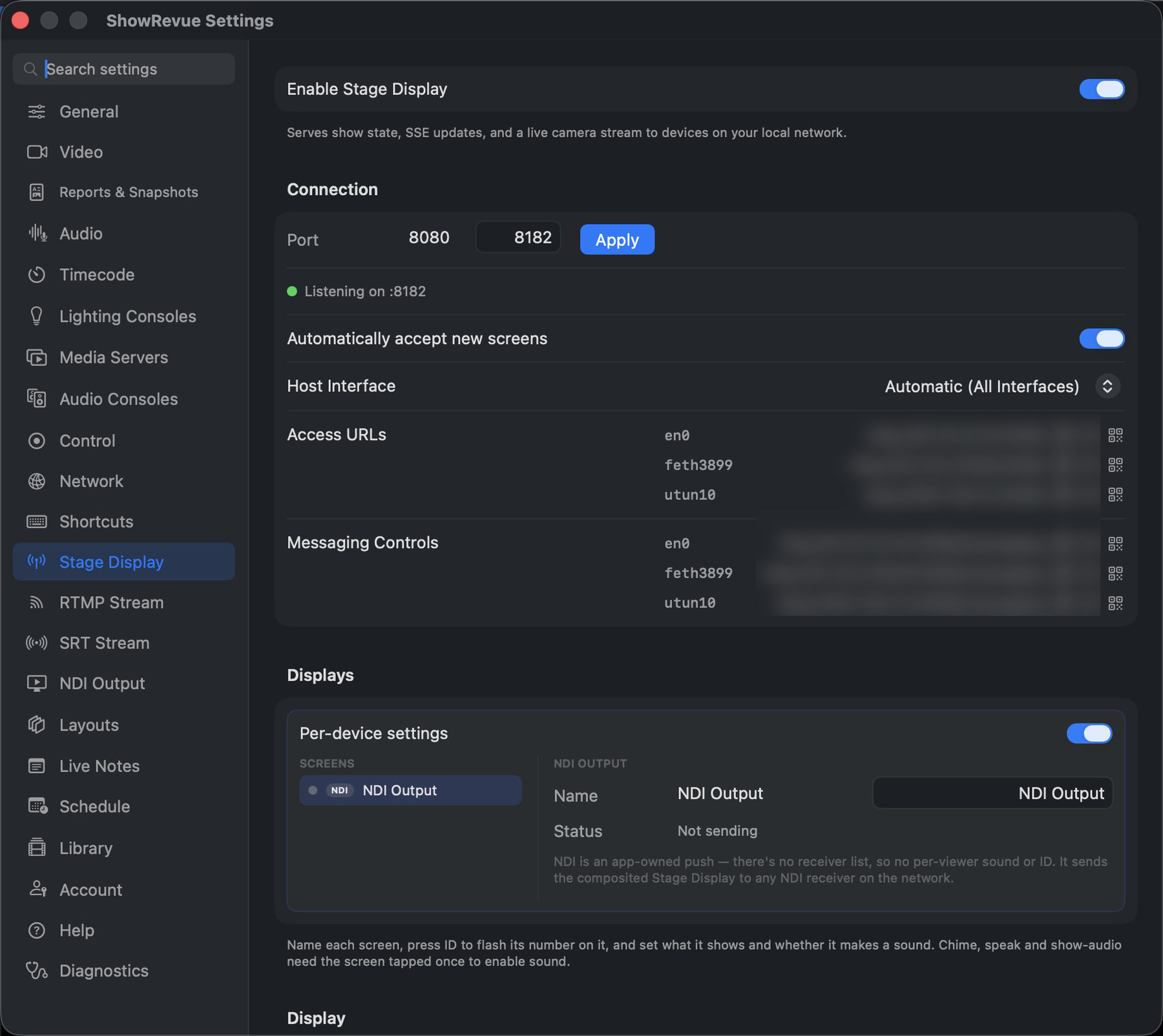
Preferences → Stage Display: port, host interface, the connected-screens list, and per-screen settings.
Stage Display serves a local-network web page showing live show state. Any device with a browser can connect. No separate app is required.
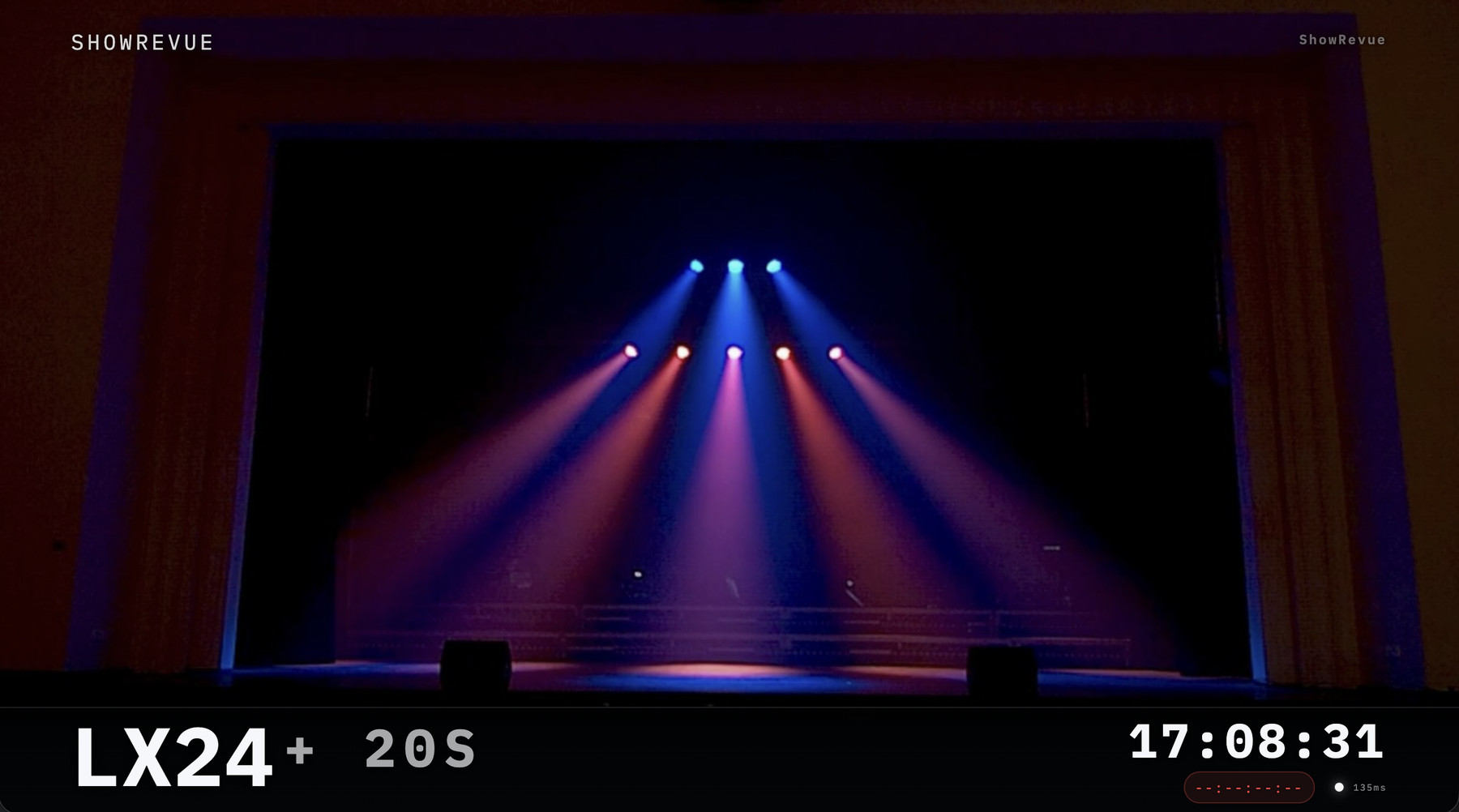
The Stage Display web page: live camera feed, cue state, and show clock.
Requires the Max licence tier.
Enabling Stage Display
- Open Preferences → Stage Display.
- Turn Enable Stage Display on.
- Use the Copy URL icon to copy the address shown there, for example
http://192.168.1.10:8080. - Use the QR code icon if you want phones or tablets to join quickly.
- Open that URL on any device on the same Wi-Fi or wired network.
Putting it on a screen
Stage Display is just a web page, so you can drive a screen any way you like:
- Straight off the Mac (HDMI). Plug a monitor into the Mac and toggle Stage Display onto it with ⇧⌘D (or pick the display in Preferences → Stage Display). It always opens on an extended display. It never takes over your main operating screen. If no second display is attached, the shortcut does nothing.
- Any browser. Open the URL on a phone, tablet, dressing-room monitor, or foyer screen.
- Digital-signage players. Point a signage player at the URL. BrightSign, ScreenCloud, Yodeck, OptiSigns, a Raspberry Pi, Apple TV, or a Samsung/LG smart display all work.
Approving screens
Stage Display has no PIN. Access is by approval.
- Automatically accept new screens (default on): any device that opens the link goes live straight away. Use it only on a network you trust.
- Turn it off and new screens wait for approval. A new screen shows a waiting for approval page and appears in the Displays list as Pending. Select its row and Approve (it goes live instantly) or Block (it's refused).
An unapproved screen gets no camera, no show audio and no operator controls: it can't send messages, mask the output or change the show state.
Approval binds to the screen, so it survives a reconnect or a relaunch. A blocked screen shows a screen blocked page and returns to the show on its own once you Unblock it (blocked screens are listed under the Displays panel). A directly-connected monitor is always trusted.
Per-device settings
Every connected screen appears in the Displays list in Preferences, so you can tell them apart and set each one differently.
- Name each screen ("Green Room", "SM Desk").
- ID flashes the screen's number on the physical monitor so you can see which is which.
- Shows picks the screen's content mode (below).
- Sound sets its alert behaviour (see Sound).
- Show audio relays the programme audio to that screen.
- This screen's look (Full mode only) overrides the top-left content, logo, and which readouts show, per screen. The global Display section holds the defaults new screens inherit.
Identity is remembered in the browser, so a screen keeps its name and settings across reconnects and reloads.
Content modes
Set each screen's Shows to match its job:
| Mode | Shows | Good for |
|---|---|---|
| Full | Camera + cue state + messages | Booth-side monitors |
| Camera only | Clean camera feed, no overlay | Director monitor, archive tap |
| Green room | Camera + show state + messages | The watch-and-listen room |
| Messages only | Operator messages + show state, no camera | Dressing rooms |
| Cue only | Big current lighting cue, no camera | DSM repeater, low-bandwidth screens |
| Clock | Big wall clock | Pit, band, wings |
| Countdown / calls | Show state + curtain countdown | Foyer, bars, corridors |
Camera-less modes don't pull the video stream, so they're light on bandwidth. A Stage Hold alert overrides every mode.
When a camera mode has no picture yet (the feed is still spinning up, or the source has dropped), the screen shows analogue-TV static behind the overlay rather than a black rectangle, so the readouts stay legible.
What the Full view shows
| Element | Source |
|---|---|
| Show name or venue logo | Project Settings, or a per-screen logo |
| Current lighting cue | Console OSC |
| Elapsed time since last cue | Auto-calculated |
| Current media cue | QLab OSC |
| Wall clock | Mac system time |
| LTC timecode | Audio LTC input |
| REC status | Recording state |
| Live camera feed | MJPEG stream |
| Show State: Preshow / Act / Interval / Total | Lighting cues + project timing |
Display options
The Display section sets the defaults for new screens; override any of them per screen under This screen's look:
- title mode: show name, custom text, or logo. The logo can be the Show Logo from Project Settings or a custom PNG. A logo can also be chosen per screen,
- visibility for cue number, cue name, LTC, media cue, recording state, elapsed time, and the Show State pill,
- Hide SHOWREVUE branding (removes the ShowRevue wordmark). Needs Professional, the same entitlement as removing the recording watermark.
Sound
Each screen has a Sound profile: Silent, Chime, or Chime + speak (a spoken read-out of the message).
- A browser needs one tap ("tap to enable sound") before it can play audio. That's a browser autoplay rule. The speaker icon in the Displays list is amber until a screen is tapped, green once it's armed.
- A directly-connected monitor enables sound on its own, no tap. For unattended browser signage, either tap once during setup or launch the kiosk browser with its autoplay flag.
Show audio relay
Turn on Show audio for a screen to relay the programme audio to it, as a backstage monitor or tannoy feed. It's roughly half a second behind and isn't lip-synced to the picture, so treat it as "hear where the show is". Set the per-screen volume. Alerts duck the show audio under them and ease it back. The Displays list shows each screen's measured latency.
- Relay works on browser screens. For a direct HDMI monitor, route the display's audio out its HDMI under Preferences → Audio → Outputs instead. The web relay can't target a specific HDMI output.
- NDI carries its own audio in the stream (see NDI Output).
Messages, Stage Hold and Mask output
On the Mac, open Window → Stage Display Messages:
- Custom message. Type it ("Standby for act two"), pick a colour, a duration or Hold (stays up until cleared), and an urgency: Info, Warning or Urgent. Press Send and it comes up on every screen. Screens with sound give one chime for Info, a double chime for Warning and up, and read Urgent messages aloud if they're set to speak.
- Stage Hold. After a confirmation (Hold the stage), a continuous alert shows on every screen until you Clear it. It's an operational hold for the crew, not a fire alarm.
- Mask output. Blanks every screen with a BLOCKED card without stopping the stream. The OSC commands
/showrevue/mask/onand/showrevue/mask/offdo the same. - Clear takes the current message down.
Messages can also come from the browser messaging page or over OSC, including preset calls such as house open, beginners and interval.
Messaging page
The /messaging URL on the same host opens a dedicated operator control panel. Preset stage management calls, output mask, custom messages, and manual show state control. See Stage Display Messaging for full details.
Network notes
- Stage Display uses plain HTTP.
- If other devices cannot connect, confirm macOS allows incoming connections on the configured Stage Display port.
- The MJPEG stream endpoint is
/stream.mjpeg. The main page loads it automatically.