Millumin
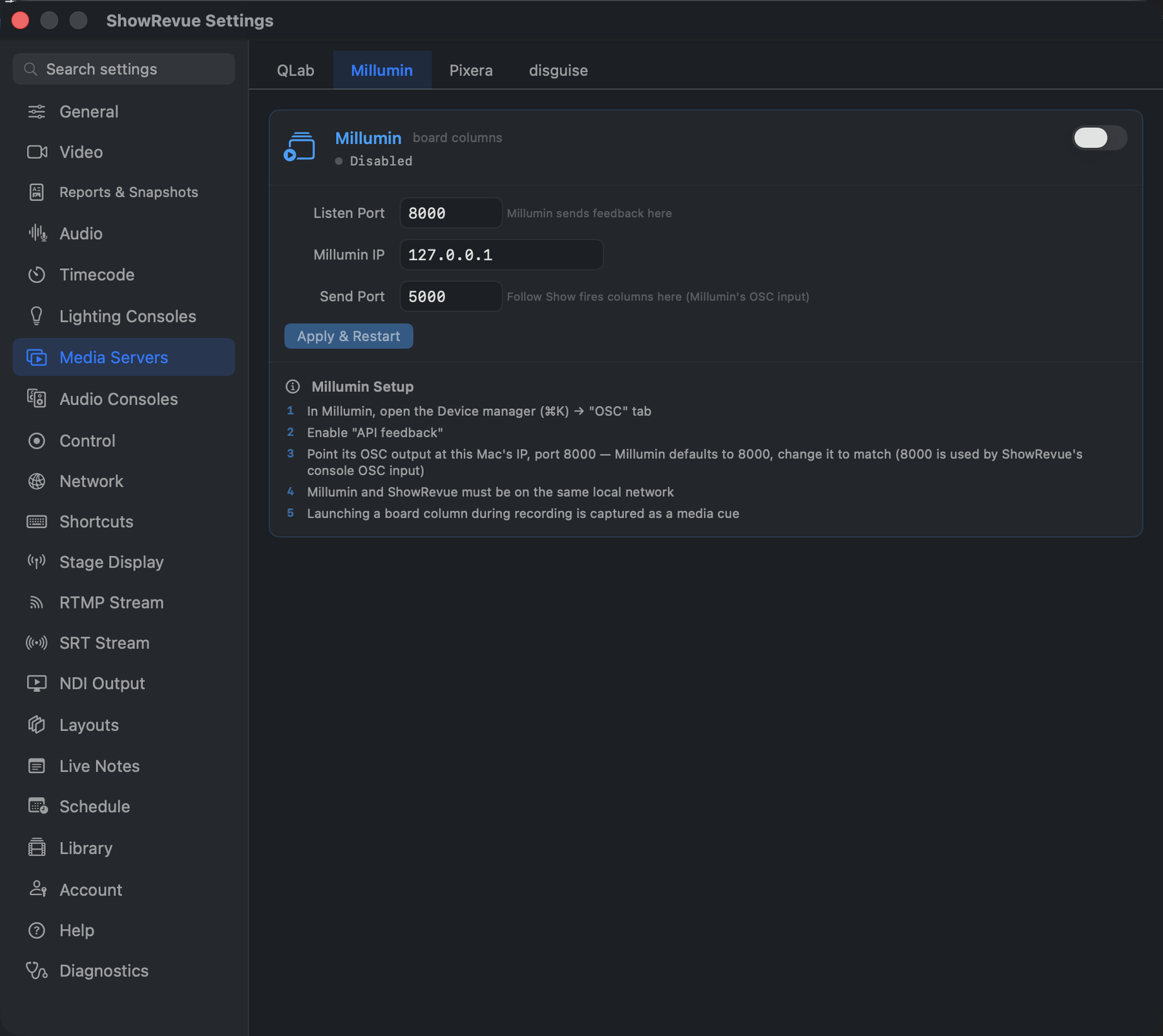
Preferences → Media Servers → Millumin: listen port, IP, and send port.
ShowRevue supports Millumin V5.
When you launch a column in Millumin, ShowRevue captures it as a media cue. Using the column number as the cue number and the column name as the cue label, on the same cue list as your lighting and QLab cues. During playback you can fire columns back to Millumin, one at a time or all of them with Follow.
Millumin sends columns to ShowRevue
In Millumin:
- Open Millumin → Preferences → Interaction (OSC).
- Enable OSC output / feedback.
- Set the destination IP to the Mac running ShowRevue.
- Set the destination Port to ShowRevue's Millumin Listen Port,
5005by default. (Not8000: that's ShowRevue's lighting cue input.)
In ShowRevue:
- Open Preferences → Media Servers → Millumin.
- Confirm the Listen Port matches Millumin's OSC destination port (
5005by default).
Test it:
- Launch a column in Millumin.
- Confirm the Millumin chip in ShowRevue's status bar flashes.
- Confirm a media cue appears in the Cues panel with the column number and name.
Running media in the overlay
While a column's media plays, ShowRevue shows it in the on-video Running Cues overlay with a progress bar and elapsed/remaining time, the same as QLab cues. The exact media duration is used so the playback progress bar animates correctly when you review the recording.
ShowRevue fires columns back to Millumin
Firing cues back, and Follow, need a Professional licence. Capturing cues in needs Base.
In ShowRevue:
- Open Preferences → Media Servers → Millumin.
- Set the Millumin IP to the Mac (or machine) running Millumin.
- Confirm the Send Port matches Millumin's OSC input port (Millumin's default,
5000).
Test it:
- In ShowRevue playback, arm the outputs (OUTPUTS OFF → ARMED).
- Turn on FOLLOW, or click a media cue row's fire button.
- Confirm the column launches in Millumin.
ShowRevue sends this command:
/action/launchColumn <index>
Firing matches the column you recorded. Nothing is sent while outputs are off, and nothing at all during a Show recording. Every send, and every blocked attempt, is in the Output Audit Trail.