QLab 5
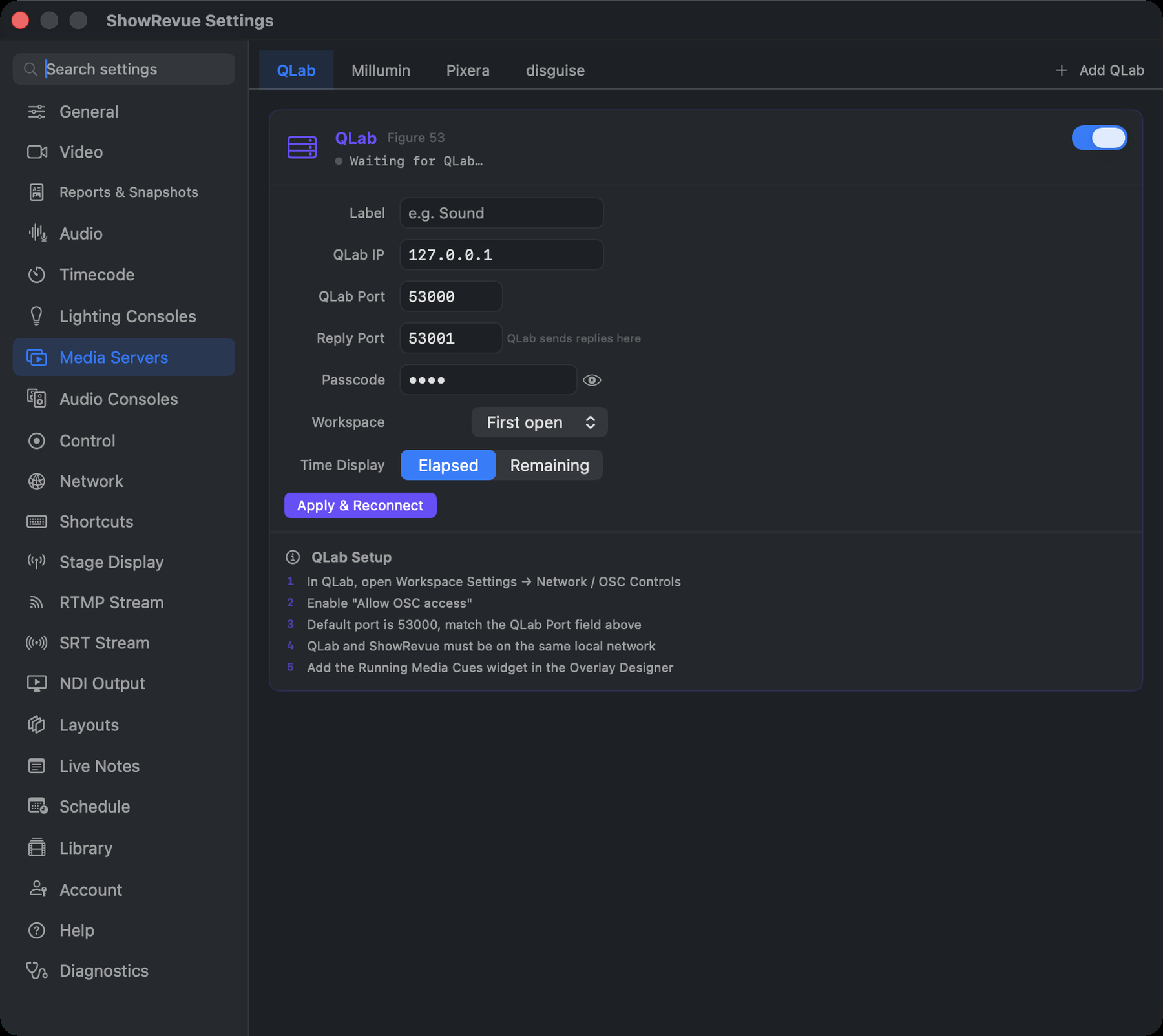
Preferences → Media Servers → QLab: connection, ports, and time display.
ShowRevue only supports QLab 5.
Launch New Show has a QLab setup page: pick QLab, enter its IP, leave the ports at 53000 and 53001, type the passcode if the workspace has one, and click Connect. Then run the test on the same page: Fire, Stop and Fire again, and each gets a tick. The steps below are the same settings by hand.
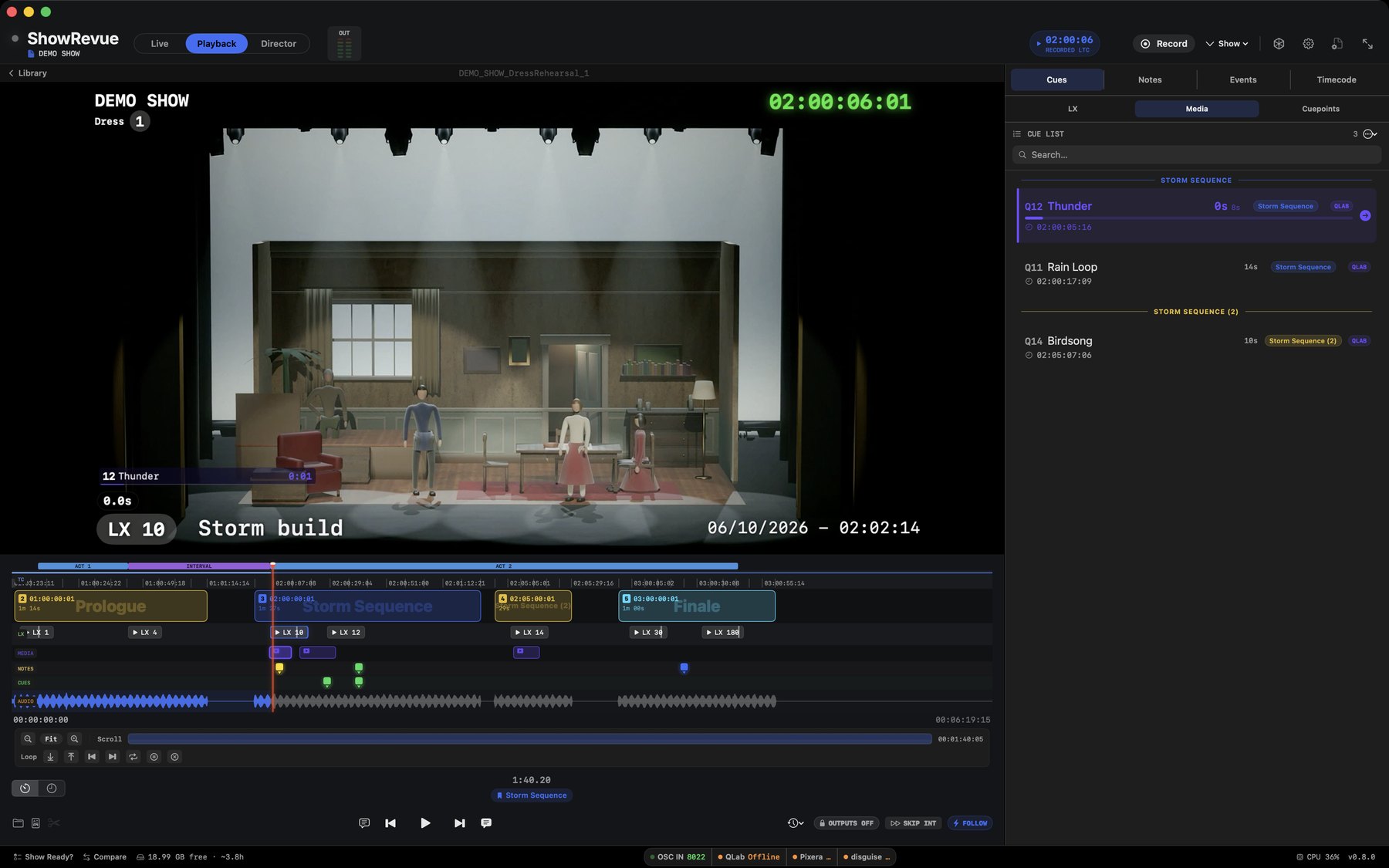
QLab cues land in the playback cue list (Media tab) with their running times.
Setup
In QLab 5:
- Open Workspace Settings → Network → OSC Access.
- Turn on Allow OSC access.
- Set the OSC Port to match ShowRevue, usually
53000. - If the workspace uses an OSC passcode, enter the same passcode in ShowRevue → Preferences → Media Servers → QLab.
- If you want ShowRevue to fire cues back to QLab, give it control access as well as view. View access alone only lets ShowRevue watch.
In ShowRevue:
- Open Preferences → Media Servers → QLab.
- Enter the QLab IP address.
- Confirm the QLab Port matches the QLab 5 workspace, usually
53000. - Confirm the Reply Port matches the port ShowRevue should listen on for QLab replies, usually
53001. - If QLab 5 has a passcode set for OSC access, enter the same value in Passcode.
- Confirm ShowRevue and QLab are on the same local network.
During a take, QLab cues land in the cue list as they go, next to the LX cues. A cue that runs for a while, like a long rain loop, gets a progress bar on the video overlay, so you see it playing out as well as when it started. In playback, QLab cues are in the Media tab.
During playback:
- Click the fire button on a QLab cue row to fire that cue again.
- Use FOLLOW to re-fire all recorded QLab cues at their original playback positions.
Firing cues back, and Follow, need a Professional licence. Capturing cues in needs Base.
Nothing goes to QLab until you arm the outputs: the badge reads OUTPUTS OFF until you click it to ARMED, and it goes back to off every time ShowRevue opens. During a Show recording, no cue commands go out at all. See Show Safety. Use fire-back and Follow only when the workspace is ready to take live commands.
Several QLab computers
A show often has a Sound QLab and a Video QLab. ShowRevue can link up to four QLab computers (the main one counts as the first). This needs Professional or Max. On Base the Add QLab button is locked and says "More than one QLab needs Professional"; Base keeps one QLab.
To add one:
- Open Preferences → Media Servers → QLab.
- Click Add QLab in the tab strip. A new tab opens, named QLab plus its label, ahead of Millumin, Pixera and disguise.
- Fill in the same settings as the main QLab: Label, QLab IP, QLab Port, Passcode, Workspace and Time Display. The switch at the top turns it on or off, and Apply & Reconnect applies your changes. Each tab shows its own connection status.
- To remove one, open its tab and click Remove this QLab.
The main QLab also has a Label, so you can call it "Sound". A new extra QLab starts with its number as its label ("2", "3"), and you can rename it.
How it behaves:
- Each cue is recorded with its QLab's label, for example "Sound Q13" or "QLab Sound 13" in exports and the session report. A running cue's progress bar follows that QLab.
- Firing goes back to the QLab the cue came from. A cue is matched to its QLab by its ID, then by its label, which is how a show file opened on another Mac still finds its QLabs. If the cue's QLab isn't set up on this Mac, the cue is skipped. It is never sent to a different QLab.
- Older takes load as before, with their cues belonging to the main QLab.
- One reply port. Every QLab shares the same Reply Port (the extra tabs say "Shared by every QLab"), and replies are sorted by the address they come from. Give each QLab its IP address rather than a name, and use one QLab per computer.
- A downgrade keeps your settings. Extra QLabs stay saved if the licence drops below Professional, but they don't connect.
QLab timecode into ShowRevue
QLab can't send sACN or Art-Net timecode. To get a QLab Timecode cue into ShowRevue on another Mac over the network, send it as MTC over Apple network MIDI, or send it as LTC through an audio output into one of ShowRevue's inputs. Both are walked through on MIDI Setup.
Troubleshooting
The status line under Preferences → Media Servers → QLab says which of these you have.
"Waiting for QLab…" and the Live page shows Offline
ShowRevue is sending and QLab is not answering. Check, in this order:
- A workspace is open in QLab. QLab does not answer at all while it sits on the Launcher window, or while a dialog is waiting for an answer, such as the prompt asking whether to convert an older workspace.
- The QLab IP is right. For QLab on the same Mac this is
127.0.0.1. - The QLab port matches the workspace, usually
53000. - Both machines are on the same network and can see each other.
"QLab denied access"
QLab let ShowRevue connect but the workspace has not granted it any OSC rights, so every request after the connection is refused.
Open Workspace Settings → Network in QLab and allow OSC access. If you want ShowRevue to fire cues back, the access level needs to include control.
This one is easy to miss because the connection itself succeeds. QLab answers the version and workspace queries whatever the access setting is, and only refuses the requests that matter.
"Reply port 53001 in use"
Another application on the Mac holds the port ShowRevue listens on for QLab's replies. A second copy of ShowRevue is the usual cause. Quit the other application, or change the reply port in both places.
Keep the reply port at 53001 if you can. QLab 5.5 refuses the message that asks it to reply
somewhere else and answers on 53001 regardless, so a different port receives nothing.
A cue arrives with no name
QLab's running-cue list often leaves the name out, so a cue picked up when ShowRevue reconnects part-way through it would otherwise be recorded as a bare number. The name is fetched separately and filled in.
Reading the log
The log names what happened at each step. Find it at
~/Library/Application Support/ShowRevue/Logs/, or use
Preferences → Diagnostics → Save Bug Report to bundle it up for us.
A healthy connection looks like this:
qlab: Reply listener ready on 53001
qlab: Handshake sent to 127.0.0.1:53000 (attempt 1), awaiting /reply/workspaces on 53001
qlab: Workspace reply after 1 attempt(s): ShowRevueTest
qlab: Connected to ShowRevueTest, view + control
qlab: Cue start 14 14. Let's get physical.mp3
Repeated handshake attempts with no workspace reply mean QLab is not answering, which is the first section above.