Bitfocus Companion
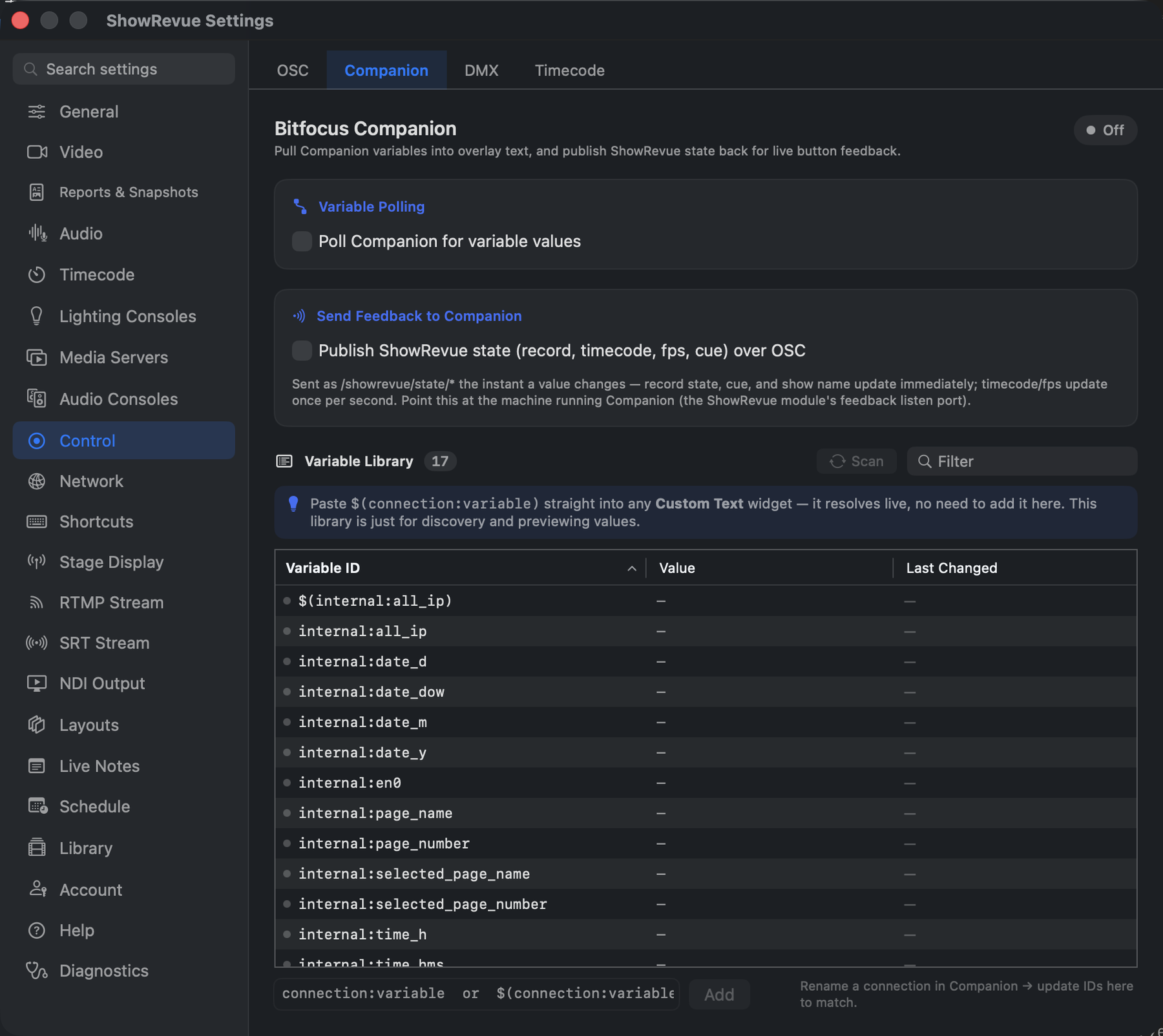
Preferences → Control → Companion: variable polling, feedback, and the variable library.
ShowRevue has three independent Companion integrations:
| Feature | Direction | What it does |
|---|---|---|
| Companion Module | Companion → ShowRevue | Control transport, navigation, messaging from a Stream Deck or surface |
| Variable Feedback | Companion → ShowRevue | Pull live variable values from Companion and display them in overlay text |
| State Feedback | ShowRevue → Companion | Publish ShowRevue's live state (record, cue, timecode…) so Companion buttons show real feedback |
All Companion settings live in Preferences → Control → Companion. The Companion tab itself isn't licence-gated, but the module's commands arrive over OSC remote control, which needs a Professional licence.
ShowRevue has direct, purpose-built integrations for grandMA3, grandMA2, ETC Eos, and QLab. Use those for lighting cues and media cues. They are lower-latency and require no Companion in the chain.
Variable Feedback is the right tool when ShowRevue doesn't yet have a native integration for a piece of gear. For example, an ATEM switcher program input, a Disguise show variable, an MA3 custom attribute, or any other data your Companion setup already knows about. If ShowRevue adds a native integration for something you are currently piping through Companion, switch to the native path.
Ports
Three independent ports are involved. Keep them straight:
| Port | Who listens | Direction | Used for |
|---|---|---|---|
| 8001 | ShowRevue | Companion → ShowRevue | OSC Control: commands (record, cues, messaging). Enable in Preferences → Control → OSC. |
| 8002 | Companion (the module) | ShowRevue → Companion | State feedback: ShowRevue publishes /showrevue/state/*. |
| 8000 | Companion | ShowRevue → Companion | Variable polling: ShowRevue reads Companion's HTTP API. |
If Companion and ShowRevue run on the same Mac, the OSC Control listen port (8001) and the module's feedback listen port (8002) must be different. Two processes can't bind the same UDP port. They can share a number only across different machines.
The module's last_command variable updates when the module sends the OSC packet. It does not confirm ShowRevue received it. If a command "sends" but nothing happens, check that Enable remote control is on in ShowRevue (Preferences → Control → OSC) on the port the module targets (default 8001).
Companion Module
The Companion module lets you control ShowRevue from Stream Decks and other Companion-compatible surfaces.
Install
Download the .tgz from the ShowRevue download page. In Companion, enable Settings → Developer → Modules can be installed from file (Companion 3.99 or later), then choose the downloaded .tgz from the module install menu.
Configure the module
- Host. The Mac running ShowRevue
- Port.
8001, which is the default ShowRevue remote-control port
Available preset groups
Drag any preset onto a button. The Presets tab groups them in this order:
- Transport. Record (lights red while recording), Stop, Play, Pause.
- Navigation. Next and previous cue, timecode segment, recording and note, ±5 seconds, next and previous frame.
- Loop. Set and go to in and out, toggle, enable, disable, stop, clear.
- TimeWarp. Enter and exit the DVR, and scrub buttons.
- Show State. Preshow, Acts 1 to 4, Intervals 1 to 3, Finished, Reset, next curtain and next show. Each phase button lights while the show is in that phase.
- Session. The four session types, Start New Session, and next number 1. The actions accept a custom session name as typed in Project Settings. See Session naming.
- Safety. Monitor Only, Arm Outputs and Record When Timecode Runs. Each has a toggle, an On and an Off button, and lights from state.
- Stage Display Mask. Mask on, off, toggle.
- Stage Display Messages. Clear message, a custom STANDBY message, and the full operator message preset catalog.
- Notes & Flags. Drop a flag, a checking note for lighting, and a quick-note preset #1 for each department.
- NDI Output. Set source to Show Output or GUI Mirror (sends
/showrevue/ndi/source, see NDI Output). - Overlay Widgets. Toggle buttons for Cue Number, Cue Label, Timecode, Show State, Custom Text, Wall Clock, Cue Progress and QLab Running Cues, plus Cue Number red and reset. The action behind them takes any widget kind or a custom OSC ID.
- Status. Read-outs with live feedback: recording, source health, timecode and LTC lock, frame rate, Show State and its timer, the curtain countdown, cue number and label, time since cue, show and session name, next curtain, streaming, NDI output, audio silence, free disk, note count, the timecode trigger state (with its own buttons for a refused stop, and for timecode running on a take the trigger did not start, which stays grey so it never implies the trigger will end that take), and the last OSC command and message sent.
Feedbacks for button colour: Recording, Source problem, Monitor Only, Outputs armed, LTC locked, Show phase, Streaming, NDI output on, Record When Timecode Runs armed, Record When Timecode Runs state (pick idle, starting, running, stopping, stop refused, or running but not started by the trigger), Audio silent (lights after N seconds of silence, default 10) and Disk space low (lights below N GB, default 20).
Recording actions
- Navigation: Next Recording and Navigation: Previous Recording load the next or previous recording in Library order. They do not start playback, and they work only from Playback while stopped. They send
/showrevue/next/recordingand/showrevue/previous/recording, see OSC Remote Control.
The module is version 0.8.1. Its README in the source repo lists every action, feedback and variable.
Variable Feedback
ShowRevue can poll Companion's HTTP API to read live variable values and display them in overlay text widgets.
How it works
ShowRevue polls http://<companion-host>:<port>/api/variable/<connection>/<name>/value on a configurable interval. When a variable changes, the new value is substituted wherever $(connection:variable) appears in a text field.
Variable IDs use Companion's native format:
| Format | Example | Endpoint |
|---|---|---|
connection:variable | atem:pgm1_input | /api/variable/atem/pgm1_input/value |
custom:variable | custom:song_title | /api/custom-variable/song_title/value |
Setup
In ShowRevue:
- Open Preferences → Control → Companion.
- Enable variable polling.
- Set Host to the machine running Companion (use
127.0.0.1if Companion is on the same Mac). - Set Port to Companion's HTTP API port. Default is
8000. - Set Poll interval. The default is
200 ms; ShowRevue never polls faster than every 250 ms, whatever you set. - Confirm the status indicator shows Connected.
In Companion:
- Make sure HTTP API access is enabled (it is by default in Companion 3+).
- No other configuration is needed. ShowRevue reads variables directly via HTTP.
Variable discovery
You never have to add a variable to use it. Typing $(connection:variable) into any text field registers and polls it automatically (see the tip above). The Variable Library is simply a place to browse, preview live values, and confirm IDs.
On first connect, ShowRevue seeds the Library with Companion's built-in internal:* variables (time, date, page, uptime) so they show in autocomplete immediately. Your module variables (ATEM, Disguise, custom variables, etc.) won't appear in the Library list until they're referenced or added, to add one for previewing:
- Open the Companion web UI → go to Connections → [your module] → Variables and copy the variable name exactly as shown (e.g.
atem:pgm1_input). - Paste it into the add field in Preferences → Control → Companion → Variable Library and click Add. Both formats work:
atem:pgm1_inputand$(atem:pgm1_input).
Either way, once a variable is referenced (in a widget) or added (to the Library) it starts polling immediately and shows its live value.
The table shows each variable's current value and when it last changed. The variable count shown in the header reflects how many variables ShowRevue is currently tracking.
Some Companion builds expose a /api/variable-definitions endpoint that ShowRevue uses to import all variables at once. If your Companion version supports it, all variables will appear automatically on first connect without any manual setup.
Use variables in text fields
Type $( in any ShowRevue text field to open the autocomplete list of known variable IDs. Select one to insert it.
$(atem:pgm1_input)
$(custom:show_title)
$(companion:selected_page_name)
The live value is substituted in:
- Overlay custom text widgets. Burned into the recorded video and visible on the live preview
- Live message presets. Text shown on operator displays
If a variable is unknown or Companion is unreachable, the placeholder resolves to an empty string.
Variable Library table
Preferences → Control → Companion → Variable Library shows all tracked variables:
| Column | Description |
|---|---|
| Variable ID | The connection:name identifier |
| Value | Current live value from Companion |
| Last Changed | How long ago the value last changed |
Use the search bar to filter by ID or value. Select one or more rows and click Remove Selected to stop tracking them.
You don't have to add a variable to the Library first. Paste $(connection:variable) directly into any Custom Text overlay widget. ShowRevue registers it automatically and resolves it live (in both the operator overlay and the recorded video). The Library is just for discovery and previewing values.
State Feedback (ShowRevue → Companion)
ShowRevue can publish its own live state back to Companion over OSC, so your Stream Deck buttons show real feedback. A red RECORDING button, the live cue number on a button, the running timecode, and so on.
Setup
In ShowRevue:
- Open Preferences → Control → Companion.
- Under Send Feedback to Companion, enable Publish ShowRevue state.
- Set Host to the machine running Companion (
127.0.0.1if it's the same Mac). - Set Port to the ShowRevue module's feedback listen port. Default
8002.
In Companion, install ShowRevue module 0.8.1 or later, which adds the matching variables and the boolean feedbacks (for example Recording, which colours a button red while recording).
How often it updates
State is pushed the instant a value changes. There's no manual "resend". Record state, cue, and show name update immediately; timecode and fps update once per second (they're sent as HH:MM:SS). Changing the host/port re-pushes the full current state automatically so Companion is never left stale.
Published values
Each value is sent as an OSC message /showrevue/state/<key>:
| OSC address | Module variable | Value |
|---|---|---|
/showrevue/state/recording | recording | 1 while recording, 0 when idle (drives the Recording feedback) |
/showrevue/state/timecode | timecode | Current timecode HH:MM:SS (or --:--:-- when no LTC lock) |
/showrevue/state/fps | fps | Detected frame rate, e.g. 25.00 |
/showrevue/state/ltc_status | ltc_status | LTC lock state: LTC LOCKED / LTC WEAK / NO LTC |
/showrevue/state/monitor_only | monitor_only | 1 while the Monitor Only kill switch is on |
/showrevue/state/outputs_armed | outputs_armed | 1 while outputs are armed (fireback) |
/showrevue/state/tc_trigger_armed | tc_trigger_armed | 1 while Record When Timecode Runs is armed |
/showrevue/state/tc_trigger_state | tc_trigger_state | idle / starting / running / stopping / stop_refused (ShowRevue could not stop the take and is retrying) / running_not_owned (timecode is running, but the trigger did not start the take, so it will not end it) |
/showrevue/state/audio_silent_seconds | audio_silent_seconds | Seconds live audio has been silent, 0 when it is not silent or the show is not live |
/showrevue/state/cue_number | cue_number | Current lighting cue number |
/showrevue/state/cue_label | cue_label | Current lighting cue label |
/showrevue/state/time_since_cue | time_since_cue | Time since the last cue fired |
/showrevue/state/show_name | show_name | The current show name |
/showrevue/state/session_name | session_name | Session name, e.g. Show 1 |
/showrevue/state/session_type | session_type | Session type, as a short name such as Show |
/showrevue/state/show_phase | show_phase | Show State phase: PRESHOW / ACT 1 / … |
/showrevue/state/show_timer | show_timer | Show State timer: counts up during acts, counts down during intervals |
/showrevue/state/curtain_countdown | curtain_countdown | Live countdown to the next curtain during preshow (− H:MM:SS) |
/showrevue/state/streaming | streaming | 1 while RTMP streaming |
/showrevue/state/ndi_sending | ndi_sending | 1 while NDI output is on |
/showrevue/state/note_count | note_count | Notes taken this session |
/showrevue/state/next_curtain | next_curtain | Next curtain time HH:MM |
/showrevue/state/source_health | source_health | Camera/source: ok / no signal / off |
/showrevue/state/disk_free | disk_free | Free space on the recording volume, in GB |
Feedbacks: Recording (button red while recording) and Source problem (button amber when the source is no signal / off). The Status preset group has ready-made read-out buttons for source health, free disk, note count, and a recording lamp.
Troubleshooting
| Symptom | Check |
|---|---|
| Status shows red / not connected | Confirm Companion is running and the host/port matches |
| Variable resolves to empty | Confirm the variable ID is spelled correctly: check Companion's variable list |
| Variable stopped working after Companion change | Connection was probably renamed in Companion. The variable ID prefix must match the connection label exactly. Remove the old ID from the Variable Library and re-add it with the new connection name. |
| Value is stale | Lower the poll interval; confirm the Mac and Companion machine are on the same network |
| Variables missing from autocomplete | Add them manually in the Variable Library, or reference $(connection:var) in a text field to trigger incremental discovery |
Only internal:* variables appear | Your module variables need to be added manually: find the IDs in Companion's web UI under Connections → [module] → Variables |