Send OSC on Events
Send OSC on events lets a project send OSC messages at fixed moments, such as telling the console to start a timecode slot when playback starts, or firing a QLab GO when recording stops. It lives in Project Settings → Consoles and is saved in the show file, so each show keeps its own actions. Projects made before this existed open with an empty list.
Needs a Professional licence. Without one the section shows an upgrade banner and its controls are locked. Your saved actions are kept, and they run again when the licence is back.
This page is about messages ShowRevue sends. For OSC that controls ShowRevue, see OSC Remote Control.
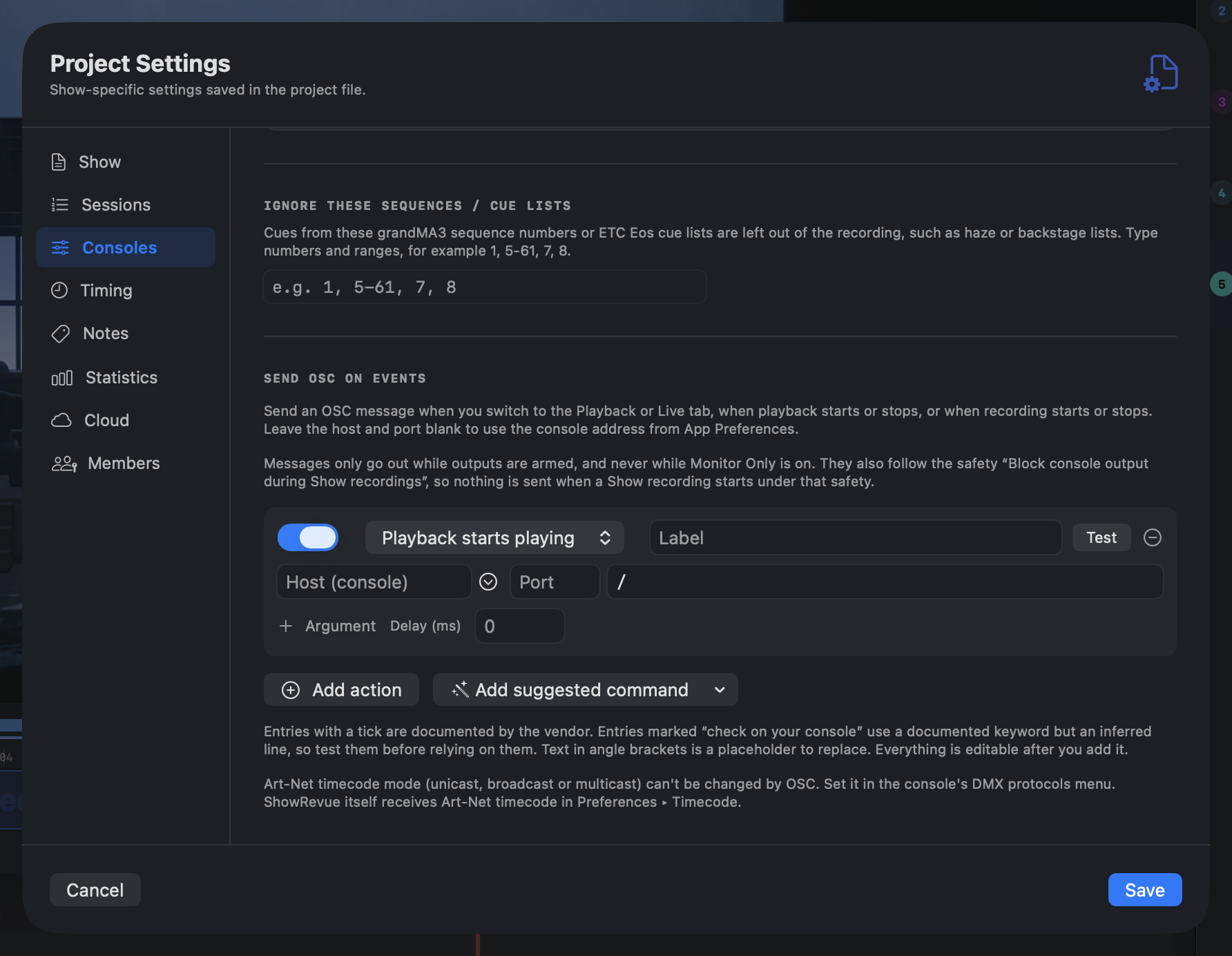
Send OSC on events: an action with its event, label, host, port, address, argument, delay and Test button.
The six events
Each action is tied to one event:
| Event | When it fires |
|---|---|
| Switch to Playback tab | You switch from another tab to Playback. |
| Switch to Live tab | You switch to Live. |
| Playback starts playing | Playback starts. |
| Playback stops | Playback stops. |
| Recording starts | A recording starts. |
| Recording stops | A recording stops. |
An event fires once per real change. If the same event arrives twice within a quarter of a second (a double click, or the same state published twice), it counts as one.
An action
Click Add action for a blank one, or pick a command from Add suggested command (below). Each action has:
- On/off switch. A switched-off action never fires.
- Event. Which of the six events it belongs to.
- Label. A name for your own use. It also names the action in the log.
- Host. The machine to send to. Leave it blank to use the console output address from Preferences → Lighting Consoles. The small menu beside the field lists known targets (see The target menu); you can also type any host.
- Port. Leave it blank to use the console output port.
- Address. The OSC address. It has to start with
/, for example/gma3/cmd. - Arguments. Click Argument to add one. Each has a type, int, float or string, and a value. Numbers are checked when the message is built, so a half-typed number doesn't lose your text. An int or float that isn't a valid number means that action isn't sent.
- Delay (ms). Wait this long after the event before sending. Blank or 0 sends straight away. The most you can set is 60,000 ms (60 seconds).
- Test. Sends this one action now, through the same safety rules as a real event. It reports Sent, or Blocked with the reason (for example "outputs disarmed").
- Remove (the minus button).
Messages go out over UDP, one packet each, in list order. Equal delays keep list order, and delayed messages follow the immediate ones. A message that can't be built (no host, bad address, a number that doesn't parse) is skipped and the reason goes to the app log.
If an action's address or an argument still has text in angle brackets (a placeholder from a suggested command), the row shows a warning to replace it before relying on it.
Suggested commands
Add suggested command is a menu grouped by product: grandMA3, ETC Eos, disguise, QLab and Companion. Picking one adds an ordinary action with the address, arguments, host and port filled in and the event set to Recording starts. Change the event and anything else you like. Nothing is locked.
Every entry carries a badge:
- Documented (a tick in the menu). The vendor's own manual prints the command.
- Check on your console (a question mark, and the words in the menu). The keyword is documented but the exact line is inferred, or the vendor page was only partly read. Test it on your console before you rely on it.
Hover an entry for a note and its source.
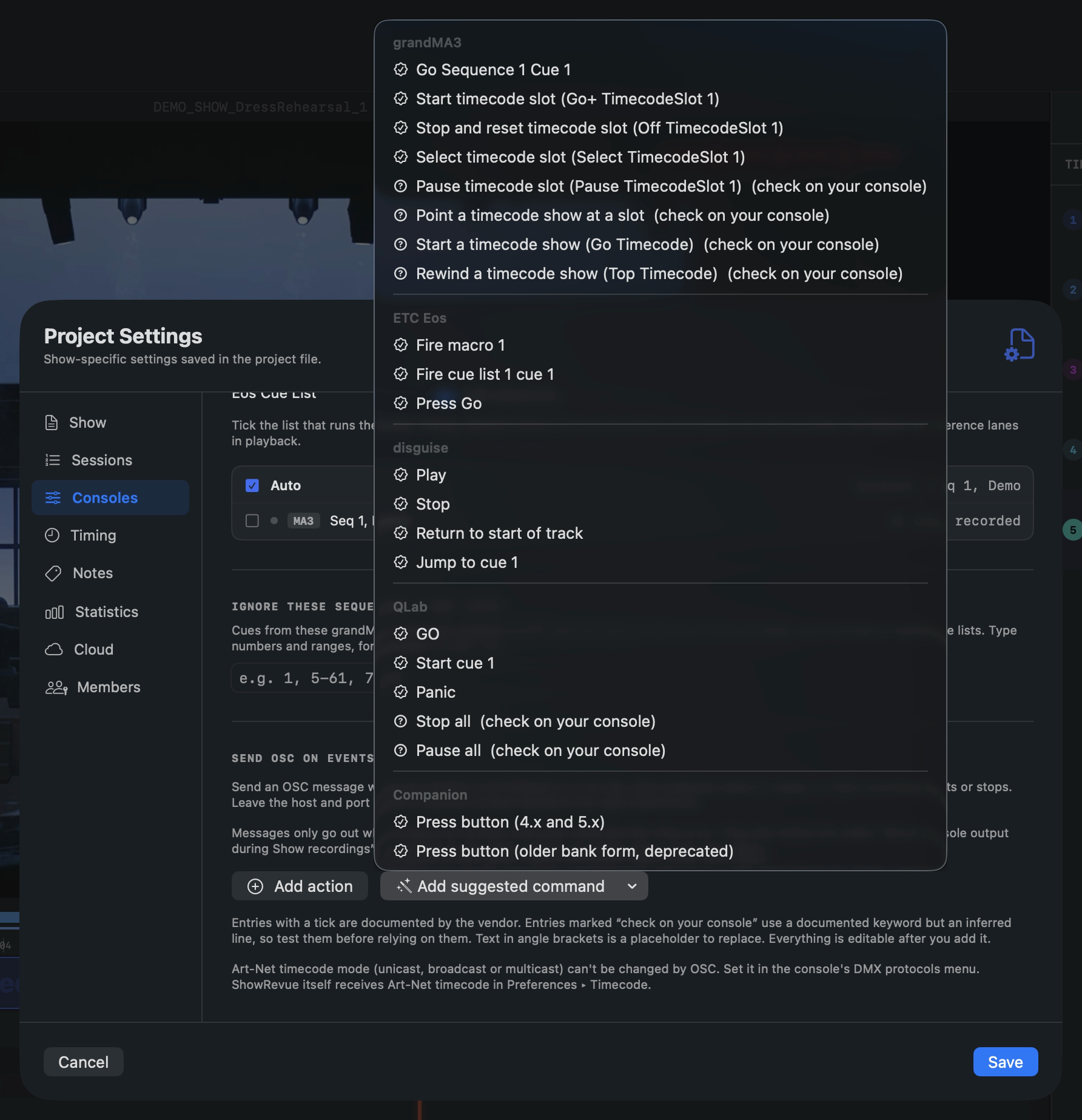
Add suggested command: grouped by product, with a tick for vendor-documented commands and "check on your console" for the inferred ones.
grandMA3
Sent as text through /cmd. On the console's OSC row, Enable Input must be on and Receive
Command must be Yes. If the row has a prefix, put it first (for example /gma3/cmd).
| Entry | Sends | Badge |
|---|---|---|
| Go Sequence 1 Cue 1 | /gma3/cmd with Go Sequence 1 Cue 1 | Documented |
| Start timecode slot | /cmd with Go+ TimecodeSlot 1 | Documented |
| Stop and reset timecode slot | /cmd with Off TimecodeSlot 1 | Documented |
| Select timecode slot | /cmd with Select TimecodeSlot 1 | Documented |
| Pause timecode slot | /cmd with Pause TimecodeSlot 1 | Check on your console |
| Point a timecode show at a slot | /cmd with Set Timecode "<timecode name or number>" "TCSlot" "Slot2" | Check on your console |
| Start a timecode show | /cmd with Go Timecode "<timecode name>" | Check on your console |
| Rewind a timecode show | /cmd with Top Timecode "<timecode name>" | Check on your console |
All of these start with the host and port blank, so they use the console output address from Preferences. Edit the slot number at the end of the slot commands. The last three have placeholders to replace.
ETC Eos
| Entry | Sends | Badge |
|---|---|---|
| Fire macro 1 | /eos/macro/1/fire | Documented |
| Fire cue list 1 cue 1 | /eos/cue/1/1/fire | Documented |
| Press Go | /eos/key/go | Documented |
These start with the host and port blank, so they use the console output address from
Preferences. The guide names 8000 as the usual Eos receive port. Eos has no documented OSC command to
switch an event list's timecode source, so a macro is the usual route. The guide shows
/eos/key/go with an argument of 0 for press and release; add that argument if your software
version needs it. The syntax comes from the Eos Show Control User Guide Rev C (2017). Check it
against your Eos version.
disguise
The host and port start as 127.0.0.1 and 7401. Set the host to the d3 machine. The OSC device
needs an EventTransportOSC transport.
| Entry | Sends | Badge |
|---|---|---|
| Play | /d3/showcontrol/play | Documented |
| Stop | /d3/showcontrol/stop | Documented |
| Return to start of track | /d3/showcontrol/returntostart | Documented |
| Jump to cue 1 | /d3/showcontrol/cue with int 1 | Documented |
The cue address takes one to three numbers: 1 2 5 calls cue 1.2.5. The timeline needs cue tags.
QLab
QLab listens on UDP 53000. The host and port start as 127.0.0.1 and 53000; set the host to the
QLab Mac.
| Entry | Sends | Badge |
|---|---|---|
| GO | /go | Documented |
| Start cue 1 | /cue/1/start | Documented |
| Panic | /panic | Documented |
| Stop all | /stop | Check on your console |
| Pause all | /pause | Check on your console |
For Stop all and Pause all, if the bare address does nothing, use the workspace form
/workspace/<id>/stop or /workspace/<id>/pause.
Companion
The host and port start as 127.0.0.1 and 12321, the OSC port on Companion 4.x and 5.x. It's
configurable in Companion's Settings.
| Entry | Sends | Badge |
|---|---|---|
| Press button (4.x and 5.x) | /location/1/0/0/press | Documented |
| Press button (older bank form, deprecated) | /press/bank/1/1 | Documented |
Edit the page, row and column in the address. Companion marks the bank form for removal and it has to be switched on in its settings. Companion 3.x wasn't checked.
What isn't offered
There are no Millumin or Pixera entries, because no documented OSC syntax was found for them. There's also nothing for Eos event-list or timecode switching, or for disguise locate-to-timecode.
Art-Net timecode mode (unicast, broadcast or multicast) can't be changed by OSC. Set it in the console's DMX protocols menu. ShowRevue itself receives Art-Net timecode in Preferences → Timecode.
No product we checked exposes an OSC command for it, so there's no template.
The target menu
The small chevron beside the Host field opens a menu with two groups.
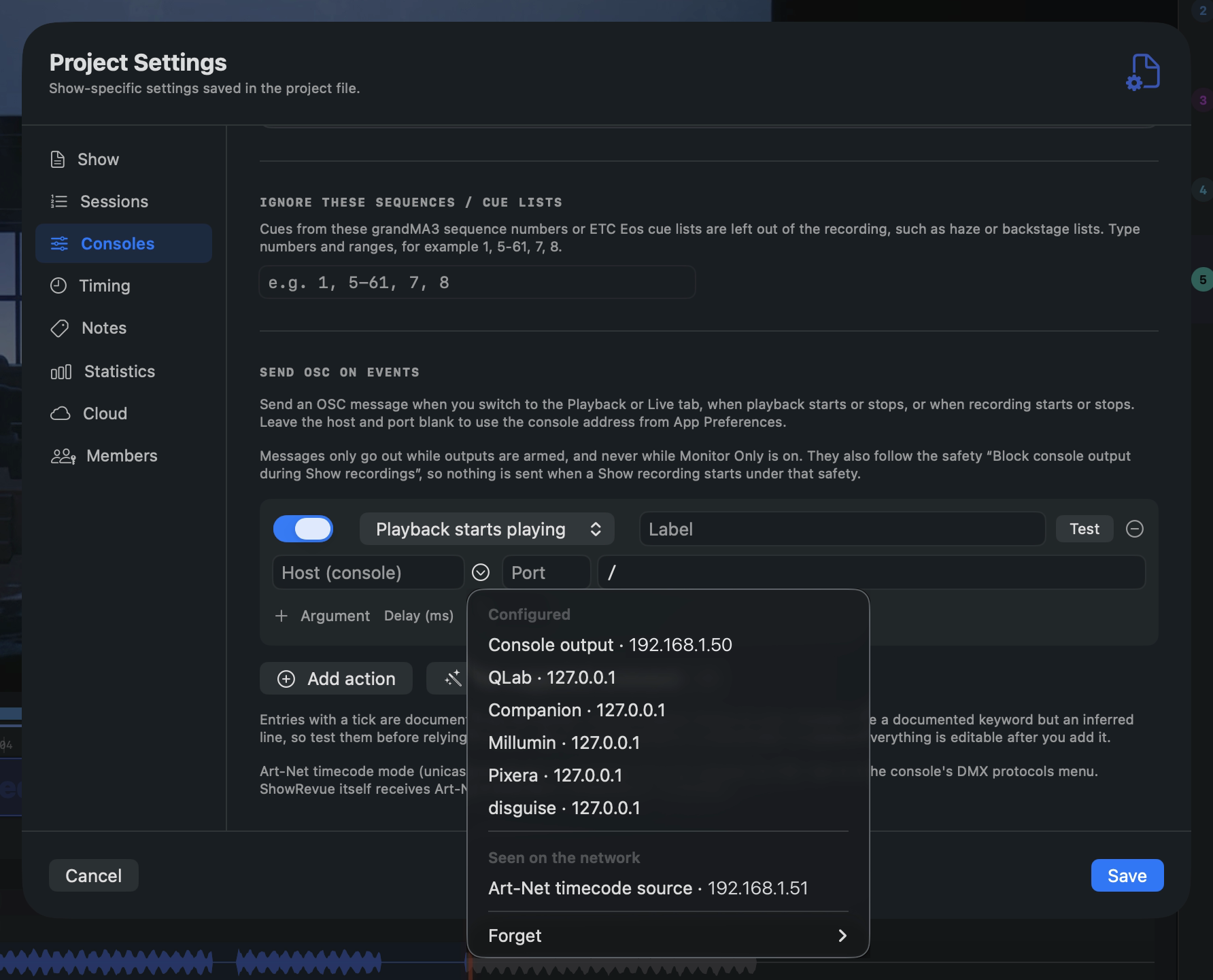
The host target menu: Configured targets, anything Seen on the network, and Forget.
Configured lists targets ShowRevue is already set up for. Picking one fills the host and the port.
- Console output, from Preferences → Lighting Consoles.
- QLab, one entry for each linked QLab, named by its label.
- Companion, Millumin, Pixera and disguise.
Targets with no host set aren't listed.
Seen on the network lists devices that have sent cue messages or Art-Net timecode to ShowRevue. It appears once there's at least one.
- Picking one fills the host and the usual port for its kind: the console output port for grandMA3 and Eos, 53000 for QLab, 12321 for Companion. For any other device the port is left as it is. The port the device sent from is never used, because it isn't the port to send to.
- Only the host is kept, not the message content. The list holds the 30 most recent devices.
Local addresses (
127.0.0.1,::1,localhost) are never added. - sACN senders aren't recorded, because the receive code doesn't read the sender's address.
- Forget in the menu removes a device from the list.
Safety rules
Event messages follow the same output gate as console fire-back. Nothing is sent unless every one of these is true:
- Outputs are armed. The badge in the app reads OUTPUTS OFF until you click it to ARMED, and it goes back to off every time ShowRevue opens.
- Monitor Only is off.
- TimeWarp isn't scrubbing.
- The show-recording lock isn't holding output back. With Block console output during Show recordings on, nothing goes out while a Show session is recording. Note that Recording starts is therefore blocked for a Show recording under that safety.
- The licence is Professional or above. It's checked at the moment of each send.
One deliberate exception: Recording stops is let through when the show-recording lock is the only thing in the way. By the time the stop event is handled, the take has ended and the lock no longer applies, and a timing race shouldn't swallow the one message that tells the desk the recording is over. A disarmed output, Monitor Only or TimeWarp scrubbing still blocks it.
Every send, and every blocked attempt, is recorded in the Output Audit Trail and the app log. See Show Safety for the lock and the arm-to-fire rule.
An event with no matching actions sends nothing and logs nothing.