OSC Remote Control
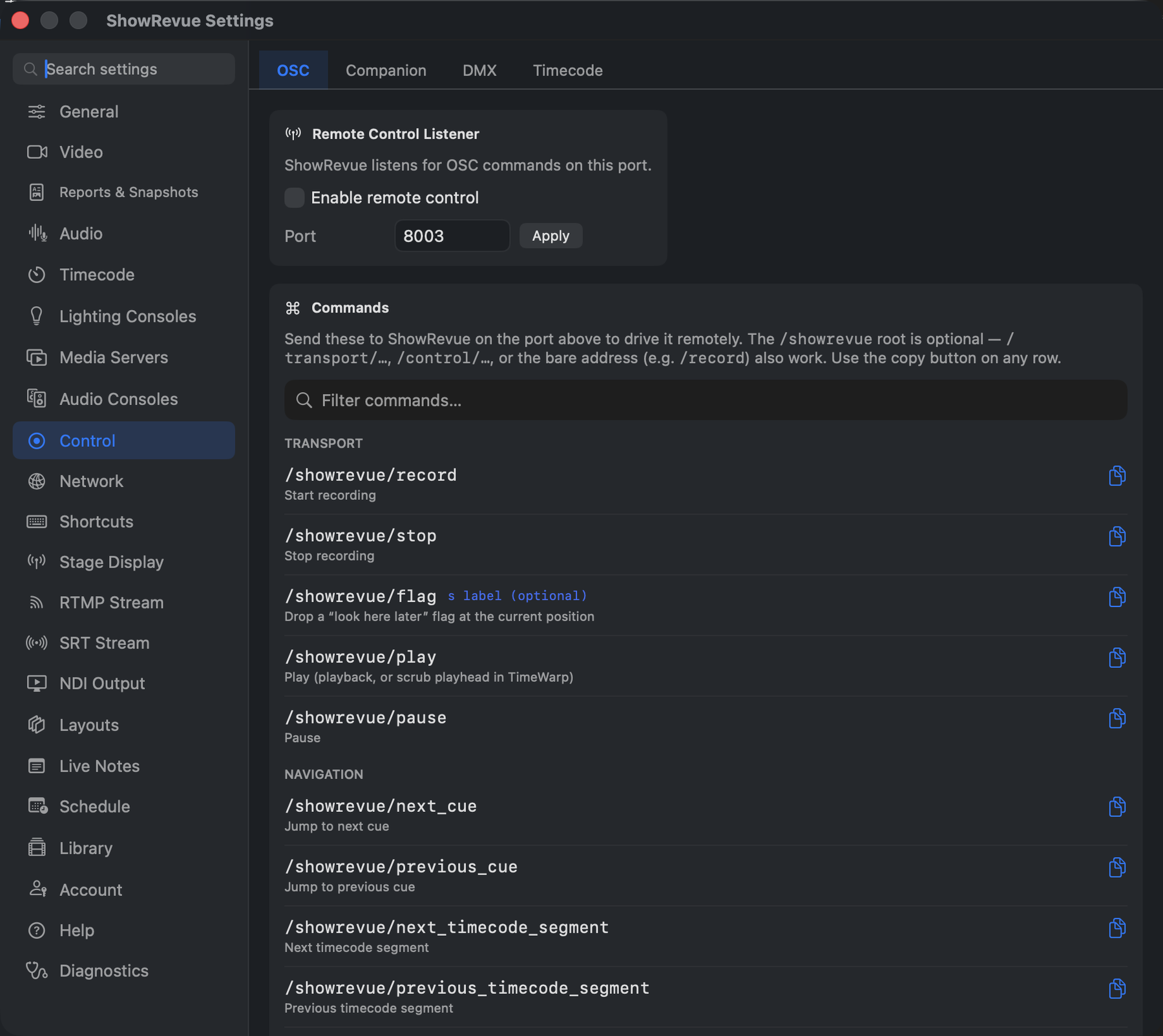
Preferences → Control → OSC: listener port and the copyable OSC command reference.
Turn on Enable remote control in Preferences → Control → OSC and ShowRevue listens for commands on port 8001 by default (not the 8000 cue input port). You can change the port there.
OSC remote control needs a Professional licence. Cue input from a lighting desk is a separate feature and only needs Base. See Licence Tiers.
Commands that arrive on the cue input port (8000) are accepted too, so a desk or Companion pointed
at either port works. A record button on the console is just a macro that sends
/showrevue/record, with another for /showrevue/stop.
Transport
| Address | Action |
|---|---|
/showrevue/record | Start recording |
/showrevue/stop | Stop recording |
/showrevue/play | Play in playback mode |
/showrevue/pause | Pause |
/showrevue/flag | Drop a "look here later" flag at the current position (optional s label arg) |
Any command that moves through a recording (play, pause, next and previous cue, forward and back, next and previous recording, next and previous timecode section, frame steps, and every loop command) switches ShowRevue to Playback mode when it arrives, then acts on the open recording. While a take is recording, ShowRevue ignores all of them, so a stray macro can't pull the app out of Live mid-show; the log says Ignored playback command while recording.
Notes and output safety
| Address | Args | Action |
|---|---|---|
/showrevue/note | s text [s department] | Add a note at this moment (only while recording) |
/showrevue/note/<department> | s text | Same, with the department in the address, e.g. /showrevue/note/lighting |
/showrevue/quicknote/<department> | i index | Add that department's quick note number index (1-based) |
/showrevue/next/note · /showrevue/previous/note | Jump to the next / previous note | |
/showrevue/arm (/on, /off, /toggle) | Arm or disarm outputs for playback fire-back | |
/showrevue/monitor (/on, /off, /toggle) | Monitor Only: the global kill switch for outputs |
Department names: cast, lighting, sound, video, automation, pyro, special_effects,
stage_management, props, wardrobe, scenic, general.
Show timing
Drive the preshow curtain countdown (Show State widget) from a console. See Show times.
| Address | Args | Action |
|---|---|---|
/showrevue/showstart | s "HH:MM" | Override the next curtain to today at HH:MM |
/showrevue/nextshow | — | Advance to the next configured show time |
Navigation
| Address | Args | Action |
|---|---|---|
/showrevue/next_cue | — | Jump to next cue |
/showrevue/previous_cue | — | Jump to previous cue |
/showrevue/next_tc_segment | — | Next timecode segment |
/showrevue/prev_tc_segment | — | Previous timecode segment |
/showrevue/forward | f seconds | Skip forward |
/showrevue/back | f seconds | Skip backward |
/showrevue/next_frame | — | Step forward one frame |
/showrevue/previous_frame | — | Step backward one frame |
Recording library
| Address | Args | Action |
|---|---|---|
/showrevue/next/recording (/next_recording, /next-recording, /nextrecording) | — | Load the next recording in Library order. Loads only, it does not start playback. |
/showrevue/previous/recording (/previous_recording, /previous-recording, /previousrecording, /prev/recording, /prev_recording, /prevrecording) | — | Load the previous recording in Library order. Loads only. |
/showrevue/play (with no recording open) | — | Loads the top recording in the Library and starts it, when Load the latest recording when nothing is open is on in Preferences ▸ General. Off by default. |
Library order is the order the Playback Library lists the project's recordings. Takes from one session stay together. Stepping stops at the first and last recording and does not wrap. The step commands work only from Playback while the video is stopped. In any other state they are ignored, so a load never stops a roll or sends a console or media server message.
TimeWarp (DVR)
TimeWarp (DVR) lets you scrub back through a live recording without stopping it. The recording, and any NDI/RTMP/Stage Display outputs, keep running untouched. It needs a Professional licence, and works only while recording, via the TimeWarp button in the toolbar (or the keyboard/OSC commands below). Turn it on with Enable TimeWarp in Preferences → Video, which also sets how much the rolling buffer keeps (15 minutes to 4 hours, about 1 GB an hour on disk). The buffer is deleted automatically when the recording stops.
| Address | Action |
|---|---|
/showrevue/timewarp | Enter TimeWarp (begin scrubbing the live recording). Aliases: /showrevue/warp, /showrevue/dvr |
/showrevue/timewarp/off | Return to live. Aliases: /showrevue/live, /showrevue/dvr/off |
While timeshifting, the standard transport and navigation commands drive the scrub surface instead of the playback engine, so you can reuse the same OSC mapping you use for playback:
| Address | Args | Action |
|---|---|---|
/showrevue/play · /showrevue/pause | — | Play / pause the scrub playhead |
/showrevue/next_cue · /showrevue/previous_cue | — | Jump to the next / previous recorded cue |
/showrevue/forward · /showrevue/back | f seconds | Skip the scrub playhead forward / back |
Console-bound output (OSC cue fires, QLab go, LTC output) is gated off while timeshifting. Scrub is monitor-only and never drives the desk backwards.
Keyboard shortcuts (while the app is focused): press D while recording to enter timeshift; then Space play/pause, ← / → skip ±10 s, < / > previous / next cue, Esc return to live.
Loop
| Address | Action |
|---|---|
/showrevue/set_loop_in | Set loop in point |
/showrevue/set_loop_out | Set loop out point |
/showrevue/go_loop_in | Jump to loop in point |
/showrevue/go_loop_out | Jump to loop out point |
/showrevue/loop (or /loop/toggle) | Toggle loop |
/showrevue/enable_loop | Enable loop |
/showrevue/disable_loop | Disable loop |
/showrevue/stop_loop | Stop looping and continue playback |
/showrevue/clear_loop | Clear in and out points |
Messaging and mask
| Address | Args | Action |
|---|---|---|
/showrevue/mask/on | — | Show the blocked mask in Stage Display |
/showrevue/mask/off | — | Remove the mask |
/showrevue/mask/toggle | — | Toggle the mask |
/showrevue/message/set | s text [s colorHex] [f duration] | Display a custom message |
/showrevue/message/preset | s presetId | Trigger a preset message. IDs are listed under Preset IDs, e.g. call-5, beginners, go |
/showrevue/message/toggle | s presetId | Toggle a preset message, e.g. house-open, interval, show-stop |
/showrevue/message/clear | — | Clear the current message |
NDI output
Switch the NDI Output source live.
| Address | Args | Action |
|---|---|---|
/showrevue/ndi/source | s "showrevuelive" | Send the show output (camera + overlay) |
/showrevue/ndi/source | s "gui" | Mirror the GUI video area (live preview, or playback) |
Accepts
showrevuelive/live/show/0andgui/mirror/1.
Show state counter
Manually set the show phase displayed in the Show State widget.
Note: These commands only take effect when Auto-advance is turned off in Project Settings → Timing. When auto-advance is on, the lighting-cue-driven calculation takes precedence and overrides any manually set phase.
| Address | Args | Action |
|---|---|---|
/showrevue/showstate/preshow | — | Set phase to Preshow |
/showrevue/showstate/act | i actNumber | Set phase to Act N (timer starts now) |
/showrevue/showstate/interval | i intervalNumber [f durationSeconds] | Set phase to Interval N, optional countdown duration |
/showrevue/showstate/finished | — | Set phase to Finished |
/showrevue/showstate/reset | — | Clear manual phase (returns to auto-calculated) |
Example. Set Act 2:
/showrevue/showstate/act 2
Example. Set Interval 1 with 15-minute countdown:
/showrevue/showstate/interval 1 900.0
Widget control
Show, hide, toggle, or recolour individual overlay widgets. Use the widget's kind name (camelCase) or its custom OSC ID (set in the widget inspector).
| Address | Arguments | Action |
|---|---|---|
/showrevue/widget/<id>/show | — | Make widget visible |
/showrevue/widget/<id>/hide | — | Hide widget |
/showrevue/widget/<id>/toggle | — | Toggle widget visibility |
/showrevue/widget/<id>/color | s #RRGGBB | Set text colour (hex). Send none to reset to white. |
<id> is either the widget kind name or a custom OSC ID you set in Preferences → Layouts → inspector → OSC ID.
Available widget kind names:
| Kind | Widget |
|---|---|
showName | Show Name |
showType | Show Type |
showNumber | Show Type / Number |
ltc | LTC |
timecodeSource | Source Pill |
recordingStatus | REC |
cueNumber | Cue Number |
cueLabel | Cue Label |
audioScene | Audio Scene |
cueElapsed | Time Since Cue |
prevCueDuration | Prev Cue Duration |
cueLine | Main Lighting Cue |
secondaryCueLine | Secondary Lighting Cue |
customText | Custom Text |
pngImage | PNG Image |
wallClock | Wall Clock |
numberLine | Number Line |
qlabRunningCues | Running Media Cues |
showState | Show State |
theatremixCue | TheatreMix Cue |
cueProgress | Cue Progress |
videoSource | Secondary Video Feed |
positionData | Position Data |
Example. Hide the LTC widget:
/showrevue/widget/ltc/hide
Example. Set a custom text widget colour using its OSC ID:
/showrevue/widget/titleWidget/color "#FF8800"
/showrevue/widget/titleWidget/color "none"
Session naming
Set the session type and number that the next recording uses. A console or Companion button can do this before a take, so the file is named the way the house calls it.
These commands are refused while a recording is running, because the take's file name is already fixed. A refused command is logged and changes nothing.
| Address | Args | Action |
|---|---|---|
/showrevue/session/type | s name or i index | Set the session type. Use a name (built-in or custom, any case) or the 1-based index: 1 Off Venue Rehearsal, 2 Tech Rehearsal, 3 Dress Rehearsal, 4 Show |
/showrevue/session/number | i number | Set the next number for the current session type. Same counter as Project Settings. Numbers below 1 are ignored |
/showrevue/session/new | The next recording of the current type starts a new numbered session. Tech 1 is followed by Tech 2, not Tech 1A. Only that type's counter moves |
Example. Set the type to Dress Rehearsal, then start a new session:
/showrevue/session/type "Dress Rehearsal"
/showrevue/session/type 3
/showrevue/session/new