Overlay Widgets
Overlay widgets are the information layer ShowRevue draws on top of the video. It shows in the live
preview, is burned into the recording, and goes out on the NDI / Stage Display feeds. You arrange them into a
layout with the visual layout editor, and the layout is saved in the .srshow project.
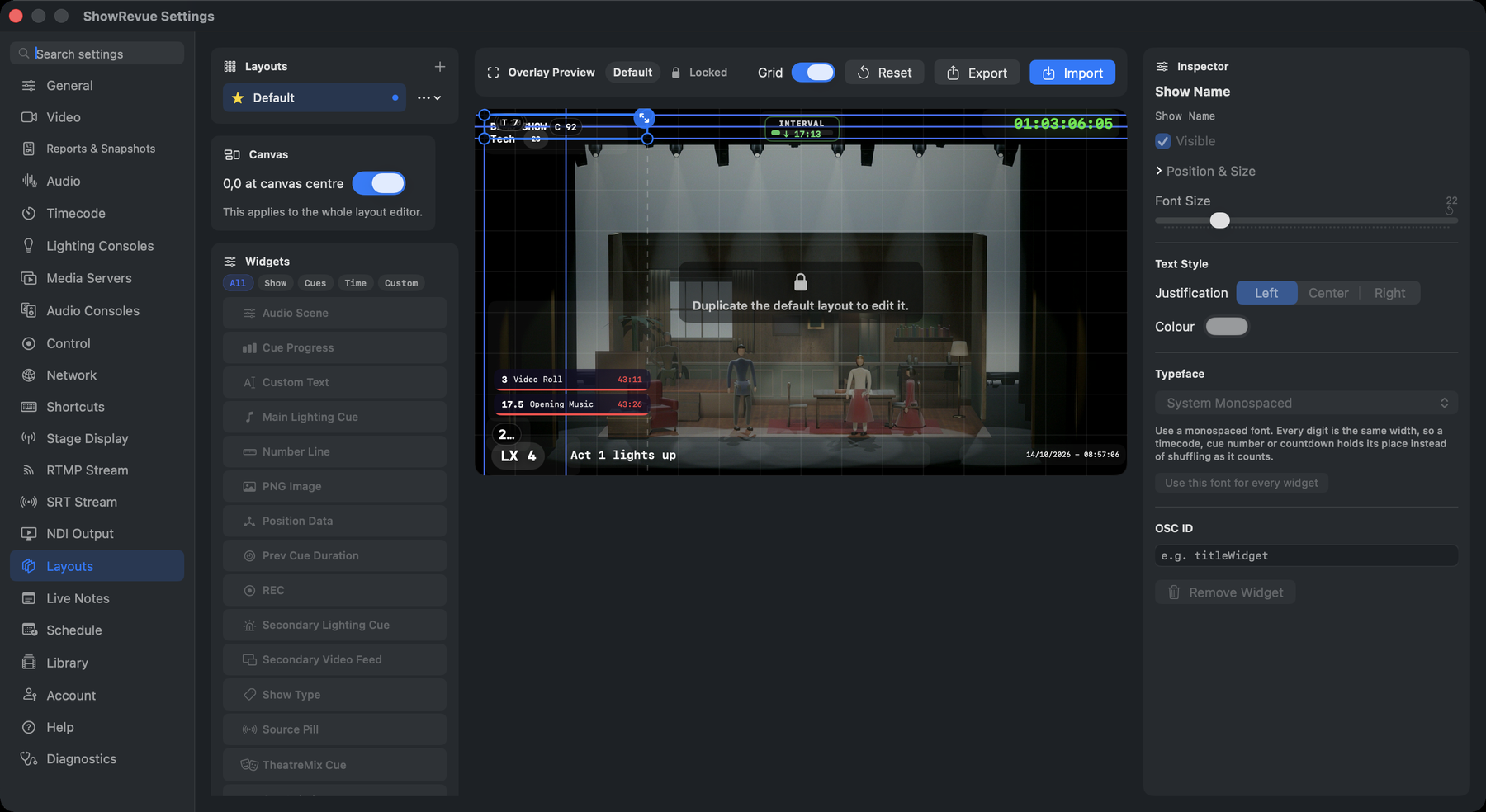
Preferences → Layouts: the widget palette (left), the live overlay preview on the camera feed (centre), and the Inspector for the selected widget (right). Keep multiple layouts and switch between them; each saves with the show.
Custom layouts need a Base licence. Base recordings also carry a ShowRevue watermark in the top-right corner; removing it needs Professional. See Licence Tiers.
The overlay is burned into the recording, so anyone who watches the file sees it, even in a plain video player. Don't put anything on a layout you wouldn't want in the file.
Making a layout
The default layout is Locked. To change anything, select it and click Duplicate (the editor says "Duplicate the default layout to edit it."), then Rename… the copy. Copies are fully editable; Delete removes one.
The editor has a Layouts list, the Canvas and Overlay Preview (with grid and Reset), the Widgets palette, filtered by All / Show / Cues / Time / Custom, and the Inspector for the selected widget. Export saves a layout as a file you can take to another Mac, and Import brings one in.
Working with widgets
- Add a widget. Open the widget palette and pick one; it drops onto the canvas at a sensible default position.
- Move / resize. Drag a widget to reposition it; drag its handles to resize. Positions are stored normalised (0–1), so a layout looks the same at any output resolution.
- Style. Most text widgets let you set the colour, font size (auto-fits to the frame), justification (left / centre / right) and typeface (see below).
- Layouts. Keep several layouts (e.g. a clean broadcast look and a data-rich rehearsal look) and switch between them; they save with the show. Scheduled sessions can each name a layout (see Scheduling).
- OSC. Widgets can be shown, hidden or recoloured over OSC by kind or by an OSC ID set in the Inspector. See OSC Remote Control.
Typeface
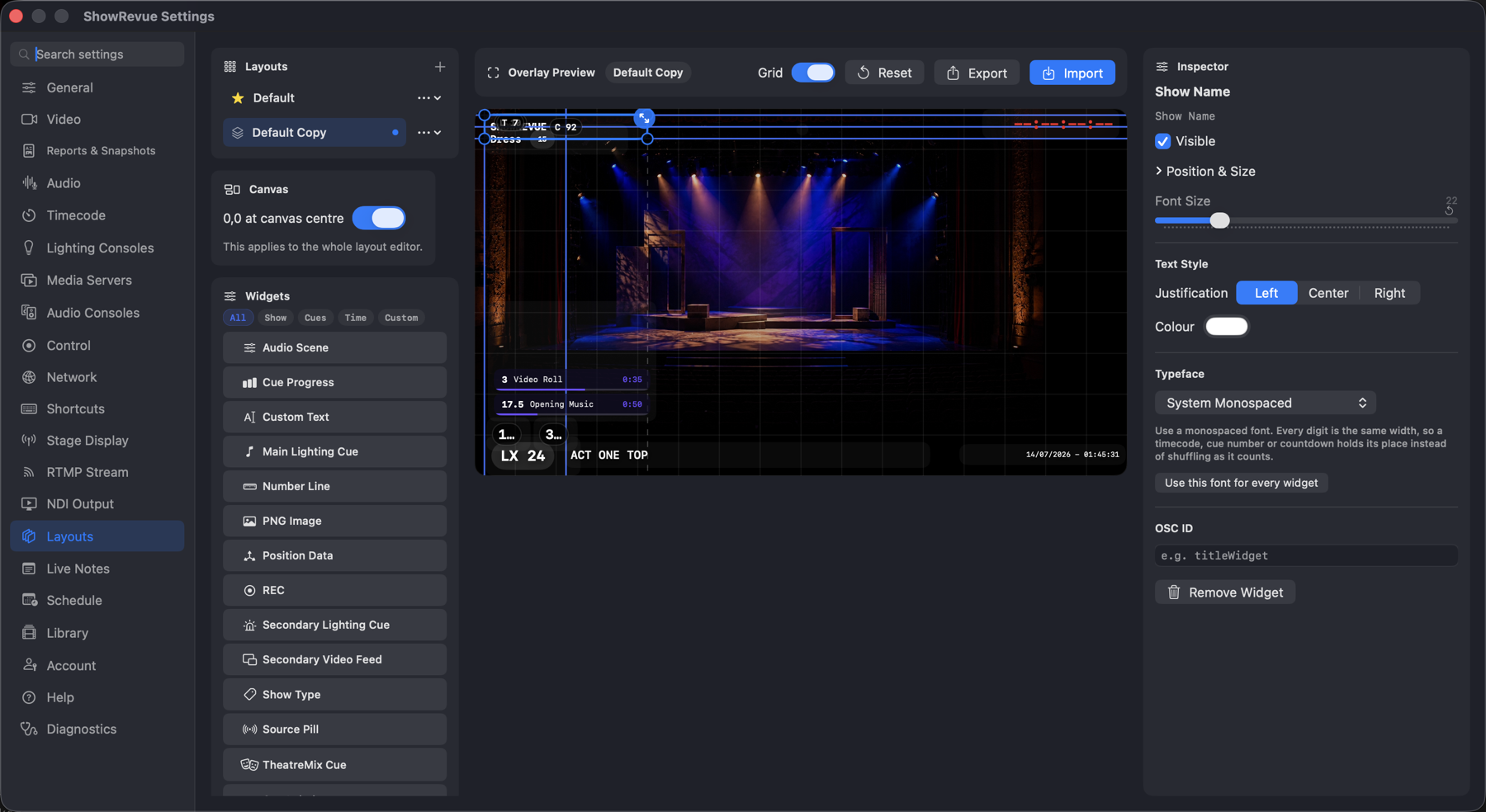
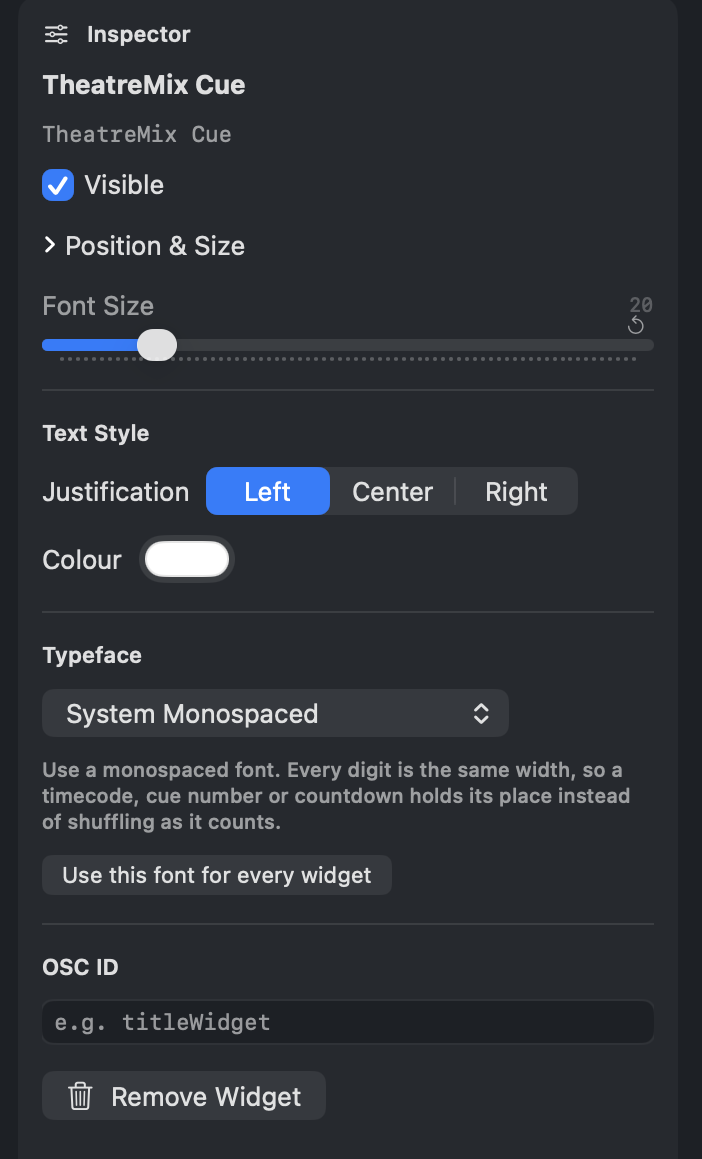
The widget palette lists Main Lighting Cue and Secondary Lighting Cue; the Inspector's Typeface picker sets the selected widget's font, and Use this font for every widget applies it across the layout.
Each widget has a Typeface picker in the Inspector, listing the fonts installed on the Mac, so a venue with branding guidelines can put its own face on the overlay. Use this font for every widget applies the choice across the whole layout in one click. The font follows through to the burned-in recording, not just the on-screen preview.
Pick a monospaced face where you can. They're grouped at the top of the list and labelled. Every digit is the same width, so timecode, cue numbers and countdowns hold their position instead of shuffling sideways as they count. A proportional face makes the overlay jitter. Widgets with no font chosen use the system monospaced face.
Many text widgets also resolve Companion variables, so you can surface remote-driven values.
Show identity
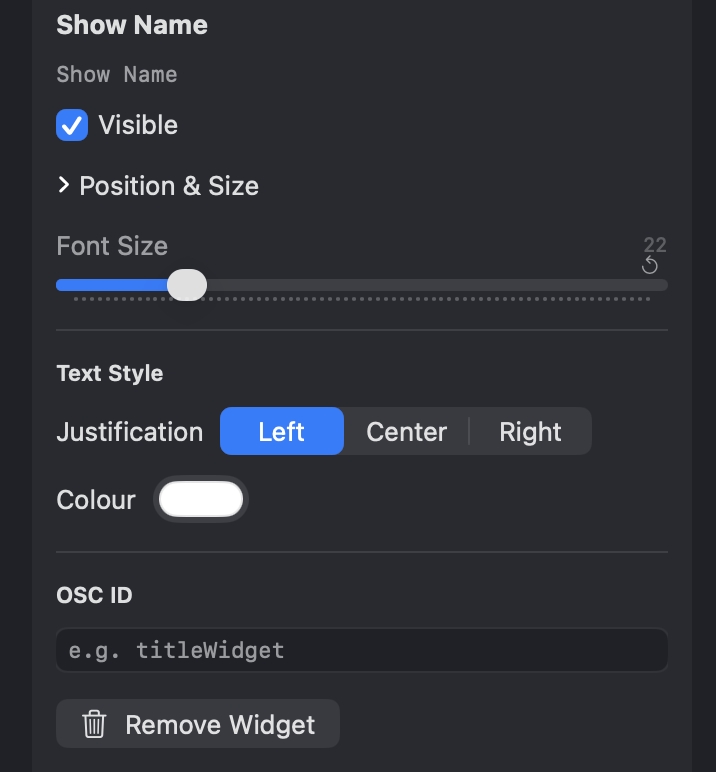
Show Name
The production name (from the project). Use it as a title slate, top-left.
Show Type
The session type only (Show, Tech, Dress or Rehearsal) so anyone watching the feed knows whether this is a real show or a working session.
Show Type / Number
The session type and its number combined, e.g. "Show 1" or "Tech 2A". A compact replacement for the two widgets above when you want one label.
Timecode & clock
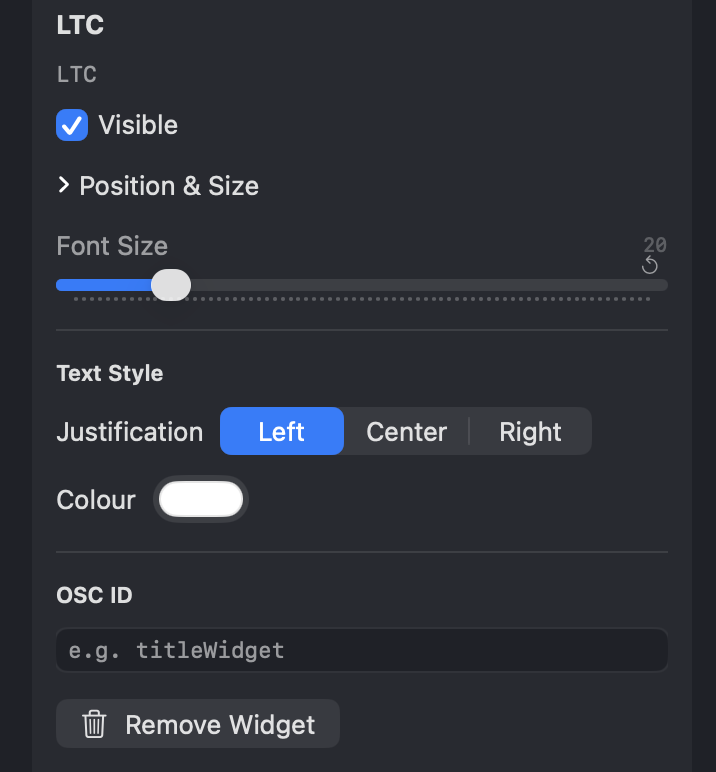
LTC
The live incoming timecode readout (HH:MM:SS:FF), from whatever source is feeding ShowRevue
(LTC, sACN, Art-Net, MTC or disguise). The headline clock for syncing to the desk.
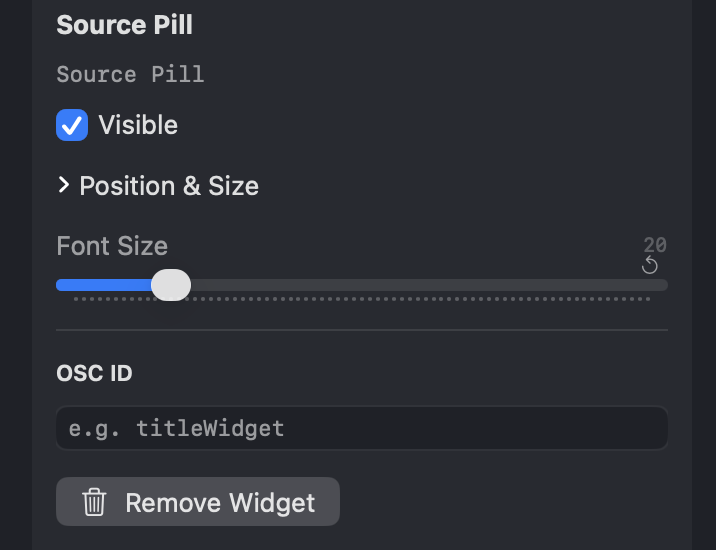
Source Pill
A small badge showing which timecode source is active (e.g. LTC / MTC / sACN). A quick confirm that you're locked to the right feed.
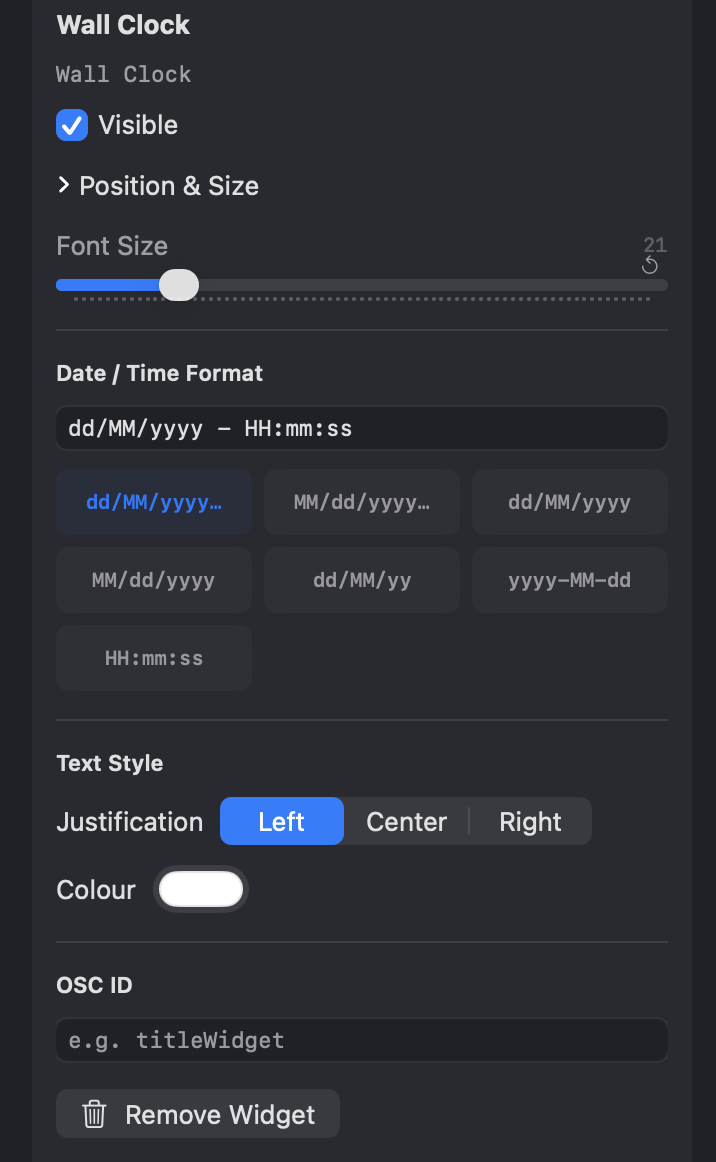
Wall Clock
The real-world time of day. The format is configurable (with or without seconds, date). Handy for a session record or a back-of-house display.
Recording
REC
The recording indicator. Turns red while a recording is rolling, so the feed clearly shows when you're capturing.
Cues
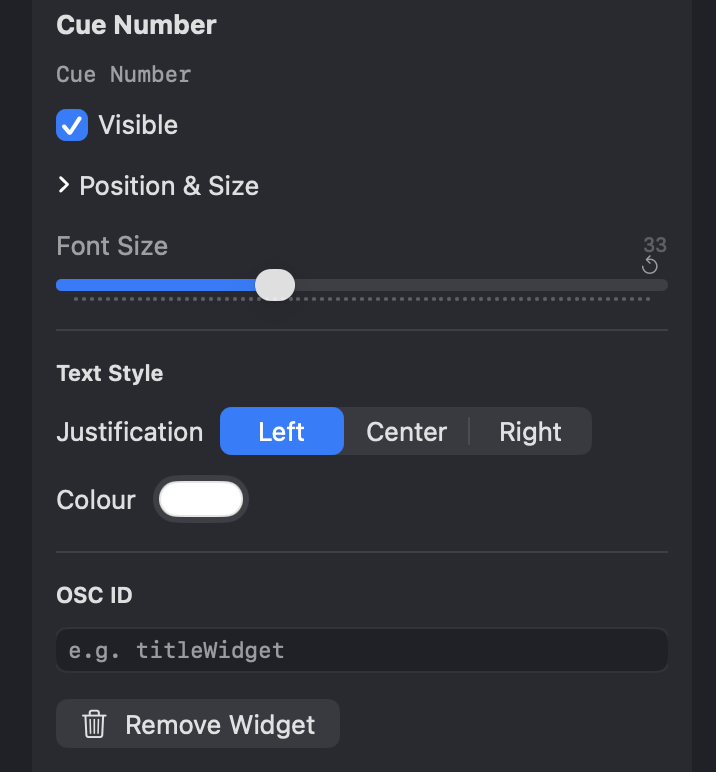
Cue Number
The current lighting cue number. The most recent LX cue fired.
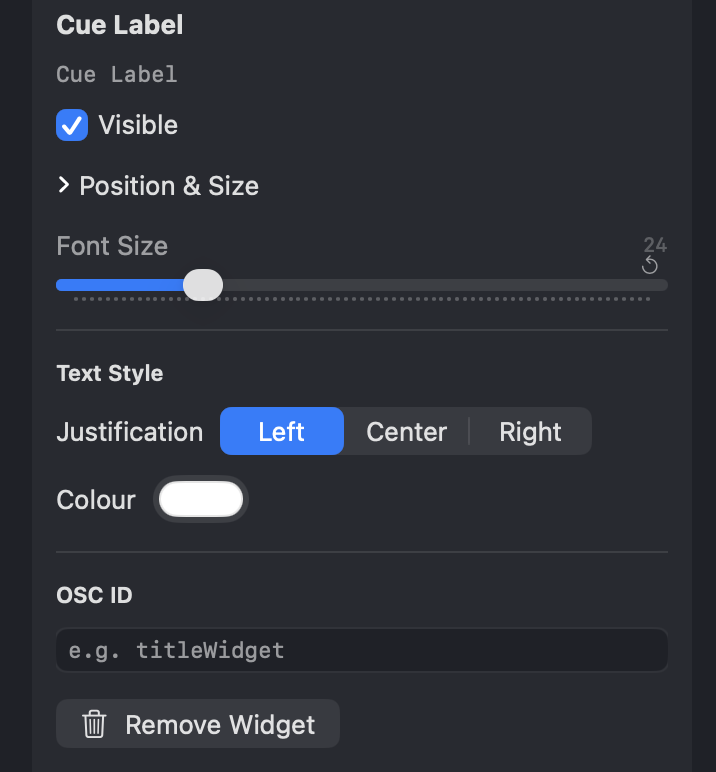
Cue Label
The name/label of the current cue (e.g. "Top of Act 2").
Main Lighting Cue
The full current cue line of the main show cue list (number and label together) on one line, scrolling gently if it's too long to fit. A single readout that captures "where we are" in the book.
It follows the main show cue list, the one you nominate in Project Settings → Consoles. A followspot or video-from-LX list firing in parallel never lands in this line.
Secondary Lighting Cue
The current cue of one other cue list / sequence. Followspots, video-from-LX, house, anything the desk runs alongside the book.
Shows run several lists at once, so you can add as many of these as you have lists. Each one picks its list from a dropdown of every cue list / sequence the project has ever heard the desk running, and follows only that list. Turn on Show the list name and the cue is prefixed with the console's own name for it:
FOLLOWSPOTS LX 2 - PICKUP ELSA
Every list the desk sends is recorded regardless of what's on the layout. The widgets choose what is displayed, never what is captured. See ETC Eos for how the list names are read off the desk.
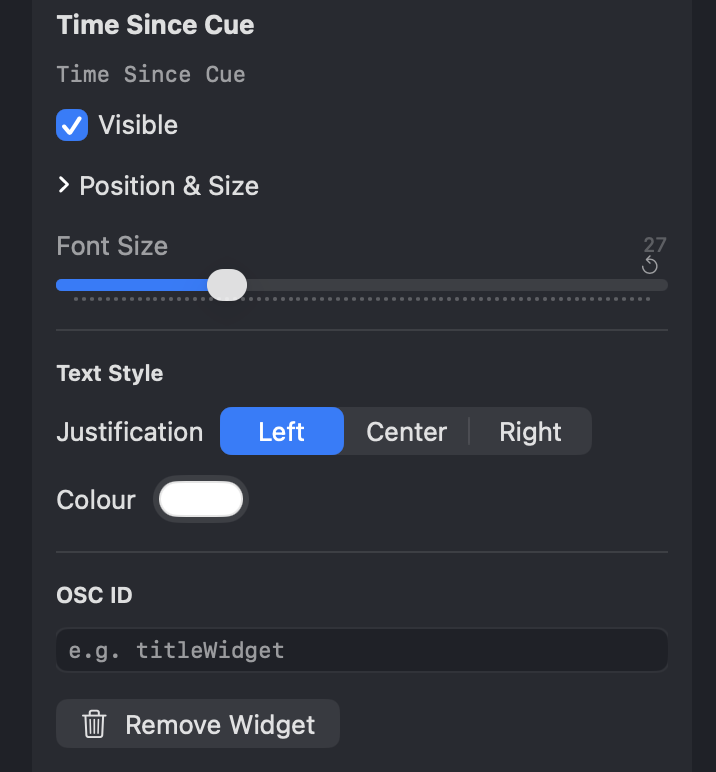
Time Since Cue
Seconds since the current LX cue fired. Useful for spotting long holds or pacing a sequence.
Prev Cue Duration
How long the previous cue was held before the next one fired. A quick sense of timing between states.
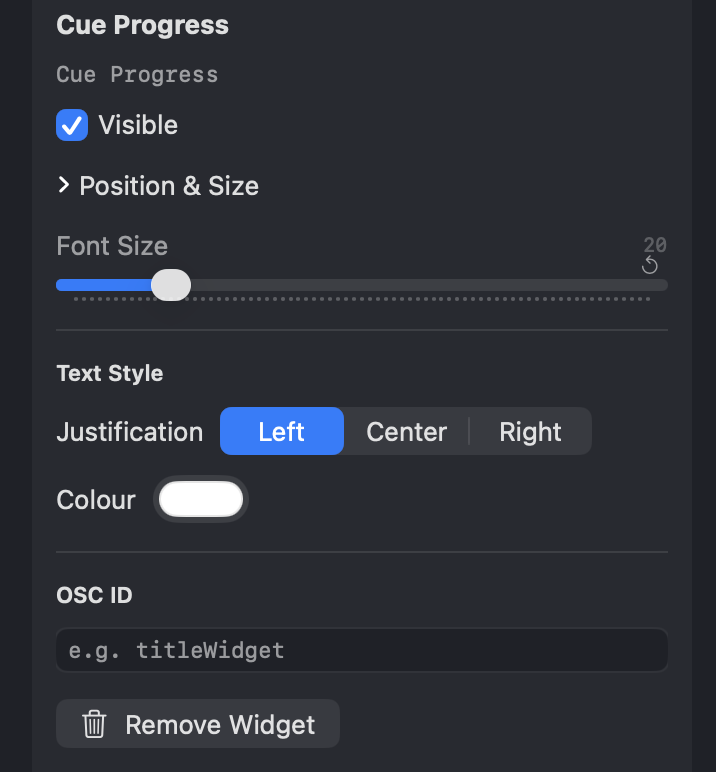
Cue Progress
A progress bar for the current timed cue (e.g. a media-server cue with a known duration), filling as it runs.
Running Media Cues
A live list of the media-server cues currently running. From QLab and Millumin (every connected media server), each with its own progress bar, mirroring the media state right on the video.
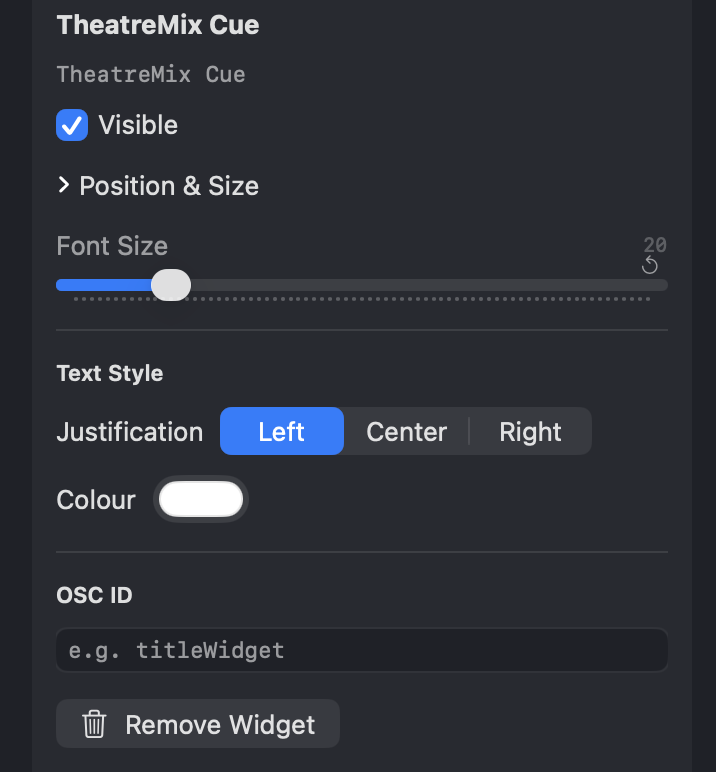
TheatreMix Cue
The current TheatreMix cue. Surfaces the audio-cue state coming from TheatreMix.
Audio
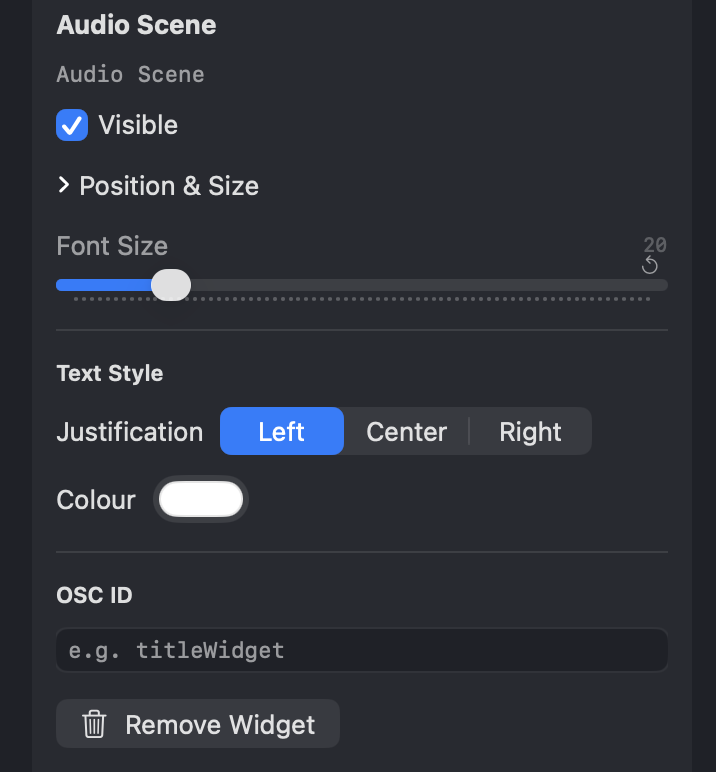
Audio Scene
The current mixing-console scene (number and name) captured from the audio desk (Yamaha DM7 / CL / QL / Rivage, etc.). Shows which desk scene was live at any point.
Show timing
Show State
The Show State widget. Counts down to curtain before the show, up through each act, and down through each interval (green → amber → red as it runs out), driven by your timing cues. See Show State for the full timing setup.
Stage & automation
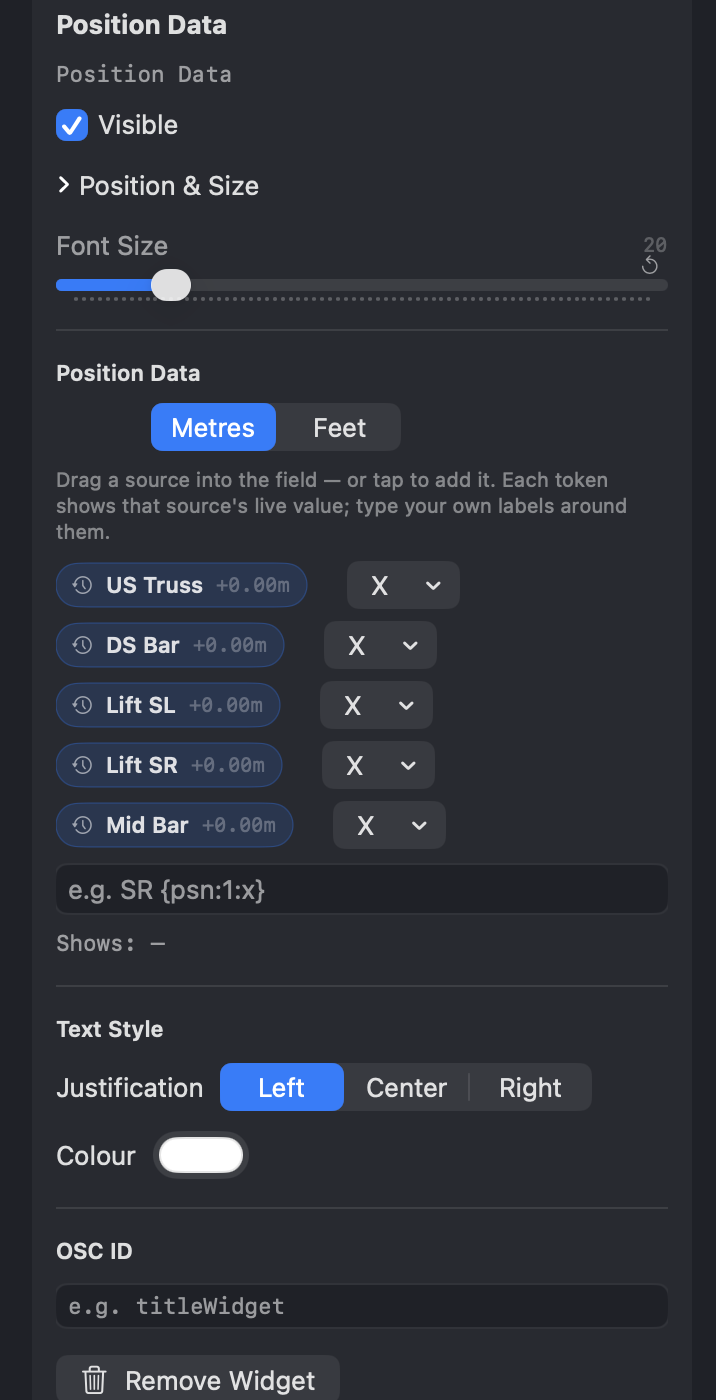
Position Data
Live tracker / PSN position data. X / Y / Z and rotation for a bound tracker, via a configurable template so you choose exactly which fields show. Units switch between feet and metres. Pairs with the Stage Visualizer.
Number Line
A centre-line stage ruler. Marks numbered outward from 0 at centre (the standard stage-edge numbering used for blocking and positions). Configure marks per side, the step (usually 2), spacing, units (feet / metres), and whether the centre mark shows.
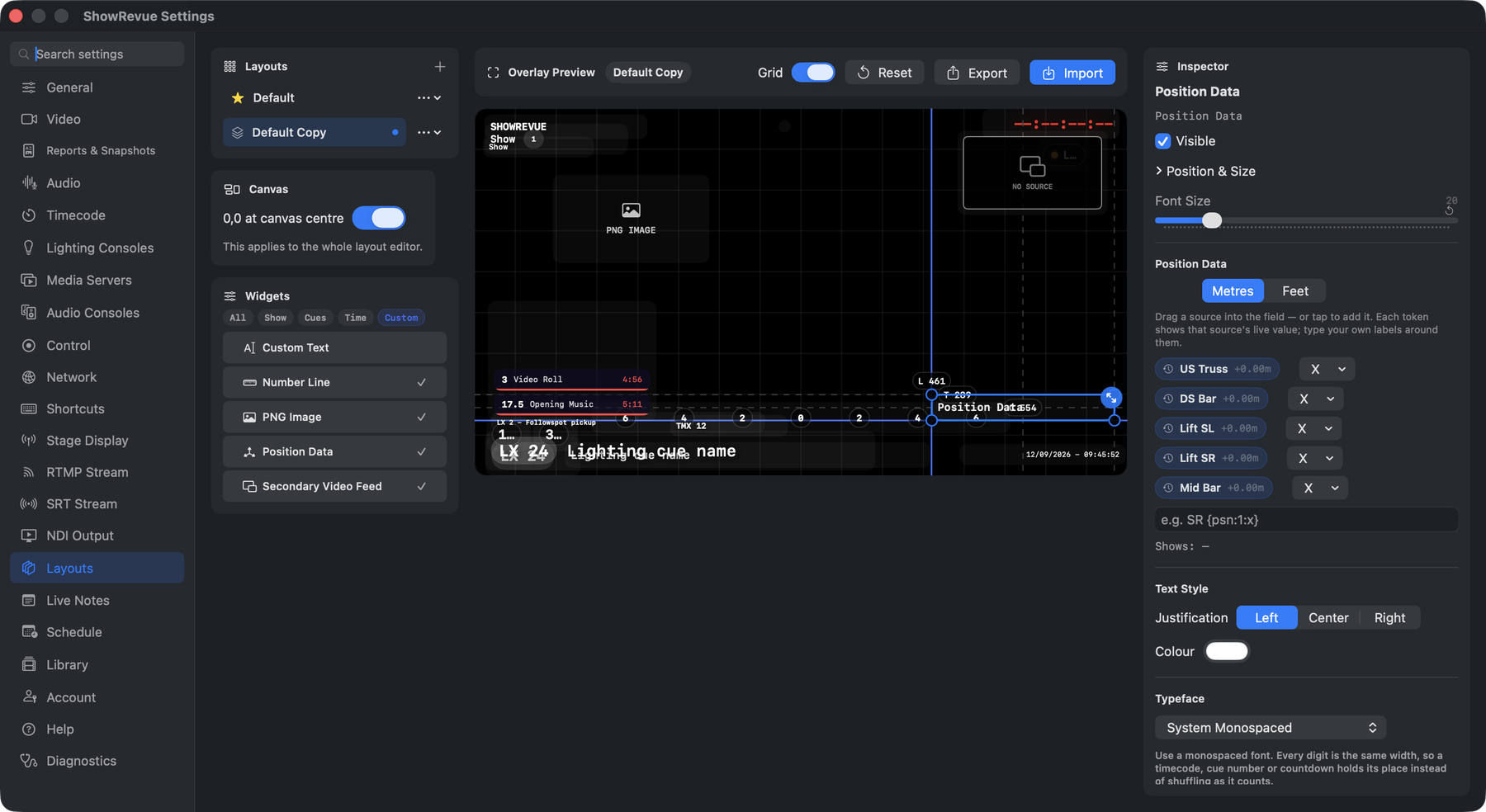
The Stage Number Line laid across the stage, with its Inspector options: mode, units, marks per side, step, spacing, and centre mark.
Media
Secondary Video Feed
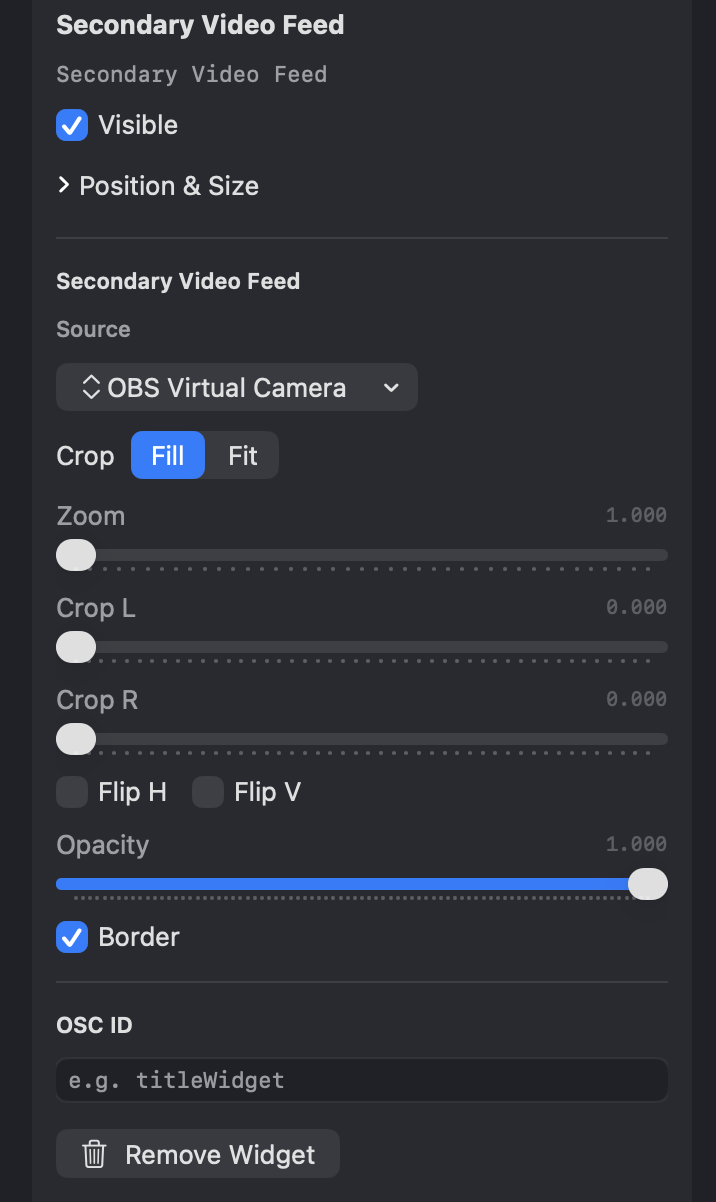
A picture-in-picture of a second camera or NDI source, composited into the recording with its own crop and flip. See Secondary Video Feed.
Custom
Custom Text
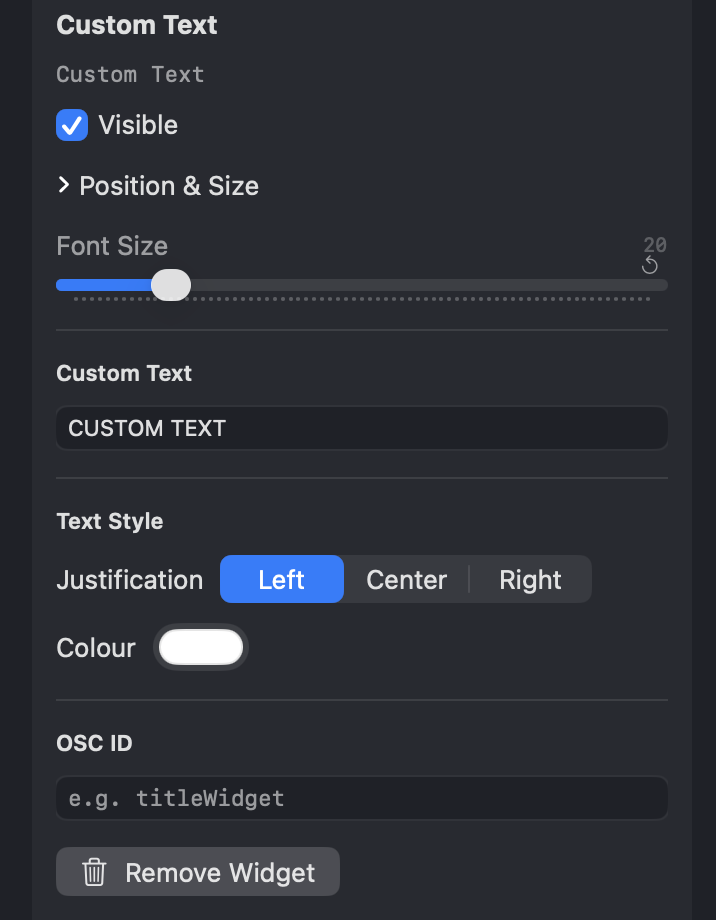
Free text you enter. A fixed label, a credit, or a note. Supports Companion variables, so it can show a remote-driven value, and takes the usual colour / justification styling.
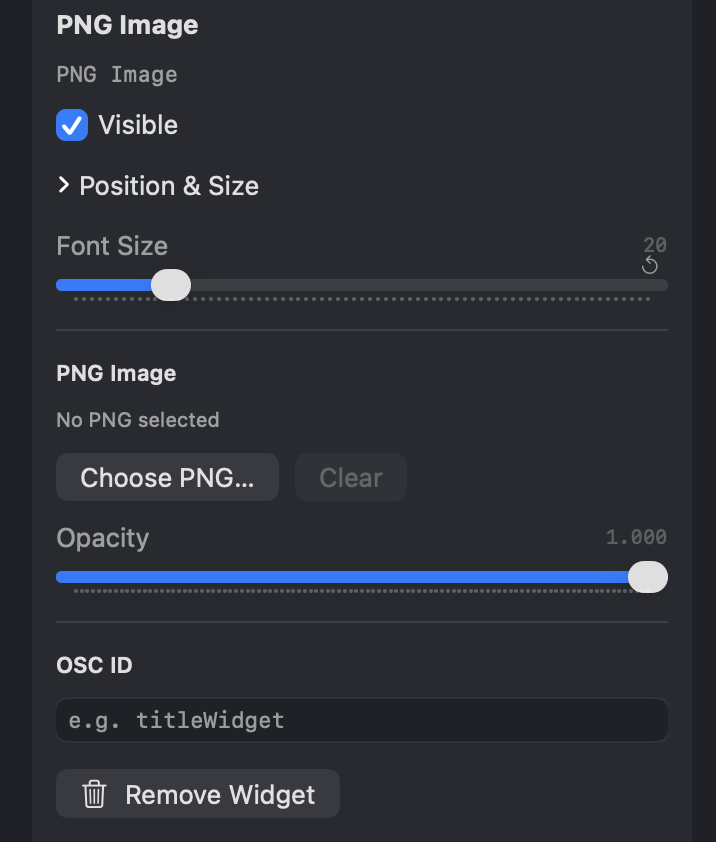
PNG Image
A custom PNG image. Drop in a company logo, venue branding, or a watermark, sized and positioned like any other widget.