Audio
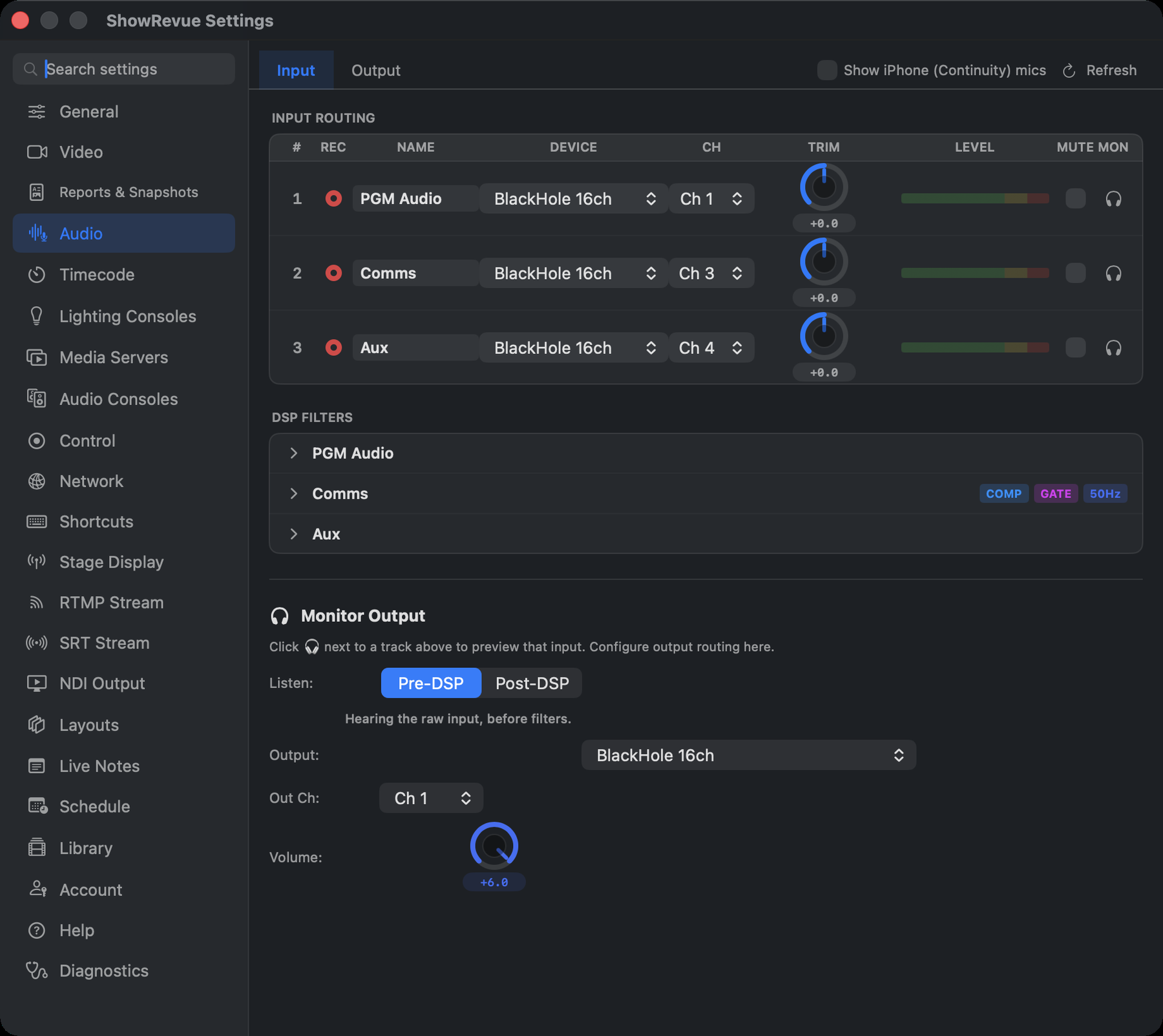
Audio: input routing, DSP filters, and monitor output.
Two sub-tabs: Input and Output. Above both: Show iPhone (Continuity) mics (off by default, because probing them slows the device list down) and Refresh to re-scan.
Input
Input routing is locked while recording. Stop to change devices or channels.
A recording has three input tracks: PGM Audio (on), and Comms and Aux (off until you switch them on). Each can take its own device and channel. LTC records on a track of its own automatically, the fourth, so don't add a track for it. The timecode input is chosen in one place, the LTC Audio card on the Timecode tab.
A track you name PGM TC or LTC only records that channel as audio. It does not feed the timecode counter, and the page says so.
The routing table gives each track:
| Column | What it does |
|---|---|
| REC | Record-arm. Click to exclude the track from the recording |
| NAME | Rename the track ("PGM", "Comms", "Aux"…) |
| DEVICE / CH | Which interface and channel it takes. A device that's gone shows as Missing Device |
| TRIM | −∞ to +6 dB. Double-click or right-click to reset to 0 dB; click the dB badge to type an exact value |
| LEVEL / MUTE / MON | Meter, mute, and headphone monitoring (one source at a time) |
DSP Filters
Per-track DSP needs a Base licence.
One expandable row per track. There's no EQ; these are the three filters:
- Compressor. Threshold (−60…0 dB), Ratio (1:1…20:1), Attack (0.5–200 ms), Release (10–1000 ms), with a live gain-reduction bar.
- Noise gate. Threshold (−80…−10 dB), with a live open/closed indicator.
- 50 Hz / 60 Hz notch. Mains hum. Mutually exclusive; pick the one your country runs on.
Monitor Output
Click the 🎧 on a track to preview that input. Choose the Output device, Out Ch and Volume here, and Listen Pre-DSP or Post-DSP to hear the input before or after the filters. A green Monitoring: indicator shows what you're listening to (a track, or LTC timecode). Pick your headphones rather than leaving it on the system default.
Audio Outputs
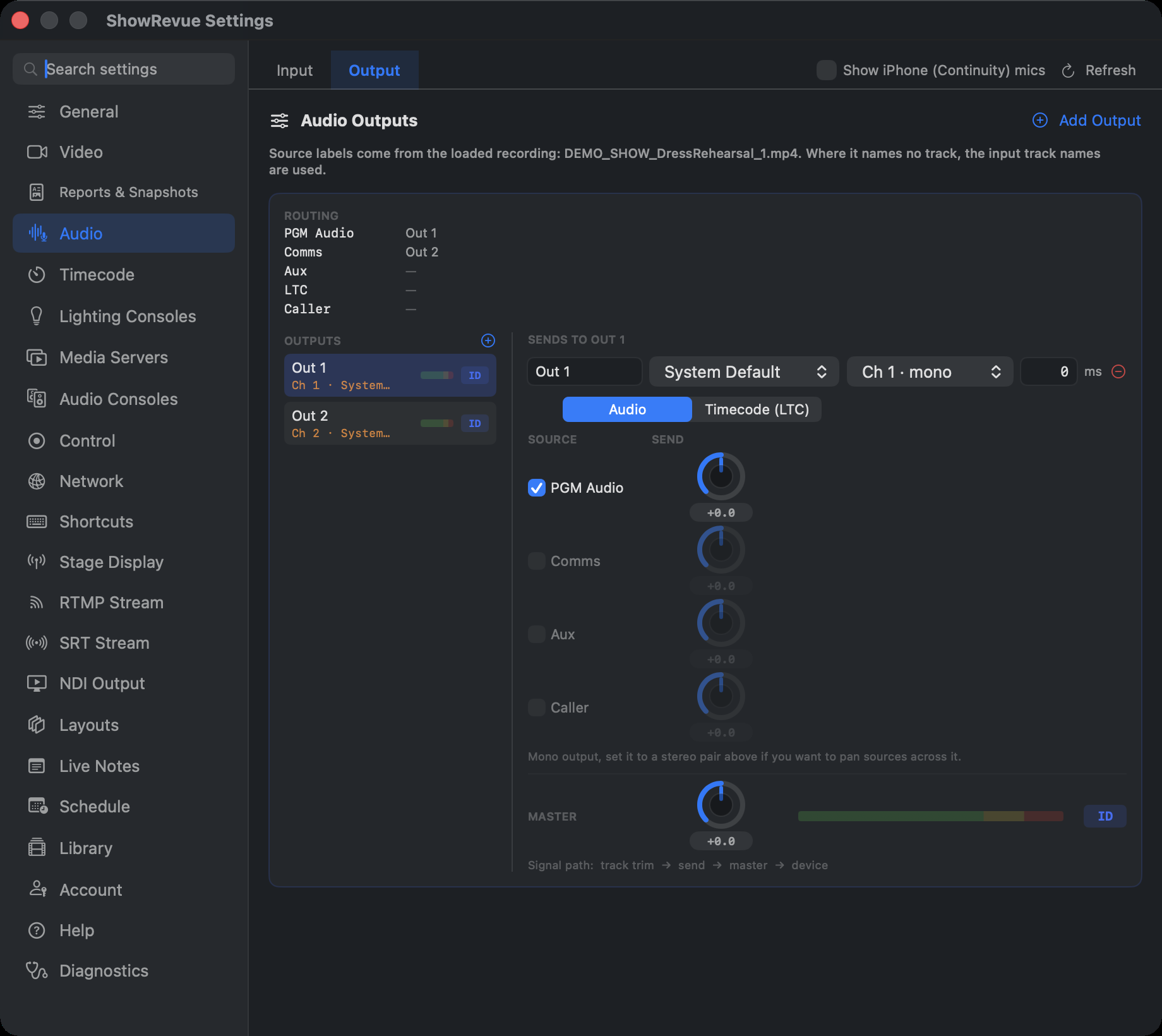
An output is a device plus one or two channels. Click Add Output, name it, point it at a device, then set what each source sends to it, the way you'd set sends on a desk.
Pick an output in the Outputs column to edit it. Each output carries either Audio or Timecode (LTC), set with the switch at the top. Choosing Timecode (LTC) clears the other sources from that output, because a desk can't read timecode with programme audio mixed into it. (LTC out on audio is a Base feature.)
On an Audio output, each source gets a row: a checkbox to route it there at all, a send level, and a pan. There are five rows: the three recorded tracks, then LTC (the recorded timecode, so a desk can chase it on playback), then Caller, the spoken cuepoint caller. Caller is off every output until you route it, so it goes to a comms or in-ear feed and never the house unless someone sends it there. Underneath, the output's own master level, meter and ID button.
Generated LTC on playback
If the recording has no LTC audio track, an LTC output doesn't go quiet. ShowRevue generates the timecode as the recording plays, from the timecode blocks the cues were stamped with, and it follows seeks and loops. In the gaps between timecode blocks the output is silent. A recording that does have a real LTC track still plays that track. Generation only starts once ShowRevue has scanned the file and confirmed it has no LTC track.
Stereo outputs
Give an output a right channel and it becomes a stereo pair, which is what makes pan mean anything. A single channel has nowhere to pan to, so pan stays disabled on a mono output.
Any two channels can be paired, so a multichannel interface can carry several independent stereo outputs (3+4, 5+6) rather than only 1+2. Pairing 1+2 is the setup to use for AirPods or the Mac's speakers, where a mono output would play in one ear only.
Levels
Three controls act in series:
track trim → send → master → device
The track trim is the input gain set further up this page, the send is how much of that source goes to this output, and the master is the output's own level.
Delay
Each output carries its own delay, 0 to 2000 ms, applied to everything sent to it.
This is for the room, not for the file. A speaker at the back of the stalls, a wireless monitor feed, a set of headphones on a Bluetooth link: each arrives later than the one beside it, and the delay lines them back up. The recording is untouched; only what leaves that output moves.
Leave it at 0 unless you can hear a reason to change it. It is easy to fix a problem in one place by creating a worse one everywhere else.
Identifying an output
ID plays a 2-second 1 kHz tone on that output alone, then speaks its name, with the meter live
throughout, so you can verify the route by ear and by eye. A blank name is announced as
Output 1.
The ROUTING summary at the top lists every source and where it goes. It's read-only: routing is switched on and off on the send rows.
During a session
The live view's OUTPUT panel has a mixer button for the same sends and masters, so monitor levels can be adjusted mid-session. Device and channel assignment stay here in Preferences.
Tracks, outputs, routing and send levels are saved in the .srshow, not machine-wide. Changing
them marks the project dirty.