Project Settings
Project Settings hold everything that is specific to this show and travels with the
.srshow project file, so when you move the file to another Mac, or a team member opens it, the
show's identity, cue mappings, timing, and note colours come with it.
Open it from File → Project Settings… (⌘⌥,). The sections run down a sidebar on the left, in
this order: Show, Sessions, Consoles, Timing, Notes, Statistics, Cloud
and Members.
Project Settings (⌘⌥,) are saved in the show file and travel with it.
Preferences (⌘,) are machine-level. Console IP addresses, audio devices, output folders, and
the like stay on the Mac you set them on.
Show
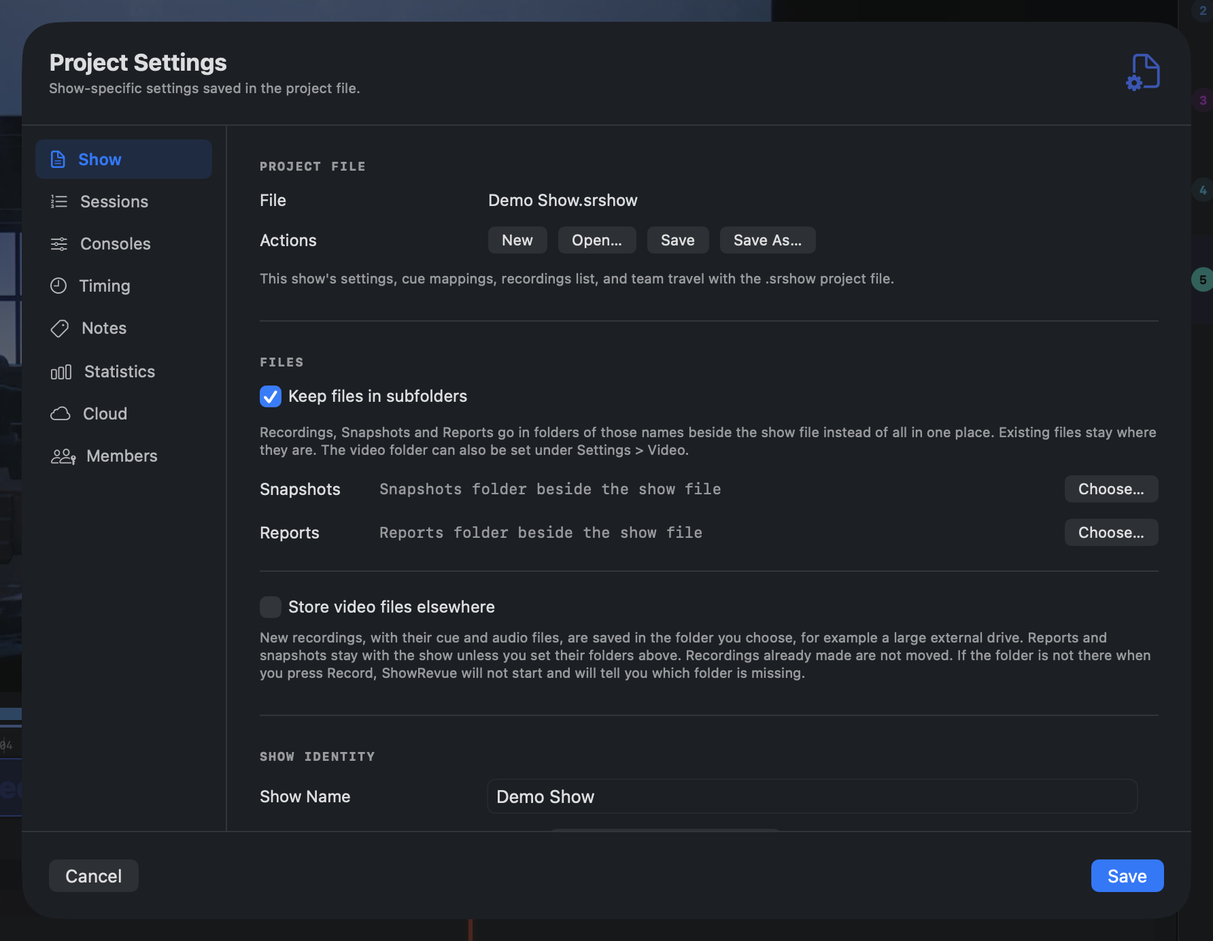
The Show section: the sidebar on the left, and the FILES block under Project file.
The first section. From the top:
- Project file.
New,Open…,Save,Save As….Newopens the Launch New Show wizard, the single way to create a project (a Skip button gives you the quick path). The show's settings, cue mappings, recordings list, and team travel with the.srshowfile. - Files. Where this show's recordings, snapshots and reports go. See Files below.
- Show identity. The Show Name and the Default Session type used for new recordings.
- Show branding. An optional Show Logo (PNG, JPEG, TIFF, GIF or HEIC; a transparent PNG at least 512 px on its longest edge and under 2 MB works best). It shows on the video overlay, the Stage Display, the emailed report and the companion app. Company is the name in the session report header, and Report includes has three tick boxes: Every LX cue, Snapshots and Notes. Show chat and Stage Display relay sit in the same block, below.
- Show chat. Enable show chat turns on one crew-wide feed on the Mac, the web Live Notes page and the companion app. Store chat with recordings keeps it with each recording so it replays in sync; with it off, messages are a rolling 24-hour buffer.
- Stage Display. Relay Stage Display messages to mobile devices sends operator messages (calls, show stop, custom) to show members' phones as push notifications, through the cloud session.
- Overlay layouts. Edit overlay layouts… jumps to the recording overlay editor (Show State, cue display, clock, logo placement). The widget layout is saved with the project.
Files
The FILES block sits under Project file. It used to be at the bottom of Timing.
- Keep files in subfolders. Recordings, Snapshots and Reports go in folders of those names beside the show file, instead of all in one place. It's on for new shows. Existing projects keep their flat layout until you switch it on, and files already on disk are never moved.
- Snapshots and Reports. Each shows its current default and has a Choose… button to point it at another folder, and a Default button to go back. With subfolders on, the default is the Snapshots or Reports folder beside the show file. With them off, snapshots sit beside each recording and reports use the Reports folder from Preferences.
- Store video files elsewhere. See the next heading.
Store video files elsewhere
Tick Store video files elsewhere and pick a folder, for example on a large external drive. It's a per-show setting, saved in the project file, so one show can record to a drive while another stays beside its project. The toggle and the buttons are locked while a recording is running.
What goes to the folder:
- New recordings (the video).
- The
_cues.jsonfile and the audio files that belong to each recording. They go in the same folder as the video, so playback and the Library keep working.
What stays where it was:
- Reports. They stay with the show, or in the Reports folder you chose above.
- Snapshots. They stay with the show unless you set a Snapshots folder. The exception is snapshots that sit beside each recording (subfolders off, no Snapshots folder set), which follow the video into the folder.
- Recordings you already made. Nothing is moved when you turn this on, change the folder or reset it.
With a folder chosen, the row shows its path with Choose…, Show in Finder and Reset to beside the project. Reset puts new recordings back beside the project file; it doesn't touch the files in the external folder.
If the folder isn't there when you press Record, ShowRevue doesn't start the take. The message names the missing folder and tells you to reconnect the drive or reset the setting. It never records somewhere else on its own. This is checked on every Record press, so a drive plugged in after the project opened is picked up. A recording that's already running is never touched.
The project still opens when the drive is missing, and Project Settings says the folder isn't available. Open the same project on another Mac and the folder path is kept, so recording there is refused until a folder with that path exists.
The Library lists the video folder of the open show as well, with a read-only scan, when the project opens, when you choose a folder, and when a drive mounts. See Statistics for how a missing drive shows up in the counts.
Sessions
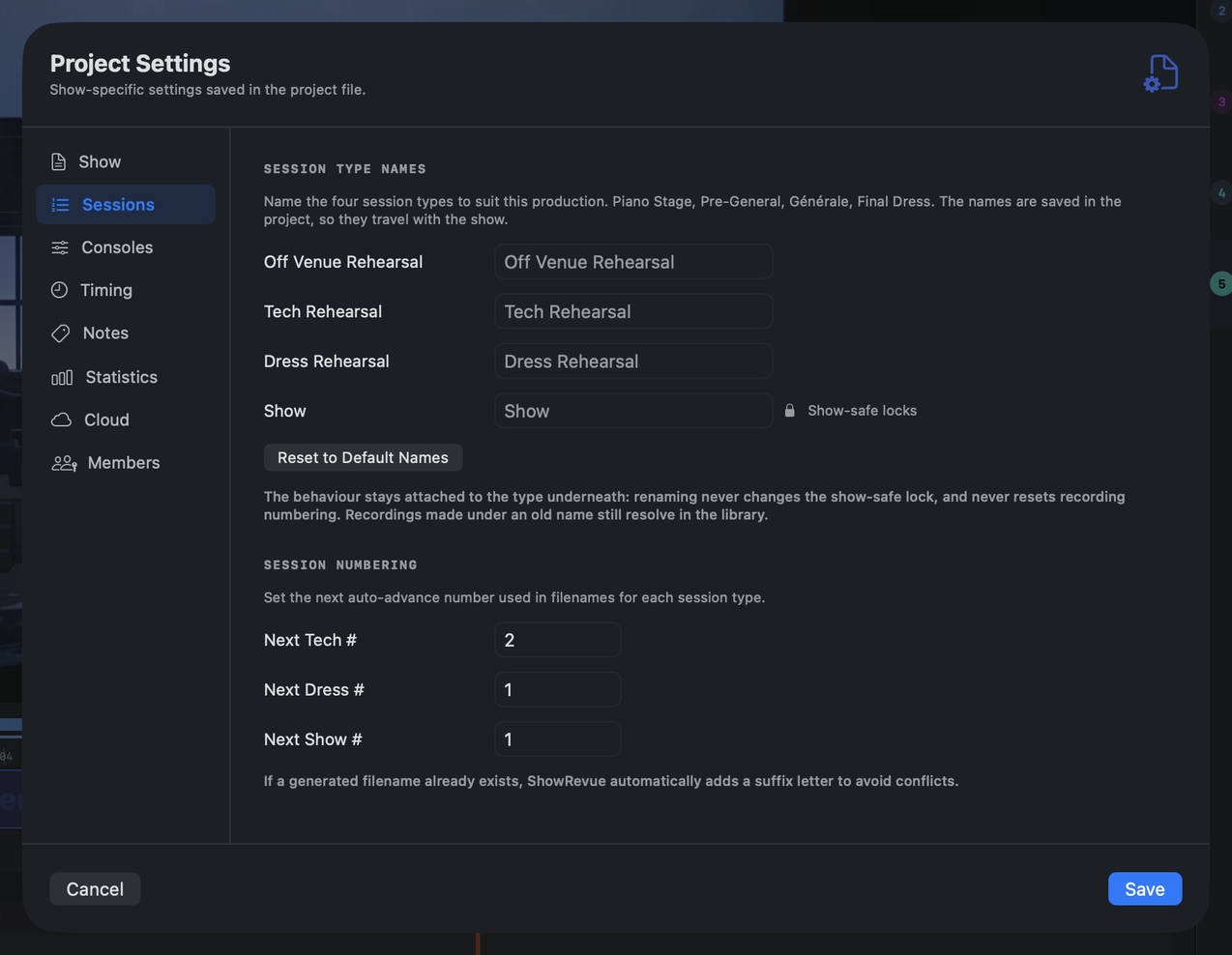
Session numbering. The next auto-advance number used in filenames for each session type (Tech, Dress, Show). If a generated filename already exists, ShowRevue automatically adds a suffix letter to avoid conflicts.
Session type names. Rename all four types to whatever your house calls them: Piano Stage, Pre-General, Générale, Final Dress, in any language. The names are saved in
the .srshow and travel with the production, so two shows on one rig can name their types
differently.
The names are labels only. The type identity underneath is unchanged. The fourth type still drives the show-safe output lock and the date-stamped show filenames whatever you call it, renaming never resets your numbering, and recordings made under an old name still resolve in the library.
Consoles
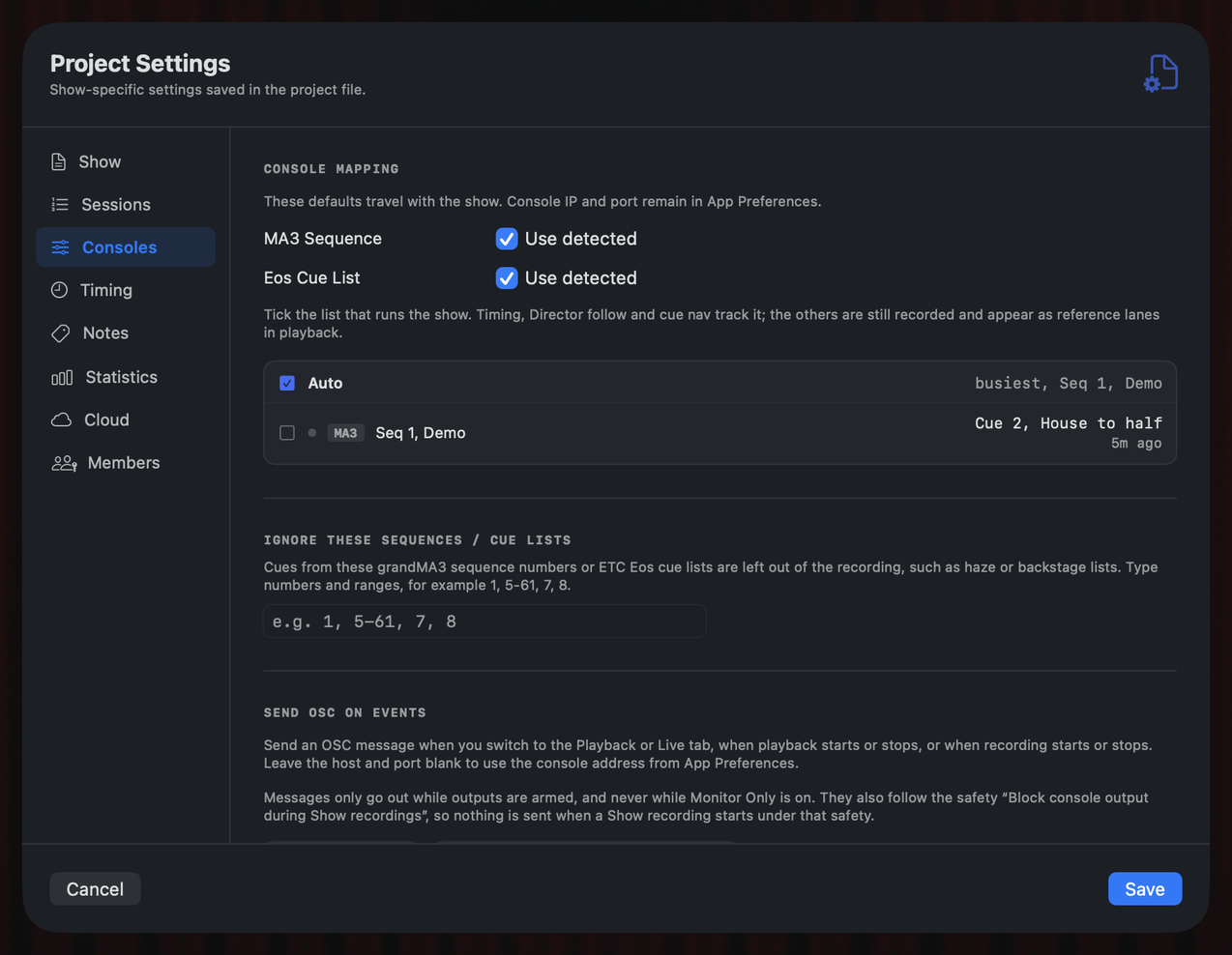
The main show cue list picker, and the list of cue lists the desk is running.
Console mapping (with the main show cue list), the lists to ignore, and Send OSC on events. The console's IP address and port stay in Preferences (machine-level), since they change per venue.
Console mapping
- MA3 Sequence. Use detected follows the sequence the desk is sending. Untick it to type a sequence number (Seq #).
- Eos Cue List. Use detected follows the cue list the desk is sending. Untick it to type a list number (List #).
There's no "fire cues back to" switch. Each recorded cue remembers which console it came from, and Go and Go To Cue in playback send it back there: grandMA3 cues to the grandMA3, Eos cues to the Eos. Cues from other sources use the console choice in Preferences. Firing back needs Professional. grandMA2 is receive-only.
Main show cue list
Shows often run several cue lists at once. The book, followspots, video-from-LX. Every list is recorded (unless you've narrowed Preferences → Lighting Consoles → Sequence from All sequences, or ignored it above). But one of them is the show, and ShowRevue needs to know which: the main list drives running-time and interval timing, Director NOW/NEXT follow, up/down cue navigation, the Main Lighting Cue overlay widget, Stage Display and Live Notes.
One list holds every Eos cue list and MA sequence this show has ever been heard running, by number and by the console's own name for it. Each row has a tick box, a green dot when the list fired in the last minute, its console badge (EOS, MA2, MA3), the last cue it fired and how long ago. Tick the list that runs the show. The Auto row at the top picks the busiest list, and ticking the current pick again goes back to Auto. The roster is saved in the project, so it's populated the moment the show opens, before you record a frame. A list that has never recorded a cue shows a cross on hover to forget it. The other lists stay as reference lanes in playback, and can be put on the layout with Secondary Lighting Cue widgets.
Ignore these sequences / cue lists
Leaves cues from the grandMA3 sequence numbers or ETC Eos cue list numbers you type out of the
recording, for example a haze or backstage list. Type numbers and ranges separated by commas, like
1, 5-61, 7, 8. Spaces and semicolons work as separators too, and a range can be written either
way round. Anything it can't read is skipped, and the field turns orange with "No numbers found" if
nothing in it is a number.
- The setting is saved in the project file, so each show keeps its own list.
- Ignored cues never reach the cue list.
- The same numbers apply to grandMA3 sequences and Eos cue lists.
This is separate from Preferences → Lighting Consoles → Sequence, which is a machine-level filter to one grandMA3 sequence.
Send OSC on events
Sends an OSC message when you switch tabs, when playback starts or stops, and when recording starts or stops. It needs Professional. The full guide is Send OSC on events.
Timing
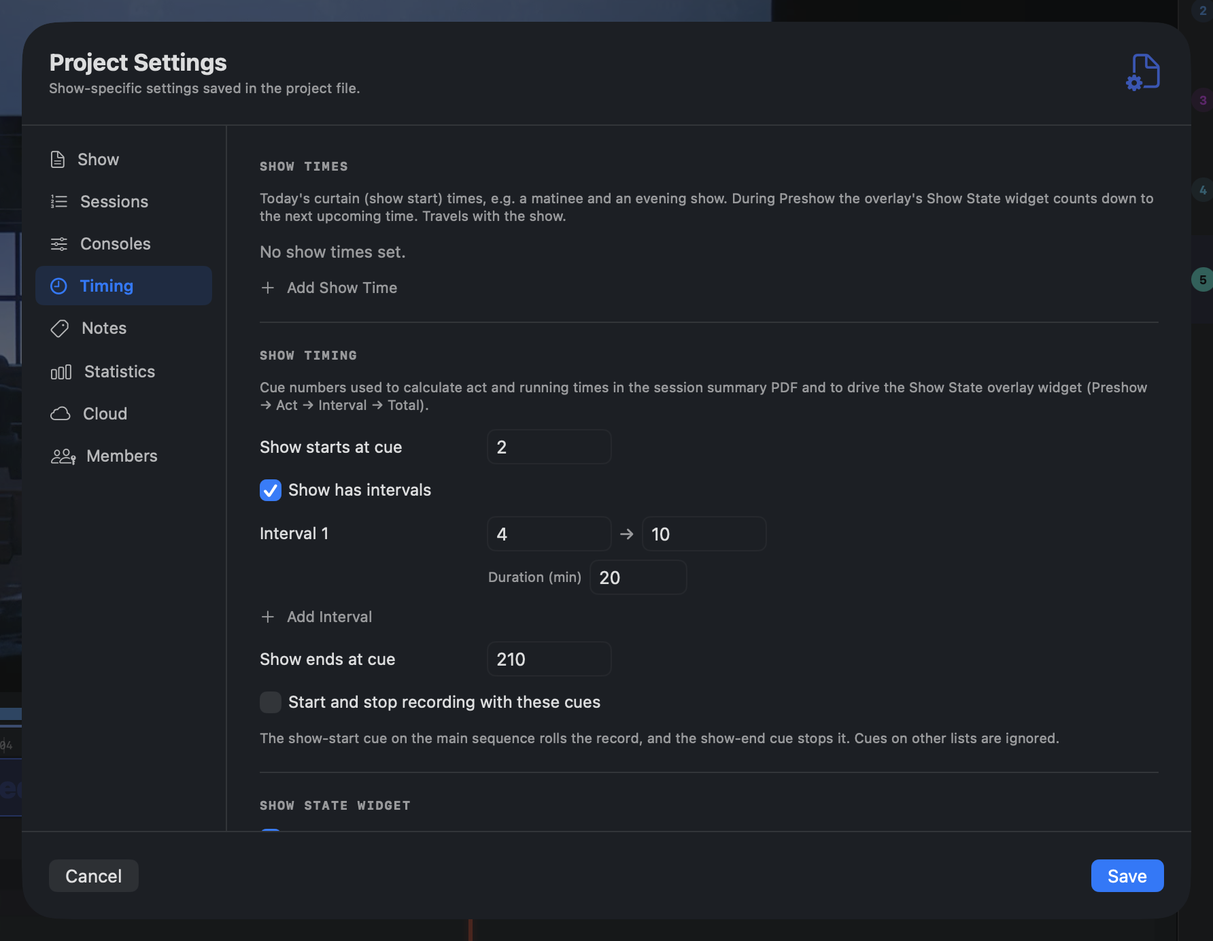
Drives the running times in the session summary PDF and the Show State overlay widget. The acts, interval lengths and curtain times are first set in the Launch New Show wizard when you create the project; this tab is where you edit them afterwards.
- Show times. Today's curtain (show-start) times, e.g. a matinee and an evening show. Times count down to the next upcoming one and travel with the show.
- Show timing. The start, interval, and end cues used to calculate act and running times (Preshow → Act + Interval + Total). Turn on Start and stop recording with these cues and the same two numbers drive the transport: the show-start cue on the main sequence rolls the record, the show-end cue stops it. Cues on other lists are ignored.
- Show State widget. Auto-advance Show State from lighting cues, and optionally hide the widget unless the session is a Dress Rehearsal or Show (so the countdown isn't misleading in tech).
- Cuepoint Caller. Speak cuepoints as they approach: "Standby for name" at the Standby lead (in seconds), optionally Also call at 30, then "name, go" on the point. Route the Caller row in the audio Output mixer to a comms send or in-ear feed, never the house. See Director View. Needs Max.
The Files settings are now under Show.
Notes
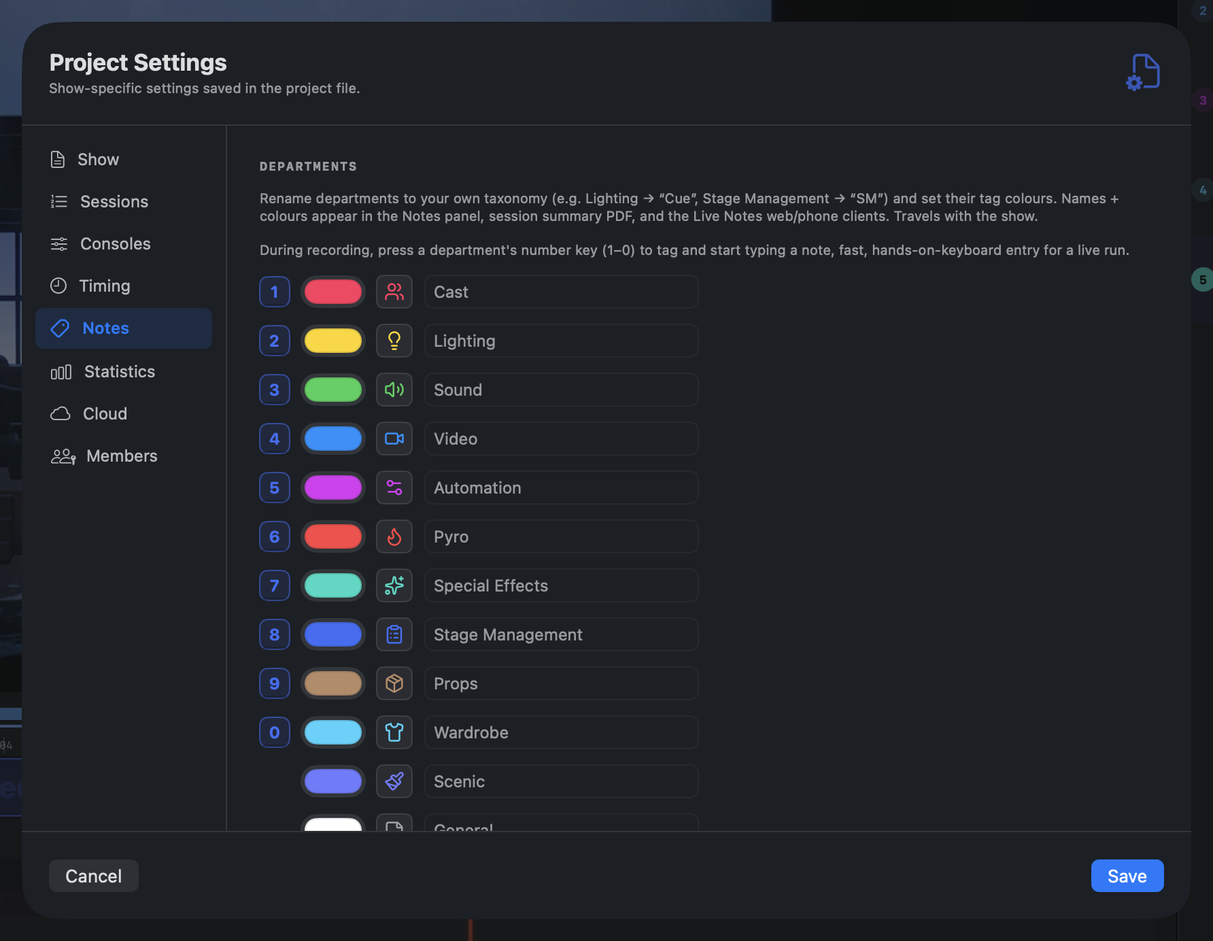
Department colours used for note department tags in the Notes panel, the session summary PDF, and the Live Notes web client. Cast, Lighting, Sound, Video, Automation, Pyro, Special Effects, Stage Management, Props, Wardrobe, and Scenic. These travel with the show.
Quick notes are the one-tap phrases offered for each department, as chips in the Live note sheet and on the phone.
Department names and icons can be renamed here too (for example Lighting to "Cue"), and the number keys 1 to 0 tag a note to a department while you record.
Quick notes are blank by default, which uses the built-in phrases. Enter comma-separated phrases per department to replace them. They also appear as buttons on the phone, the tablet and the cloud Live Notes page, and can be fired from a console over OSC.
Show team is a list of email addresses that receive the session report PDF when auto-email is on (Preferences → Session Reports). One per line or comma-separated. People who open the cloud Live Notes page can opt in here too. It travels with the show.
Statistics
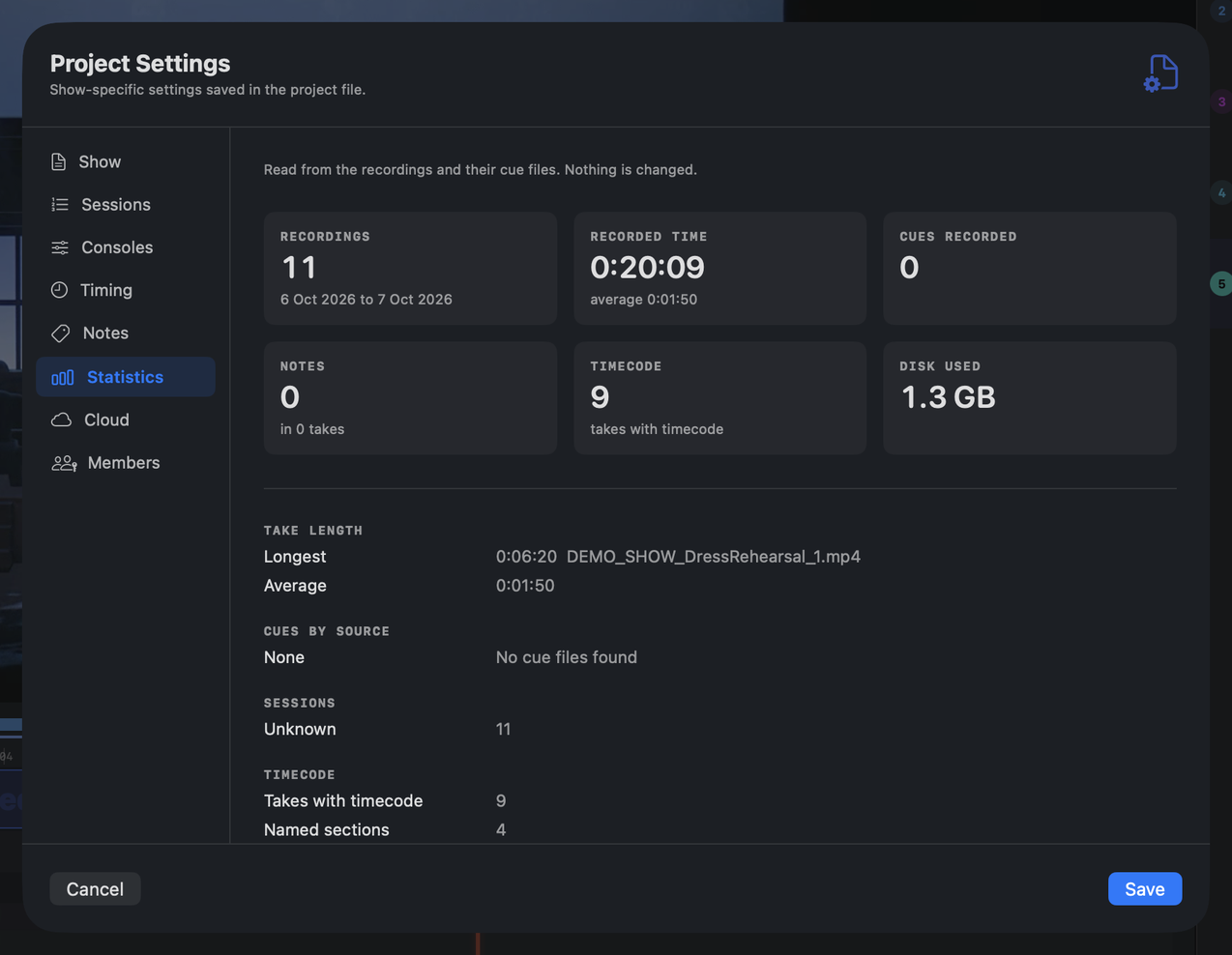
Statistics: the tiles and detail groups, read from the recordings and their cue files.
A read-only summary of the show's recordings: counts, time, cues, notes, disk use and a table of takes. Nothing is written or changed. It has its own page: Project Statistics.
Cloud
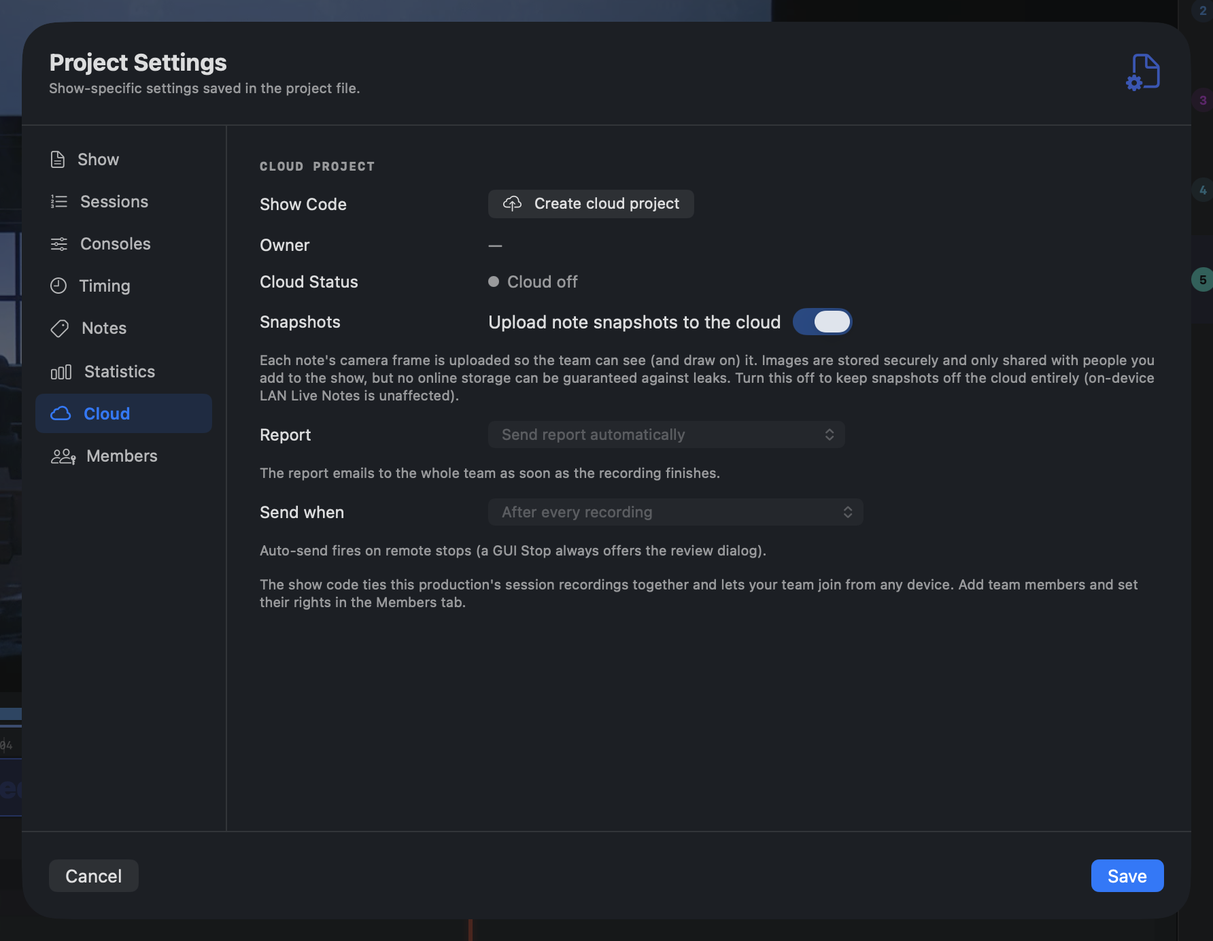
Ties this production's recordings together and lets the team join from any device.
With no cloud show yet, the tab offers Create cloud project. You need to be signed in (Preferences → Account) with a valid licence. Hosting needs Max (see Licence Tiers). If you turned on Create a cloud show in Launch New Show, it's already done. Reconnect to an existing show takes an existing show code instead.
- Show Code. The show's code, with Copy. Use New code to roll it, or Disable to
turn cloud off. The Share section has the link (
showrevue.com/livenotes/<code>) and Show QR. Having the code lets someone ask to join; they get in only once an owner or a member with the Approve right approves them on the Members tab. - Owner and Cloud Status. Who owns the cloud show and whether it's online.
- Snapshots. Optionally upload note snapshots to the cloud. With it off, images stay on local storage and on-device LAN Live Notes is unaffected.
Each note's camera frame is uploaded to the team per cue; images are stored securely and only shared with people you add to the show. Access is granted by the team roster on the Members tab; there's no shared password.
- Report. What happens to the session report when a recording finishes: Send report automatically, Store a draft report in the cloud, or Store a draft and notify the stage manager. This mirrors to the website, so the show's page agrees. When it's set to send automatically, a Send when picker chooses the trigger, after every recording, once per day (the day's last recording), or only a completed show that reaches its end cue. Auto-send fires on a remote stop; a GUI Stop always offers the review dialog. See Reports.
Backup host
Two Macs can't clobber one cloud show. The active host claims a single-writer lease on every push; if a second Mac tries to publish to the same show it's rejected and stands down, so a stray open of the same production never fights the desk for control.
To run a hot spare, tick Run this Mac as a backup host. The backup captures the show locally like any other Mac but doesn't publish to the cloud while the primary host's lease is healthy. If the primary's lease goes stale (it drops off the network or crashes) the backup takes over automatically, once it's receiving timecode and cues of its own, and starts publishing in the primary's place.
Prompt Copy
The show owner nominates one recording as the show's Prompt Copy. The take the cloud Director runs off by default when someone opens the show with no file or video of their own.
Members
The cloud show's team. It needs a cloud project; without one the section says to create or reconnect one.
- Add people by email. Type an address and press return to invite someone. An invited person shows an INVITED tag until they join.
- Waiting for approval. Requests to join land here with Approve and Reject; nobody gets in until they're approved.
- Names. A member shows by name where we have one (their account name, or a name from their signup, trial or education form), with their email underneath. Where there's no name, the email shows on its own.
- Remove. The cross at the end of a row removes the person, or cancels an invite. They lose access to the show's recordings and cloud notes, and can ask to join again.
- Copy rights from… The menu at the top right lists your other shows. Pick one and the rights you set there are copied to the members who are also in this show, and a line says how many members were copied. If none of this show's members match the other show's, it says "No matching members to copy to", and "Copy failed" if the server couldn't do it.
Each person has their own rights:
| Right | What it allows | On for a new member |
|---|---|---|
| Notes | Post notes to the show (off means view-only) | Yes |
| Comment | Comment on and reply to notes | Yes |
| Delete | Delete other people's notes (everyone can delete their own) | No |
| Record | Start and stop recording from the companion app | No |
| Messages | Send Stage Display messages | No |
| Approve | Approve pending join requests | No |
| Reports | Receive the session report PDF by email after each session | Yes |
Owners and co-owners hold every right, shown as a tick you can't change. Rights are enforced by the cloud. A typical split: the director gets Notes and Reports, and recording stays with the stage manager.