Scheduling
Scheduled recording needs a Max licence. See Licence Tiers.
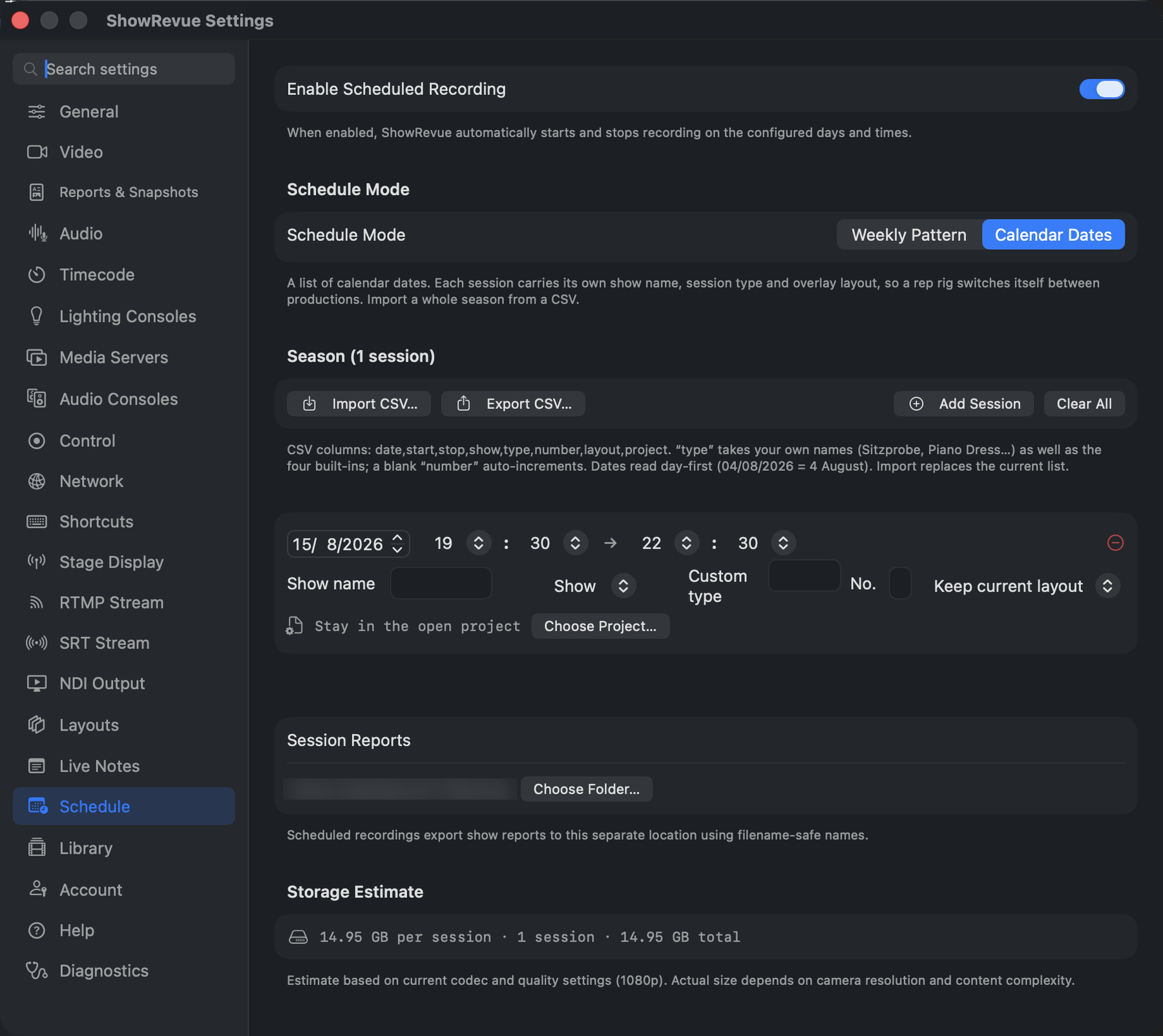
Preferences → Schedule with Enable Scheduled Recording on, in Calendar Dates mode.
What scheduling does
Scheduling is one of four record triggers. The others fire off the main sequence, a DMX control channel, or timecode.
Scheduled recording automatically starts and stops on the days and times you define.
When scheduling is enabled, ShowRevue:
- starts recording when the current time enters an active record window,
- stops recording when the current time leaves that window,
- applies the session type (and, in Calendar Dates mode, the show name and overlay layout) for that recording,
- shows the next trigger in the main toolbar.
It never auto-stops a recording you started by hand, and it will refuse to auto-start a window the disk can't hold to the end of (a surprise mid-show stop being the worst possible failure).
A scheduled stop finalises the recording silently. The Show complete bar only appears when you stop by hand with the on-screen Stop button, so an unattended rig never sits waiting at the end of a slot. Auto-send email and the cloud draft still run on a scheduled stop.
Two modes
| Mode | Use it when |
|---|---|
| Weekly Pattern | The week repeats: same times, same session type, on the chosen weekdays between two dates. |
| Calendar Dates | It doesn't. Rep and repertory houses, festivals, split weeks. A list of dated sessions, each with its own show, session type and overlay layout. |
Setup: Weekly Pattern
Open Preferences → Schedule.
- Turn on Enable Scheduled Recording.
- Choose Weekly Pattern.
- Set the Start Date and End Date.
- Choose the active Days of Week.
- Add one or more Record Windows.
- Choose the Session Type to use for scheduled runs.
- Optionally pick a Project. The
.srshowevery scheduled run in the pattern records into. Blank = record into whatever project is open.
Setup: Calendar Dates
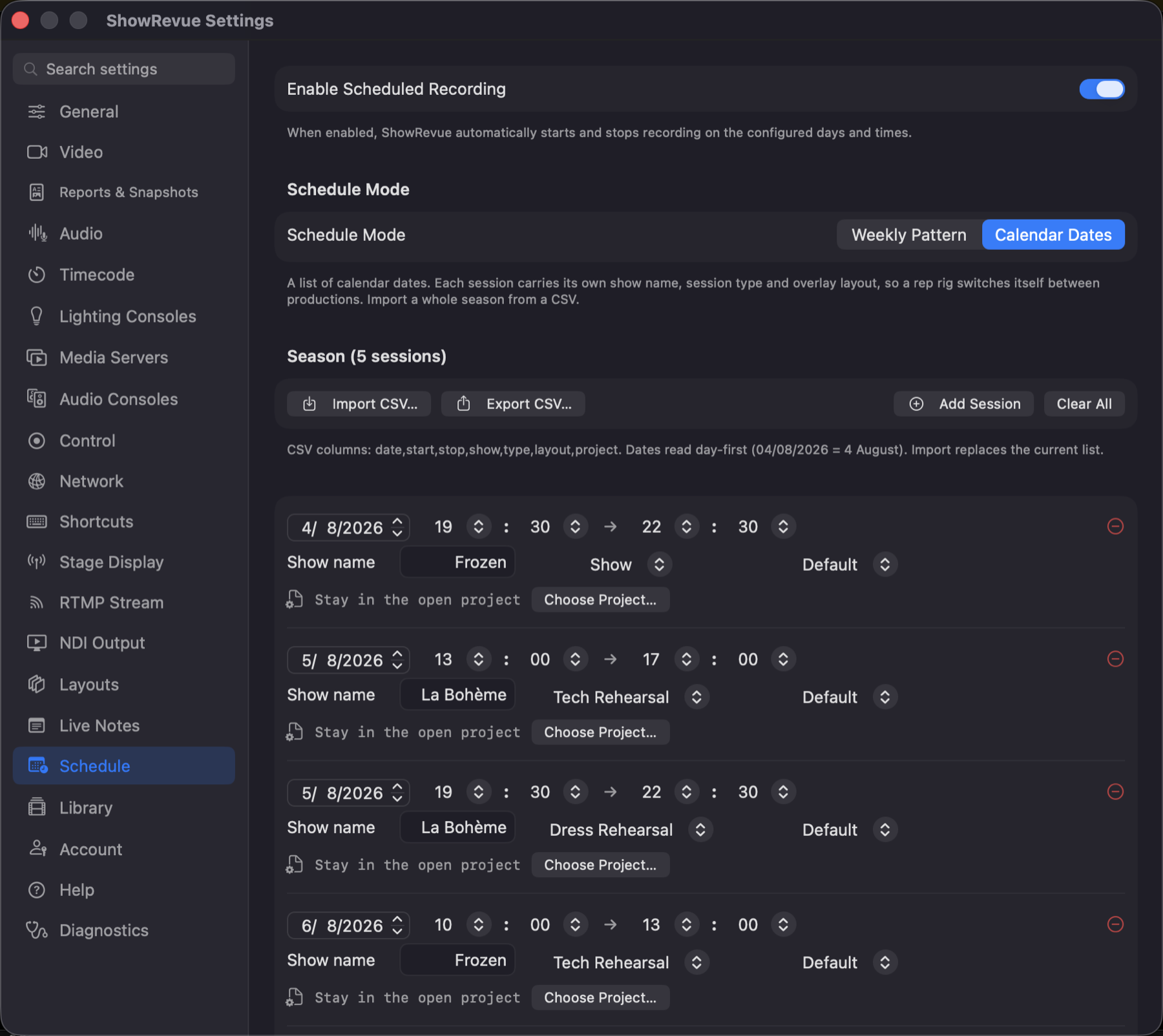
Calendar Dates: one row per recording. Date, start/stop, show name, session type, overlay layout and the project it records into. Import the whole season from a CSV.
- Turn on Enable Scheduled Recording and choose Calendar Dates.
- Import CSV… a whole season, or Add Session to build the list by hand.
- Each row is one recording: date, start, stop, show name, session type, overlay layout, and the project file it records into.
Set it once at the top of the season and leave it. The rig switches itself between productions with no daily input. Leave the show name, layout or project blank on a row to keep whatever the machine is currently set to.
One rig, two productions
Point a session at a different .srshow and the scheduler opens that project before it rolls. Its devices, cue mappings, overlay layouts, show team and Live Notes cloud show all come with it. A Tuesday Frozen dress and a Wednesday Bohème tech can live on one machine, unattended.
The project is given time to load before recording starts. If the file has moved, ShowRevue logs it loudly and records into whatever project is open. A missing path never costs you the take. Unsaved changes to the outgoing project are saved first; the switch never stops to ask.
Weekly Pattern can name a project too. One .srshow for the whole pattern (Preferences → Schedule → Project).
CSV format
date,start,stop,show,type,number,layout,project
2026-08-04,19:30,22:30,Frozen,Show,1,Show Layout,~/Shows/Frozen.srshow
05/08/2026,13:00,17:00,"La Bohème, Act I",Tech Rehearsal,,Tech Layout,~/Shows/Boheme.srshow
06-08-2026,1930,2230,Frozen,Dress Rehearsal,3,,
- Dates read day-first (
04/08/2026= 4 August).yyyy-MM-dd,dd/MM/yyyyanddd-MM-yyyyall work. - Times accept
19:30,1930or7:30pm. A stop time earlier than the start spans midnight. - Show titles containing a comma must be quoted.
- Type matches your own session type names and the defaults, and will also take a name of your own. See Your own session type names.
- Number pins the session number for that row. Blank = carry on auto-incrementing.
- Layout is an overlay layout preset name.
- Project is a path to a
.srshow.~is expanded. Blank = stay in the open project. - Import reports any layout or project the CSV names that this machine doesn't have, so you find out at your desk, not on the night.
- The header row is optional. A headerless file is read as
date,start,stop,show,type,layout,project,number:numbersits last there so headerless files written before it existed still line up. - Import replaces the current list. Export CSV… writes the current list back out to edit in a spreadsheet.
Your own session type names
The type column takes whatever your house calls the session. It doesn't have to be one of the four built-in types.
date,start,stop,show,type,number,layout,project
2026-09-01,10:00,13:00,Fidelio,Piano Stage,1,,
2026-09-02,10:00,13:00,Fidelio,Sitzprobe,1,,
2026-09-03,10:00,13:00,Fidelio,Stage Orchestra,1,,
2026-09-04,18:00,22:00,Fidelio,Pre-General,1,,
2026-09-05,18:00,22:00,Fidelio,Final Dress,1,,
2026-09-07,19:00,22:00,Fidelio,Show,1,,
The name is used as-is in the recording filename (Fidelio_Sitzprobe_1, Fidelio_PianoStage_2) and each name keeps its own count. Your third Sitzprobe is Sitzprobe 3 no matter how many piano stage rehearsals happened in between.
Spaces and punctuation are removed for the filename (Piano Stage → PianoStage), so a name with an awkward character is still safe on disk.
Names that match a built-in type still behave like that type, whether or not you've renamed it in Project Settings. Show carries the show-safe behaviour, so a run named as a show is still treated as one.
A name of your own can declare what it behaves as, too. In Preferences → Schedule, the type picker next to a custom name sets which built-in rules that name runs under. Set "Final Dress" to behave as a dress rehearsal once and every later import of that name gets it. Unmapped names behave as a tech rehearsal.
Pinning session numbers
Leave number blank and ShowRevue counts up on its own, as it always has. Fill it in and that row records with exactly that number.
date,start,stop,show,type,number,layout,project
2026-09-10,19:00,22:00,Fidelio,Show,1,,
2026-09-12,19:00,22:00,Fidelio,Show,2,,
2026-09-15,19:00,22:00,Fidelio,Show,3,,
You can then read down the spreadsheet and see that the right number lands on the right day, rather than trusting the count.
A pinned number also re-syncs the counter. Pin show 3 on the 15th and an unnumbered show after it records as 4. So you can number the ones you care about and leave the rest blank.
Both columns are editable per row in Preferences → Schedule, so you can fix one session without re-importing the season.
The import summary ends with a dry-run of the numbering. One line per row, Wed 3 Sep. Fidelio · Sitzprobe 2. So you can check the right number lands on the right day before the season is armed. Rows before any pinned number show as auto, because they depend on the counter on the machine at fire time.
Record windows (Weekly Pattern)
- You can configure up to 4 time slots.
- Each slot has a Start and Stop time.
- Slots can span midnight if the stop time is earlier than the start time.
Session reports folder
Scheduled recordings export show reports to a separate folder.
In Preferences → Schedule, use Choose Folder… in the Session Reports section to pick that export location.
Storage estimate
The scheduling pane shows a storage estimate based on your current codec and quality setting, and on the scheduled sessions themselves. The record windows across the date range in Weekly Pattern mode, or the length of every dated session in Calendar Dates mode.
Next trigger
When scheduling is active, ShowRevue shows the next scheduled start in the toolbar as a calendar badge (Next: 19:55 in Weekly Pattern mode, or Next: Sat 8 Aug 19:30, Frozen · Show in Calendar Dates mode).