Stage Visualizer
The Stage Visualizer is a 3D view of your set and automation. It receives live tracking data (PosiStageNet and RTTrP), shows your rig and scenery in 3D, and lets you bind incoming trackers to objects so flown bars, lifts, trucks and screens move on screen exactly as they do on stage. Everything you set up travels with the show, and recorded automation plays back in sync with the video.
Open it from the cube button in the toolbar, the Window ▸ Stage Visualizer menu (⌘⇧3), or (during playback) the Stage section at the bottom of the right-hand panel.
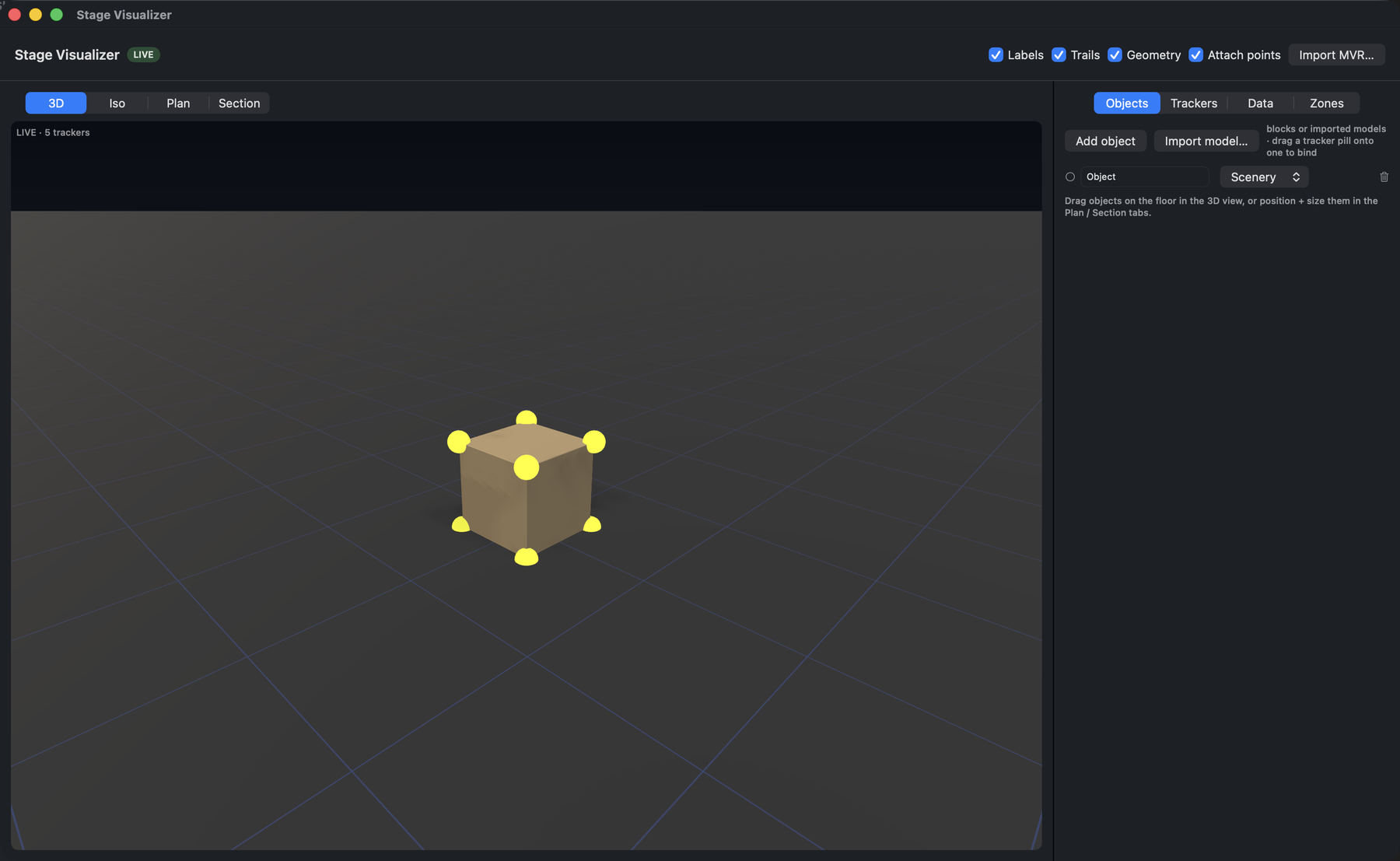
The Stage Visualizer: 3D / Iso / Plan / Section views (left), and the Objects · Trackers · Data · Zones panel (right) for importing models and binding trackers.
The 3D tools are review aids, not a safety system. Safe zones are advisory only. Never an interlock.
Tracking input
ShowRevue listens for two motion protocols and treats them identically once decoded:
- PosiStageNet (PSN v2). UDP multicast (default
236.10.10.10:56565). Position, speed, and orientation per tracker. - RTTrP / RTTrPM (v2.4.2.0). Real-Time Tracking Protocol (e.g. BlackTrax). Centroid position + orientation. Enable it and set the port in Preferences.
Each tracker carries an XYZ position (metres, Z = height) and an optional orientation (pitch / tilt / rotate). The live values are shown in the visualizer's Data tab, where you can choose which fields to display.
Building your stage
You have two ways to get a set into the visualizer. Use either or both:
Import an MVR
Choose Import MVR… to load a .mvr file exported from your lighting/pre-viz software. ShowRevue
reads the rig (trusses, fixtures, scenery, screens) and renders fixtures from their GDTF
models where available. The MVR is embedded in your .srshow, so the show is self-contained.
Build in-app
No MVR? Open the Objects tab and Add object to drop in simple blocks (scenery, truss, fixture, screen, support). Size and position them by dragging in the Plan and Section viewports, or drag them straight across the floor in the 3D view.
You can also Import model… to bring in a custom 3D model (glb, gltf, usdz, obj, scn,
dae). It renders as the real mesh and behaves like any other object.
Attaching trackers to objects
Tracking systems send positions, not object names, so you tell ShowRevue which tracker drives which object:
- Make sure a tracking source is active (you'll see tracker pills in the Trackers tab).
- Drag a tracker pill onto an object in the 3D view. The object lights up as you hover so you can see the drop target.
- The object now follows that tracker.
A few details:
- Relative is the default. The tracker value is treated as an offset from the object's home position, which matches how most motion systems report moves. Turn off relative on a binding to treat the value as an absolute stage position instead.
- One tracker can drive several objects. Drag the same pill onto a screen and a truss to fly them together. Each binding is listed with its own Unbind.
- Bindings are saved with the show.
While anything is moving, the driven objects glow so it's obvious what's in motion.
Attach points and corner bindings
Turn on Attach points (the toggle above the 3D view) to show small markers on the eight corners of each box object, where a winch or flying line would actually rig. With the markers showing, you can bind a tracker to one corner instead of the whole object: drag the tracker pill onto a corner dot rather than the body. The dot pops as you hover it, so you can see which corner you're about to hit.
A corner binding drives the object so that corner follows the tracker, which matches a single line pulling one end of a bar. Drop the pill on the body instead and the tracker drives the whole object by its origin, as before. Corner bindings are saved with the show like any other binding.
Viewports & cameras
The viewport switches between 3D, Iso (level orthographic), Plan (top-down) and Section (side). Toggle Labels, Trails and Geometry (real models vs fast blocks) to taste.
Recording & playback
When you record, live automation is captured into a sidecar alongside the .mov. On playback the
rig replays in sync with the playhead. Scrub the timeline and everything follows, with speeds
and rotations reproduced. During playback, expand the Stage section to swap the video for the 3D
view while keeping the timeline and transport in place, or pop out the full window.
You can include a Position / Automation section in the session report PDF to list the recorded moves.
Safe zones (advisory)
In the Zones tab you can draw box/cylinder safe zones and set which cue they become active from. If a tracker enters an active zone during a take, the visualizer flags it and the session report can list the breach. This is advisory only and must never be relied on as a safety interlock.